
Please contact us to receive the license installer.
How does it work?
Our trial license is a software license (SL) which, unlike our hardware licenses (HL), must be installed on the user's computer.
It activates automatically upon first use and lasts for a specified number of days.
It cannot be transferred to another computer after installation and cannot be extended or reinstalled on the same computer.
To install it, please follow these steps:
- Step
First install the Sentinel HASP driver.
When you're done, open the Admin Control Center page in your browser.
- Step
Once you receive the link to the license installer, download it and save it to your disk.

- Step
The license, like the HASP driver itself, must be installed by a user with administrator privileges.
To do this, run the Windows Command Prompt as a system administrator.
From the Start Menu (Most Common)- Click the Start button (Windows icon).
- Type cmd or Command Prompt in the search bar.
- Right-click the "Command Prompt" app in the results.
- Select "Run as administrator".
- Click "Yes" on the UAC prompt.
and finally run the command haspdinst_Data_Protection_10_Days_Trial.exe -i
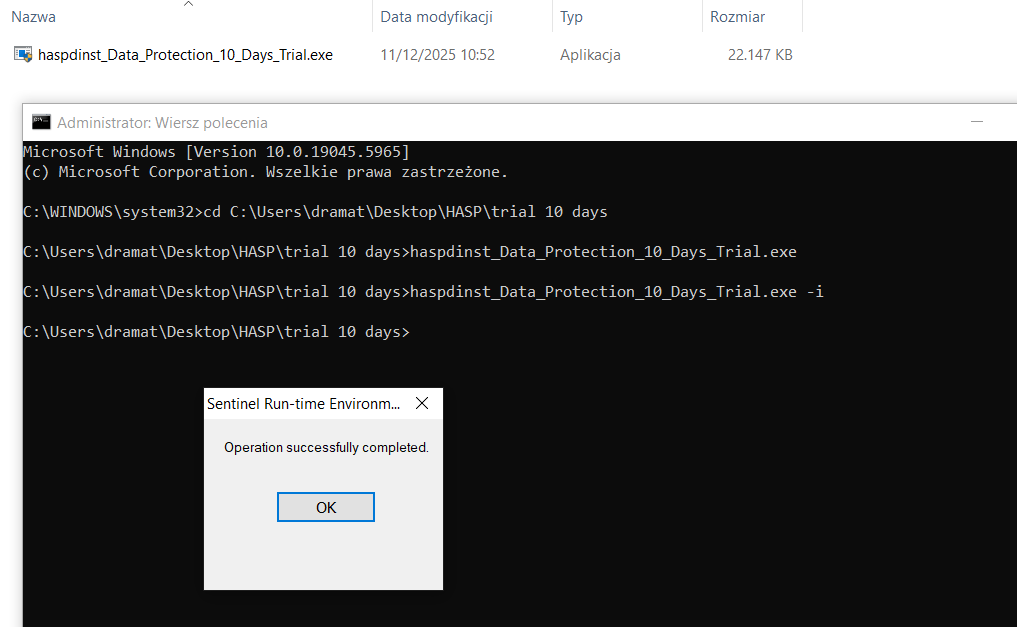
- Step
After successful installation, the new license will be displayed as available in the Admin Control Center.
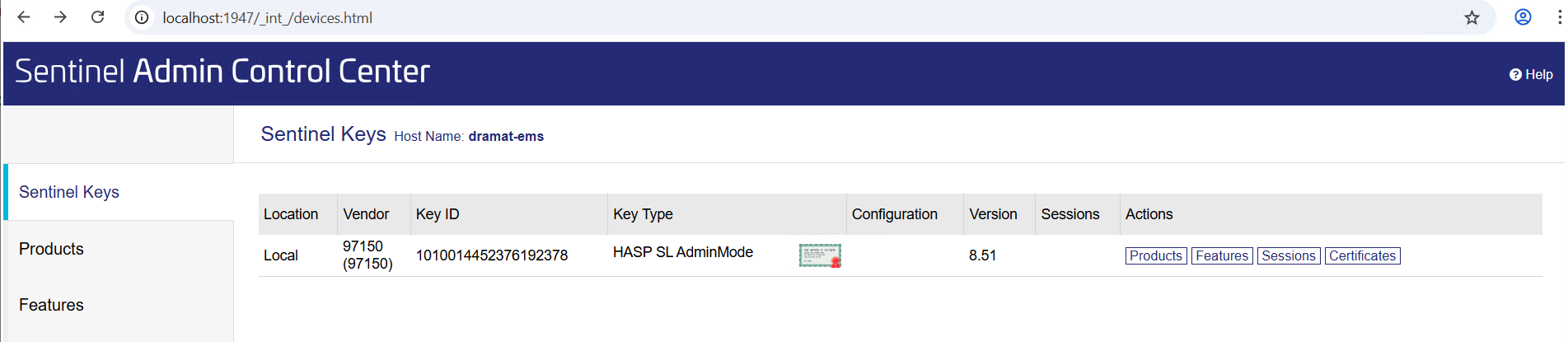
- Step
After clicking on the "Features" button on the right, additional information will be displayed about whether the license has been activated and when it will expire.
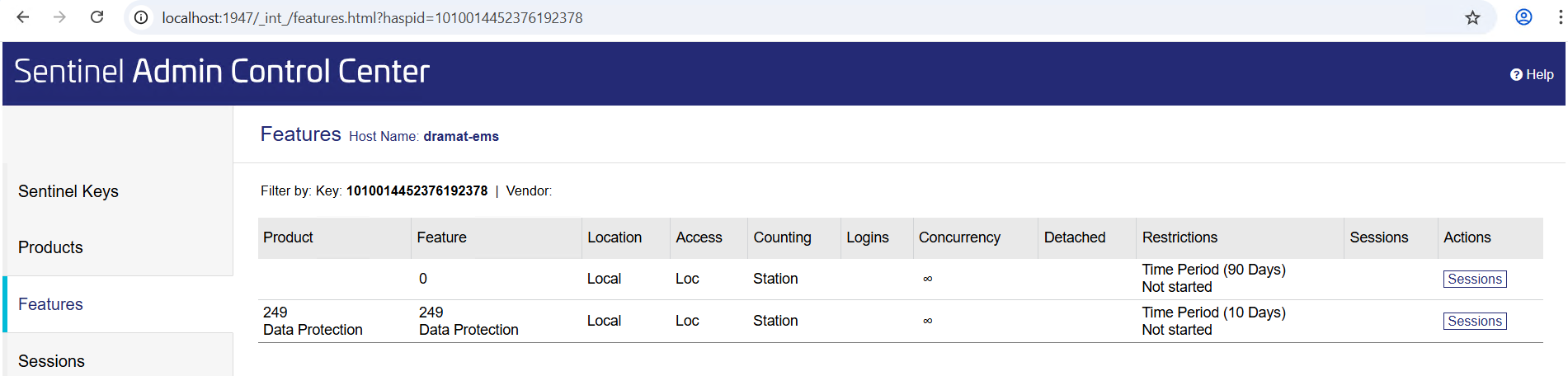
- Step
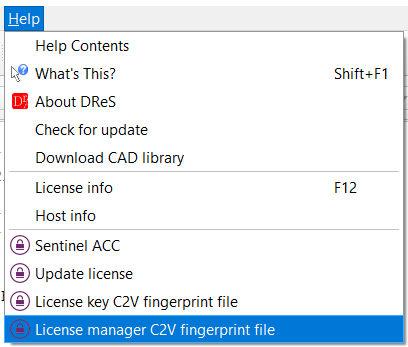
Now run our editor to generate additional information needed to generate "privileges files" that will unlock selected editor features.
From the "Help" menu, select "Host info" to display the name of the user and computer on which the license was installed.
Please send us this information by email.
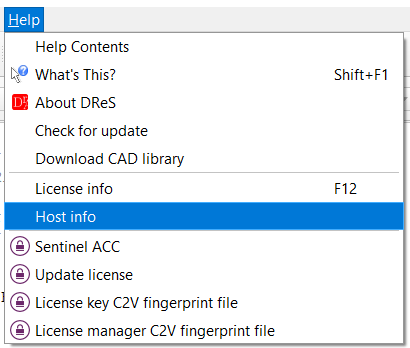
Then from the "Help" menu, select the "License manager C2V fingerprint file" option and save the file to disk.
Please also attach this file to your email to us.
- Step
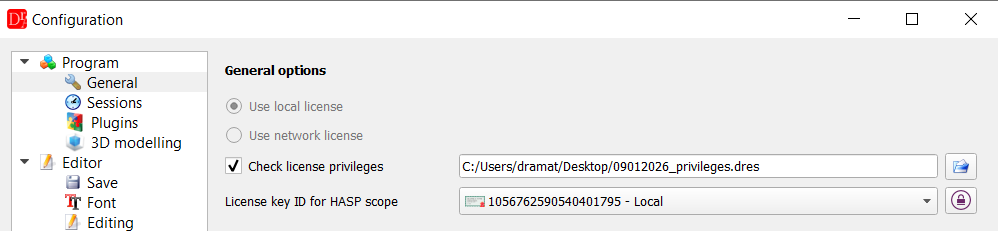
After receiving an email response from us with the "privileges file", save it to your disk and then complete the configuration in the editor.
- Open editor settings.
- Check the "Check license privileges" option.
- Select the uploaded file with privileges.
- Select the license you just installed from the drop-down list.
This is the same license number in the name shown in the Admin Control Center, in the column Key ID.
After restarting the application and pressing F12, information about unlocked plugins will be displayed, which you can now fully use.