 DReS - KUKA Load - Open the Measured Load Data of Every Tool in One Click (YouTube, English)
 DReS - KUKA Load - Gemessene Lastdaten jedes Werkzeugs mit einem Klick öffnen (YouTube, Deutsch)
- Opening the project from the Robot info tab
- Several tools: choosing the loading case
- Load analysis and report in Kuka Load
- Project and station data for the report
- The file of the robot archive is not changed
- Project without load data
- Setup
When a VKRC or KRC robot is active, the Robot info tab shows the link Open Kuka Load project if the backup contains a Kuka Load project. If there are several project files (the robot was replaced), the file with the serial number of the robot (IRSerialNr) is used. The path of the project is also written in the console when the robot is loaded.
▲ Several tools: choosing the loading case
Every tool measured on the robot is one loading case in the project. Kuka Load shows the analysis and creates the report for one loading case, so with more than one tool DReS asks which one should be opened: tool number, name, mass, date of the measurement and robot. Double-click a line or choose it and press OK. Repeat it for every tool which needs a report. With one tool Kuka Load is opened at once.
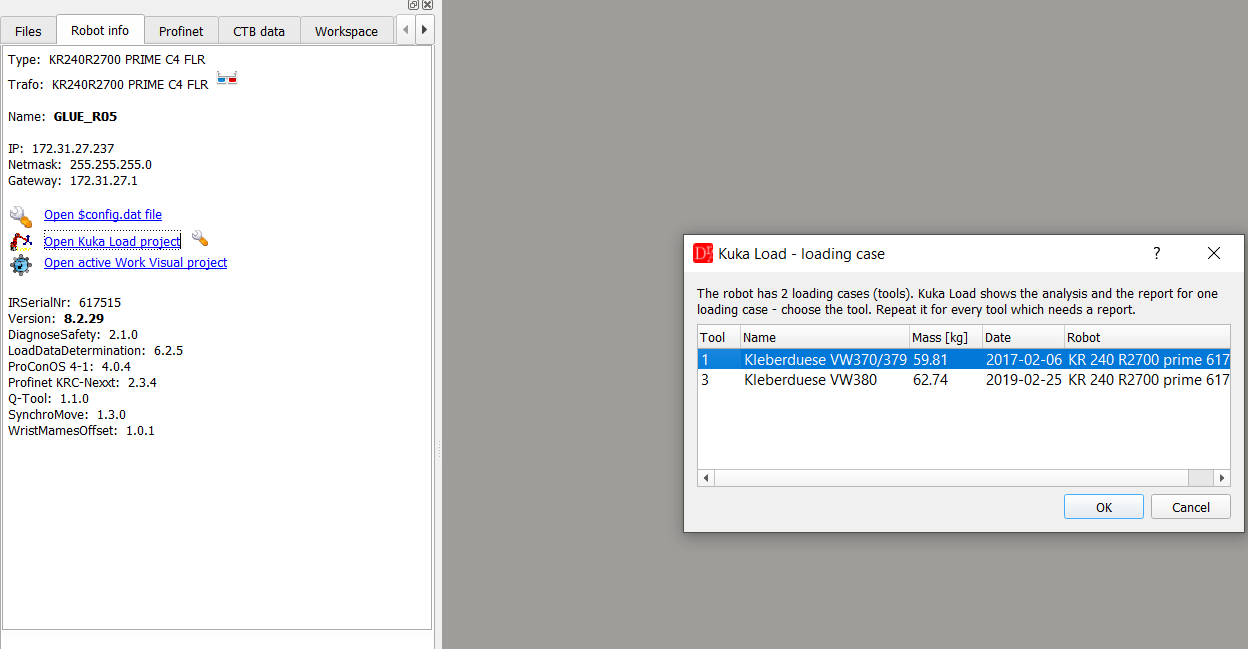
Robot with two glue nozzles - Tool 1 and Tool 3 were measured.
▲ Load analysis and report in Kuka Load Kuka Load opens with the robot type and the chosen loading case: the load data of the flange and the supplementary loads, the static evaluation of the axes and the payload diagram. The result is shown at the top, e.g. Freigabe des Robotertyps (robot type released).
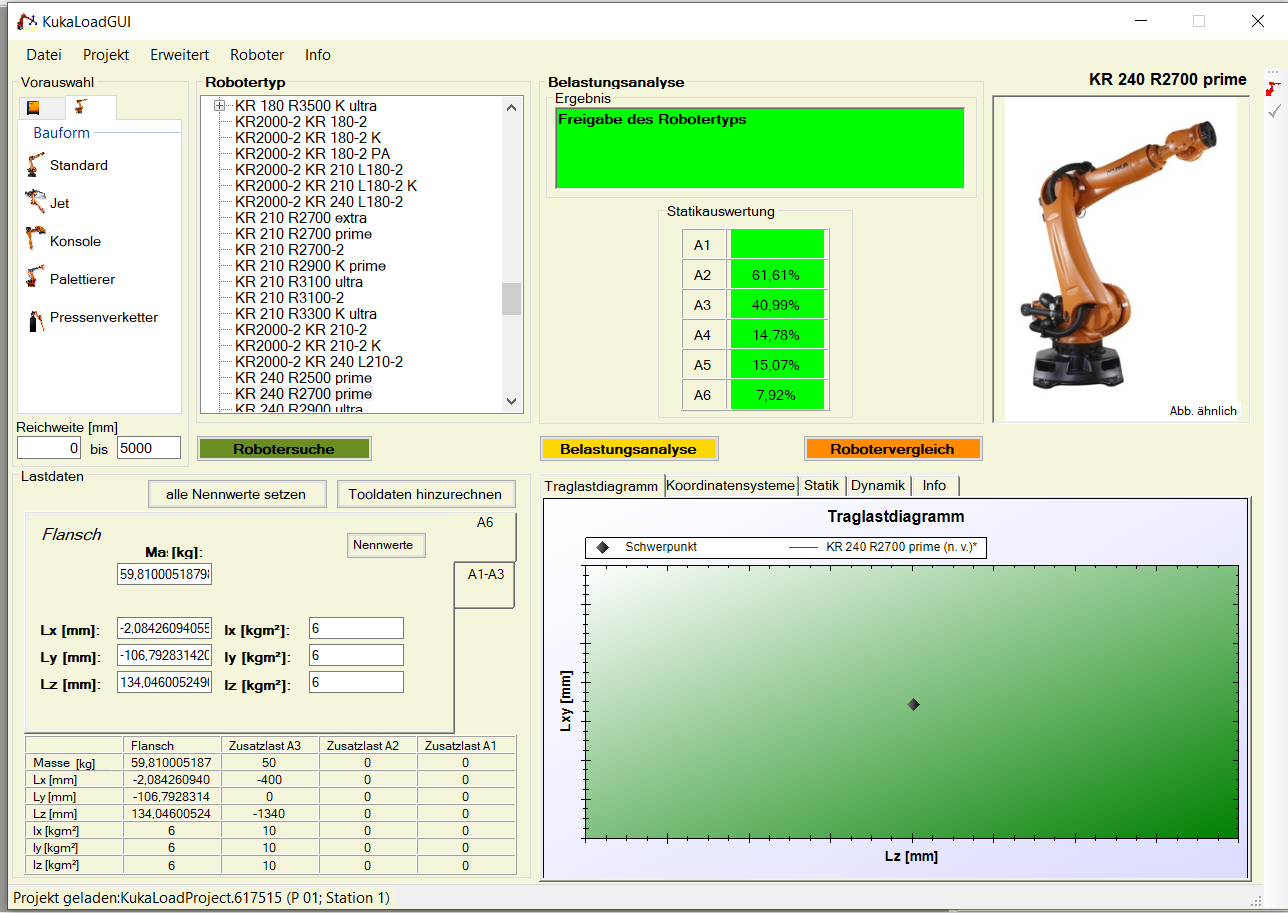
Load analysis of Tool 1 (59.8 kg) for the robot KR 240 R2700 prime.
The project window of Kuka Load lists the robot with all its loading cases. Here the acceptance report is
created with Abnahmeprotokoll erstellen (also in the menu Datei of the main window) - for the loading
case selected in the tree.
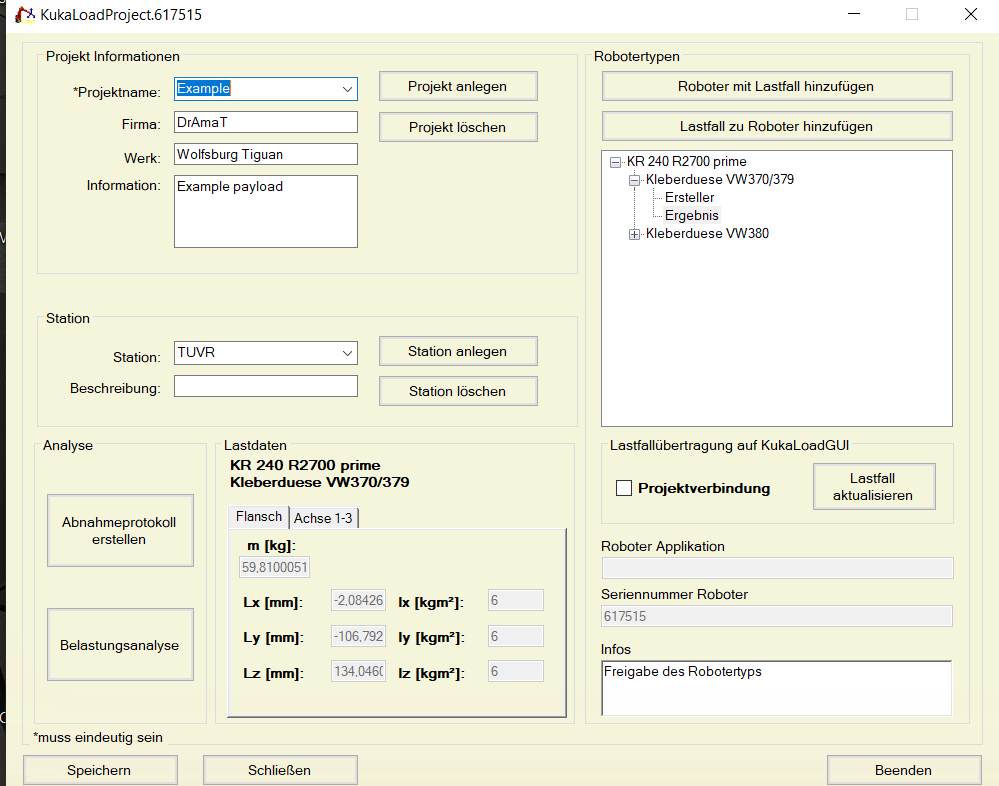
Project window: project and station data from DReS, robot with both loading cases.
▲ Project and station data for the report The report shows the project data: project name, company, plant, information, station and description. They can be set once in DReS with the icon next to the link Open Kuka Load project. Switch on Use custom settings - only then the data are used and the fields can be edited. DReS writes them into the project before Kuka Load is started.
▲ The file of the robot archive is not changed
Kuka Load saves the project every time it is started with a project file. Therefore DReS gives Kuka Load a copy of the project in the temporary folder of Windows (%TEMP%\DReS_KukaLoad). The project data from the settings are written into the copy, too. The file in the robot backup stays unchanged. To keep a changed project, save it in Kuka Load under another name.
▲ Project without load data
If the project contains no robot and no loading case (the load data determination was not saved on the robot), DReS shows a message instead of starting Kuka Load.
▲ Setup
The path of KukaLoadGUI.exe is set in Settings » VKRC » Others » Kuka Load Path (default: C:\Program Files (x86)\KUKA Roboter GmbH\Kuka.Load 5\Bin\KukaLoadGUI.exe). Kuka Load is a separate program and has to be installed on the PC.
See also: Editing CTB data - the load data (LOAD_DATA) in $config.dat.