
This page describes the plain KRC editor - the generic viewer used for regular KUKA
.src/.dat files that are not built around one customer's fixed VW/VKRC program
structure. It is a living document and will be extended as new functions are added to the
KRC viewer.
- Overview
- Folds - collapsing, expanding and their boundaries
- Point editor
- Point table
- Copy, cut and paste of points and folds
- Protect Folds
- Inserting commands from a KRL Command Catalog (.kop / .kfd)
- Syntax checking - what "Check syntax" actually verifies
- Go to definition and Find all references
- Known limitations
▲ Overview
Unlike the VKRC editor, the KRC viewer does not assume any particular customer's technology package or program layout. Instead it recognizes structure directly in the KRL text itself:
- any ;FOLD ... ;ENDFOLD block, nested to any depth, is treated as a collapsible fold;
- a motion fold (a PTP/LIN/CIRC point) is additionally recognized as a point fold - its coordinates, tool/base/frame data and motion parameters (velocity, acceleration, rounding, ...) are not written inside the fold itself, only names are (e.g. XP1, FP1, PPDAT1) - the actual values are looked up in the program's companion .dat file.
▲ Folds - collapsing, expanding and their boundaries
Every ;FOLD / ;ENDFOLD pair, no matter how deeply it is nested inside other folds, can be collapsed or expanded by clicking the black or white triangle next to it, or by placing the cursor in it and pressing Ctrl+Q.
The closing ;ENDFOLD line of a fold is shown or hidden together with the rest of that fold's content - it behaves exactly like any other line inside the fold, not like a separate, always-hidden marker. This mirrors the way KRL itself always requires an explicit closing keyword for every block (IF/ENDIF, WHILE/ENDWHILE, SWITCH/ENDSWITCH, ...): the editor shows you the matching ;ENDFOLD whenever the fold is open, so the closing boundary is never left implicit or guessed.
A new fold can be made from the selected lines with KRC » Make FOLD from selected text; motion points should not be put into other folds - see Comments and folds.
▲ Point editor
The KRC editor has a built-in point editor for the three basic motion types - PTP, LIN and CIRC. It edits the point itself (coordinates, in both the cartesian and the joint representation, with a 3D preview) and the inline form of the motion - type, velocity, approximation, point name, tool, base - so a complete motion can be changed from one window without touching the raw fold text.
It opens with a double click on the motion fold, with Edit point coordinates from the editor's context menu, or with a double click on the point in the point table.
Insert motion point (the robot toolbar) works the other way round: it puts a new PTP motion on the line of the cursor - with the coordinates at zero, tool 0 and base 0, and with the next free point number proposed - and opens the same window on it, so the new motion is finished in one place. Closing that window without Apply undoes the insertion. See Inserting a new motion.
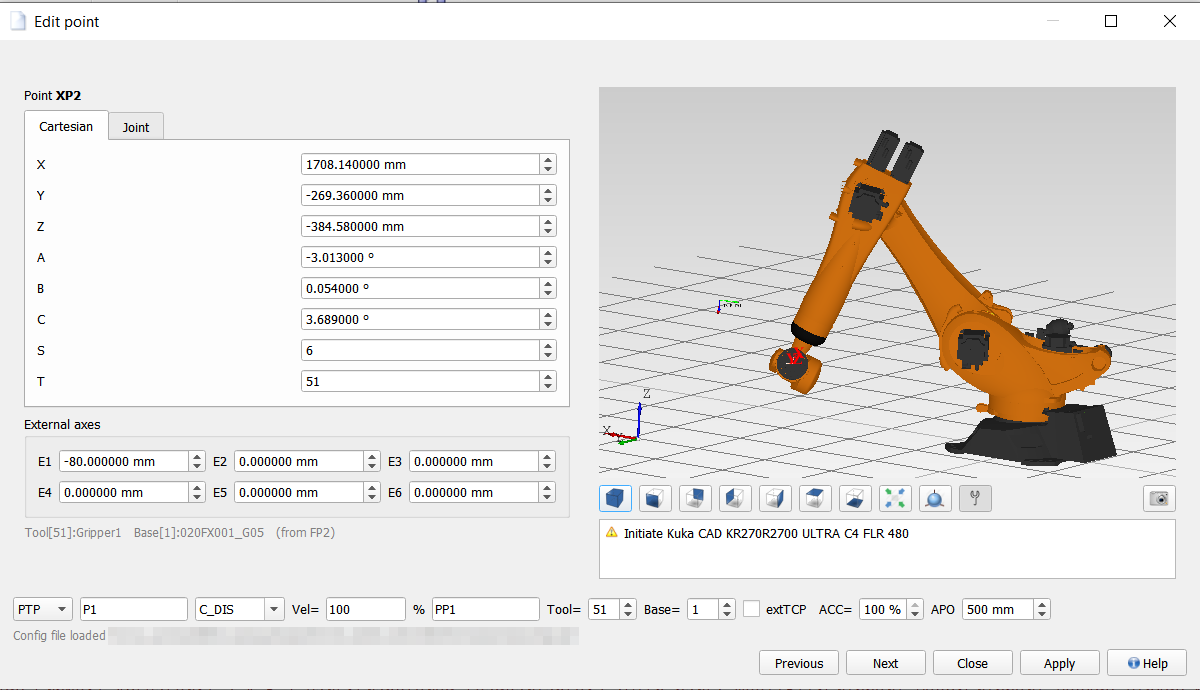
Point editor - full description » (coordinates and axes, the motion parameter bar, renaming a point, changing the motion type, joint versus cartesian points, what Apply writes and where, and the safety options for global positions)
▲ Point table
The table below the editor lists the positions of the open program - cartesian points and joint points in two separate tables, each with the tool, base and motion parameters that belong to them. The context menu has a submenu Path (TCP) with the path tools (path length, motion time, CIRC information, C_DIS and TRIGGER WHEN PATH checks, inserting a point on the path at a given distance).
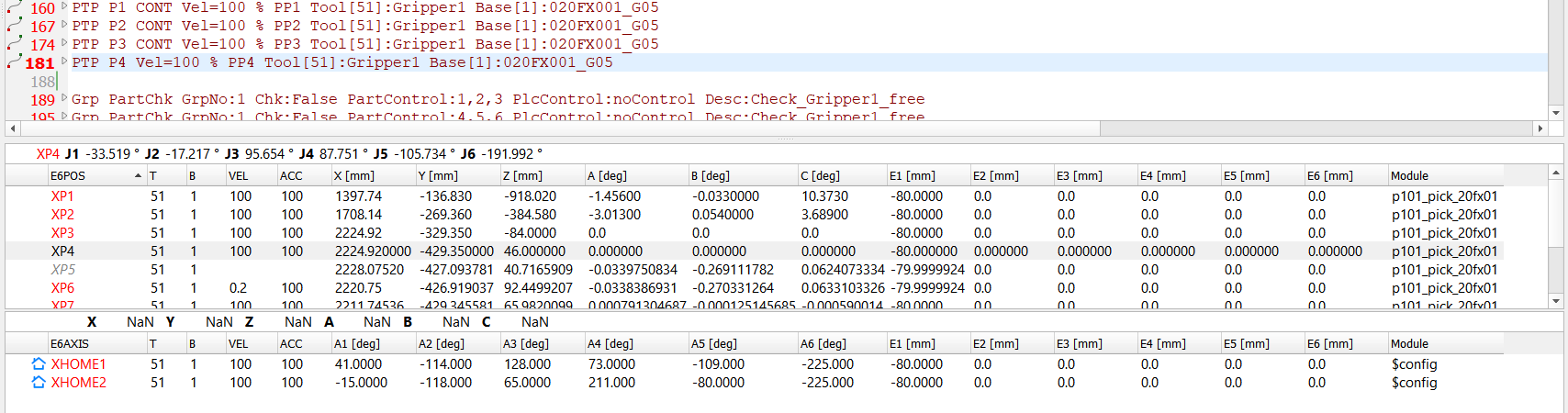
In the picture above, XP1 to XP4 are used by the motions visible in the program text, XP5 is declared in the same .dat file but no motion refers to it, and the lower table holds the two joint positions XHOME1/XHOME2, which come from $config - a global file shared by every program of this robot.
▲ Columns, icons and colours
- the point name in red means the point is used by a motion in this program;
- the same name in grey italics means the point is declared in a .dat file but no motion in this program refers to it. This happens naturally: renaming a motion's point from P1 to P2 does not delete the declaration of P1, it only stops using it. Such a point is still fully editable, and it turns red again as soon as some motion starts using that name. Listing them can be switched off - see Showing unused declarations below;
- a small icon in front of the name marks a HOME or global position, so it is obvious at a glance that the position is not owned by the program you have open; a warning triangle there means the point is declared but not used by any motion - it takes the place of the HOME/global icon, which the Module column repeats anyway;
- the Module column shows which .dat file the declaration comes from;
- an exclamation mark on the A5 value of a joint point warns about the wrist singularity (A4 and A6 parallel, A5 within ±0.01812°).
The strip above each table shows the selected position in the other representation: axis values for a Cartesian point, Cartesian coordinates for a joint one. For a joint position it also shows the S (status) and T (turn) of that pose, computed from the axis values - an E6AXIS declaration has no such fields, and they are needed every time the position is to be written as E6POS.
▲ Showing unused declarations
Settings » KRC » Others » Show points declared in .dat but not used in the program (enabled by default) controls whether the grey italic entries described above are listed at all.
With the option on, the table answers the question "is this position still there?" - after a rename, after deleting a motion, or when a .dat file was written by another tool. With it off, the table lists only positions that some motion actually uses, exactly as before this option existed.
A double click on the name of a used point moves the cursor of the editor to its motion. For an unused one there is no line to jump to, so the editor says which .dat file the declaration lives in instead of doing nothing.
The option also covers unused global/HOME positions, and a shared position
file usually holds many more of those than the open program has local points. If the table
becomes too crowded in a cell with a large shared position pool, this is the switch to
turn off.
▲ Editing values in the table
The table lets you edit:
- the coordinate values directly (X, Y, Z, A, B, C, E1-E6 for cartesian points; A1-A6, E1-E6 for joint points);
- the Tool and Base numbers - changing one of them asks whether the point's coordinates should be recalculated for the new tool/base (kept physically in the same place) or whether only the reference number itself should change, leaving the raw coordinate values as they are;
- the same value for several selected points at once, from the table's right-click menu ("Set equal value for selected points" / "Set equal Tool/Base value for selected points"). When such a batch touches several global points, they are grouped into one file write per affected .dat file, not one write per point.
Local and global/HOME points are saved to disk very differently - this is
important to understand before editing either of them:
- a change to a local point (declared in the current program's own .dat file) is only kept in memory and shown in the table right away - it is written to the .dat file when you save the program (the same Save action you use for the rest of the file);
- a change to a global or HOME point is written to its own shared .dat file immediately, as soon as you confirm it - there is no "unsaved changes" state for these points, and saving (or not saving) the program you currently have open has no effect on them at all.
Because editing a global/HOME point changes a file shared with other programs right away, the first time you do this in a running session the editor shows a confirmation dialog explaining exactly this, with a "Don't show this message again" checkbox (it resets the next time the program is started, so the warning is never permanently silenced). If you answer "No" to that dialog, or the write to disk fails for any reason (for example the target file is locked by another running copy of the editor), the table cell snaps back to the value that is actually stored on disk, so it never keeps showing a value that silently failed to save.
▲ Right-click menu of the point table
What the menu offers depends on the cell that was clicked and on how many rows are selected. Both tables - cartesian and joint - have the same menu, except for the distance.

The picture shows the menu for two selected points, opened on the Y column.
| Entry | Shown when | What it does |
|---|---|---|
| Jump to point definition | right-click on the point name or on the Module column | opens the .dat file the declaration lives in and goes straight to it - for local, global and unused points alike. In the Module column the menu also has Open file (see Module column). |
| Set equal <column> value for selected points | right-click on a coordinate column (X..C / A1..A6, E1..E6) | asks for a value and either sets it in that column of every selected point (Set new value) or adds it to their current values (Add to the old value) - for example to shift a group of points by 10 mm in Z. Global points touched by the change are written once per shared .dat file, not once per point. |
| Set equal Tool value / Base value for selected points | right-click on the Tool or Base column | sets the same tool or base number for all selected points, with one common question whether their coordinates should be recalculated for the new frame (see Editing values in the table). |
| Cartesian distance | exactly two points selected in the cartesian table | shows the TCP distance of the two points and the differences |X|, |Y|, |Z|, |A|, |B|, |C|. If the points use a different tool or base, the window warns that the result is only a difference of raw coordinates, not a real physical distance. |
| Copy <name> coordinates Assign coordinates to <name> |
exactly one point selected; Assign only when the clipboard holds a copied position | copies the position of one point together with its tool and base, and assigns it to another one - see Copy and assign coordinates below. |
| Copy selected coordinates as plain text | at least one row selected | copies the selected rows, with a header row, as tab-separated text - ready to be pasted into a spreadsheet or a report. |
| Select all | the table is not empty | selects all points of the table, e.g. before one of the "Set equal" entries. |
▲ Copy and assign coordinates
Copy coordinates and Assign coordinates to ... (right-click menu of the table, and of the program text) move a complete position from one point to another. What travels is the position itself together with its tool and base - not the motion parameters. Both tables offer them, the cartesian one and the joint one: a position stored as axis values is an ordinary point, and the clipboard carries the storage form with it, so the receiving side always knows which of the two it got.
Typical uses:
- send one motion to the same place as another - copy the position of the point that is already correct, then assign it to the point that should go there;
- restore a position that was taught earlier - copy it from a program that still has the good value and assign it in the one that does not;
- duplicate a taught position onto a new point - together with the rename function of the point editor, this is the usual way of building a new motion from an existing one without teaching it again on the robot;
- move a position between a robot and its twin - the values are plain numbers, so they can be carried between programs of different robots as long as tool and base mean the same thing on both.
- Tool/base - if the copied position was taught with a different tool or base than the target point uses, it asks whether to recalculate the coordinates (so the point stays physically in the same place) or to take the numbers as they are. For a joint target the question does not apply, because axis values do not depend on tool or base;
- storage form - assigning cartesian coordinates to a point stored as E6AXIS (or the other way round) would otherwise write the numbers into the wrong fields, because both forms share the same storage in the declaration. The editor offers to convert them through inverse/forward kinematics and keep the point's form, or - deliberately - to change the point's type, which rewrites its whole declaration;
- protected positions - the two options described under Safety options for global points apply here as well: a global JOINT HOME position will not accept cartesian coordinates, and the type of a global point is not offered for change.
When tool and base are unknown on either side, they cannot be compared, so the editor
cannot offer to recalculate the position either. It says so and asks whether to assign the
numbers exactly as they were copied - which is right when both points use the same tool and
base, and wrong when they do not. For a joint point the question does not arise, because
axis values do not depend on tool or base.
▲ Module column - opening the declaration
The right-click menu of the Module column offers:
- Open file - opens the .dat file the declaration lives in;
- Jump to point definition - opens that file and goes straight to the declaration of this point. This works for local and global points alike, and also for points that are not used by the program.
▲ Copy, cut and paste of points and folds
Selections can be copied, cut and pasted (Ctrl+C / Ctrl+X / Ctrl+V) the same way as anywhere else in the editor, with two rules specific to KRC's fold-based structure:
- a selection that would cut a fold in half (start or end somewhere inside it, without covering its matching ;FOLD/;ENDFOLD pair) is refused, to avoid leaving a broken, unmatched fold behind;
- when a copied point fold is pasted, its local point, frame and motion data are duplicated under a new, unique name and added to the current program; a point that was global/HOME in the source is instead pasted as a plain reference to the same shared name, without creating a duplicate.
▲ Protect Folds
KRC menu » Protect Folds is a checkbox, enabled by default. While it is on, the editor blocks typing, Delete, Backspace, Enter and cut/paste inside the content of any fold, including nested subfolds - only plain program logic that sits outside every fold can still be edited directly as text.
Consequence: to change something that lives inside a fold - for example a motion
point's coordinates, or a technology command's parameters - use the dedicated tools
described on this page (the point editor, the
point table, or double-clicking a recognized command fold to
reopen its parameter dialog) instead of editing the raw text. This is intentional: fold
content usually carries data (point/frame/motion references, or a technology command's
parameters) that is not fully visible in the plain text, so free-form text edits could
silently desynchronize what is shown from what is actually meant.
Protect Folds can be switched off from the same menu (or from the editor's Settings, KRC page) if you specifically need to edit raw fold text by hand - for example to fix a fold that is not recognized by the editor at all. Doing so is at your own risk: with protection off, an edit that leaves a fold's structure inconsistent may also clear the file's Undo/Redo history (see Known limitations below).
▲ Inserting commands from a KRL Command Catalog (.kop / .kfd)
KRC menu » KRL Commands is a submenu built from a KRL Command Catalog: a folder containing .kfd files and/or .kop packages, each describing one or more command categories and the commands ("InlineForms") that can be inserted from them. This is the same file format that KUKA's own smartHMI, WorkVisual and OrangeEdit use for their own inline command templates - it is not a format invented by this editor.
The catalog folder is configured once, in Settings » KRC » General » KRL Command Catalog.
The catalog is only scanned once, when the program starts. A command defined in a
.kfd/.kop file will not appear in the KRL Commands menu until:
- the file has actually been placed inside the configured catalog folder, and
- the editor has been (re)started afterwards - simply adding, editing or replacing a file in that folder, or changing the folder path in Settings, does not update an already open KRL Commands menu.
Selecting a command from the menu opens a parameter dialog (if the command has any configurable parameters), where you choose the values before the command is inserted at the cursor. When it is inserted into a program recognized as a motion point, the generated text is automatically wrapped as its own foldable ;FOLD ... ;ENDFOLD block, and double-clicking that fold again later reopens the same parameter dialog, prefilled with the values it currently has, so they can be changed.
A plain PTP/LIN/CIRC motion always opens the built-in
point editor on double-click, even when the loaded catalog
happens to contain a matching command template - the built-in editor offers more for these
three motions (coordinates, both representations, 3D preview) than a generic parameter
form does.
▲ Syntax checking - what "Check syntax" actually verifies
KRC menu » Check syntax (F6) parses the program against the KRL language grammar built into the editor.
This check is limited to the language elements that have actually been programmed into
the editor. It recognizes the structure of the KRL language itself - motion commands,
control flow, variable declarations and so on - but it does not know the specific
shape (parameter count, valid ranges, allowed choices) of any customer- or vendor-defined
technology command.
A command generated from a .kop/.kfd catalog (see above) becomes ordinary KRL text once it is written into the program, so "Check syntax" cannot verify that its parameters still match what that specific command's definition allows - that check only happens once, at the moment the command is inserted (or re-edited) through its own parameter dialog. A command typed or pasted by hand, or one that belongs to a package the editor was never given (not imported as described above), will not be flagged by "Check syntax" even if it violates that package's own rules, because the checker simply does not know that command exists.
 DReS - KUKA KRC Editor: Go to Definition and Find All References in the Robot Archive (YouTube, English)
When the configuration of a robot archive ($config.dat) is loaded, the editor builds an index of all .src, .sub and .dat files of that archive in the background. Then the right-click menu on a name in the program offers:
- Go to definition of <name> - opens the file with the DEF / DEFFCT of a subprogram or function and goes to the line. When several definitions exist, every candidate is listed with its file, line and kind.
- Go to declaration of <name> - when the archive has no definition (e.g. a routine of a technology package), the EXT / EXTFCT declaration is offered, usually in $config.dat; for global variables, signals, structures and enumerations the declaration in the data list.
- Find all references of <name> - a window lists every use of the name in the programs of the archive (whole identifiers, comments skipped) with file, line and text; definitions are shown in bold. A double click opens the file at that line.
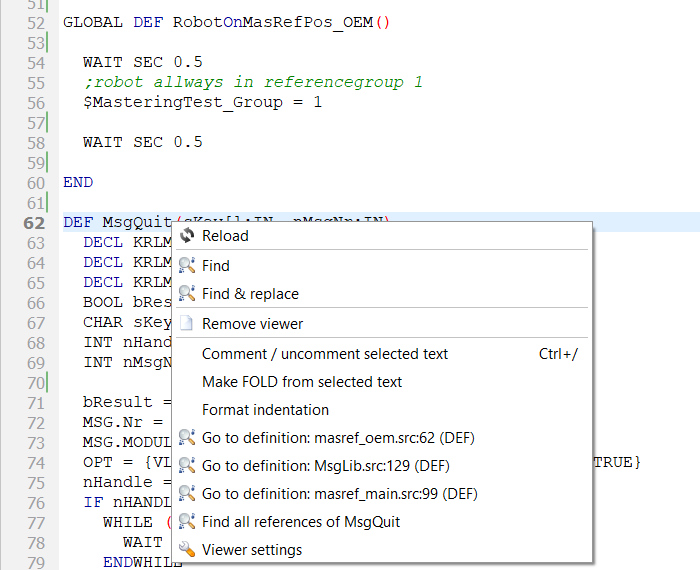
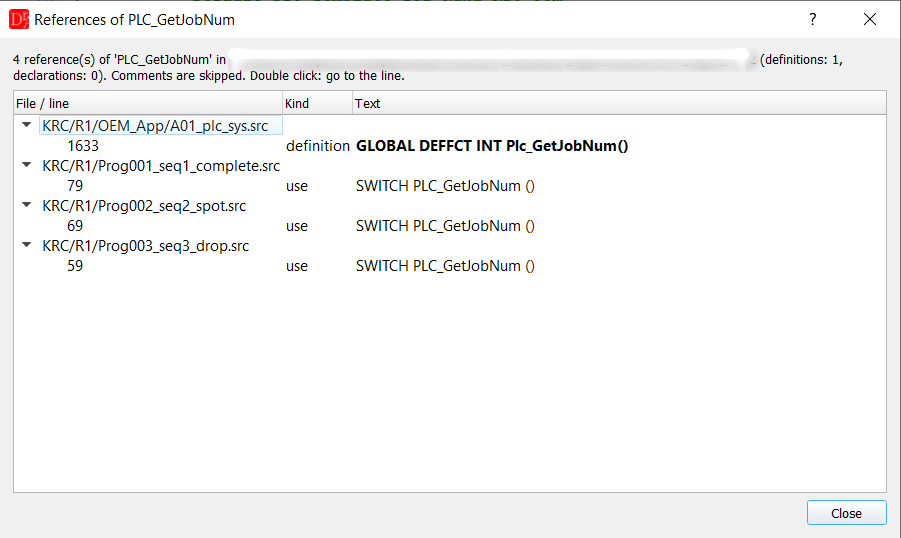
Left: MsgQuit is defined three times - every candidate with file and line. Right: Find all references, the definition in bold.
▲ Known limitations
- New declarations are appended, not inserted in place: a point created by the point editor (or duplicated by paste) gets its .dat declarations written on the next save, appended at the end of the file just before ENDDAT - the same place KUKA's own tools put them. The editor reports which lines it appended, because a diff of the file after such a save shows new lines, not only changed values.
- No per-point "unsaved changes" indicator for global/HOME points: because every edit to a global/HOME point is written to disk immediately (see Editing values in the table), double-check the value before confirming it - there is no separate Undo for a global/HOME point once it has been written.
- Undo/Redo: editing or removing a fold that carries point/frame/motion data (or a technology command's parameters) may clear the file's entire Undo/Redo history. This is deliberate: rather than risk an Undo that restores the visible text while leaving its underlying data out of sync, the editor prefers to start the history over from a known, consistent state.
- CIRC (circular) motions: such a motion uses two reference points; changing the tool or base of only one of them is not automatically applied to the other, so the two can end up referring to a different tool/base if you only edit one. The CIRC inline form itself could not be verified against real controller files - see Changing the motion type.
- Fold recognition - both for editing a motion as a point, and for reopening a command's parameter dialog on double-click - relies on the fold matching a known, fixed text pattern (based on PTP/LIN/CIRC and PDAT_ACT/FDAT_ACT). A hand-written or unusually formatted fold may end up not being recognized as an editable point or command at all, even though it is still perfectly valid, plain KRL text.
- Comments on a redeclared line: when the storage form of a point is deliberately changed (E6AXIS to E6POS or back), its declaration line is rebuilt from scratch, so a comment written at the end of that one line is not preserved. Every other declaration in the file is left untouched.