 VeRa - AI agent and voice control

VeRa is the AI agent of DrAmaT Robot Studio. It works in three ways: by voice (say "Vera" and a command), as an AI assistant (Claude Code, Claude Desktop or another MCP client controls the editor and the Robot Cell Simulator with the tools of VeRa) and from scripts (command APIs of the editor and the simulator). Everything runs on this computer; the APIs are local pipes that only the user who started DReS can use.
Installation
VeRa is optional and not selected in the installer. On the page Choose Components, group AI agent VeRa (optional):
- AI agent: command APIs and MCP server - the scripts in
AIAgent; the command APIs of the editor and of the Robot Cell Simulator are switched on at the first start. - Voice control VeRa with Whisper (offline) - the voice control with the local speech recognition Whisper (
AIAgent\whisper), downloaded during the installation from dramat.eu (whisper.zip, about 140 MB) and checked with its MD5 checksum - when the download fails, VeRa uses the speech recognition of Windows; the voice control is switched on at the first start (the microphone button in the toolbar starts the listening). - Multilingual speech model Whisper medium (large download) - the model
ggml-medium.bin(whisper_medium.zip, about 1.5 GB, downloaded from dramat.eu and checked with its MD5 checksum, extracted intoAIAgent\whisper\models): much better with German words like Folge and with free sentences for the AI agent, about 4 s per command; it needs the voice control VeRa. Without it VeRa uses the English model ofwhisper.zip.
AIAgent is not installed and nothing of VeRa runs. The installer writes the choice to AIAgent\first_run.ini; DReS takes it over at its first start (only settings that were not set before) and renames the file to first_run.applied. Later everything can be changed in Settings > Configure > AI Agent.
Switching on
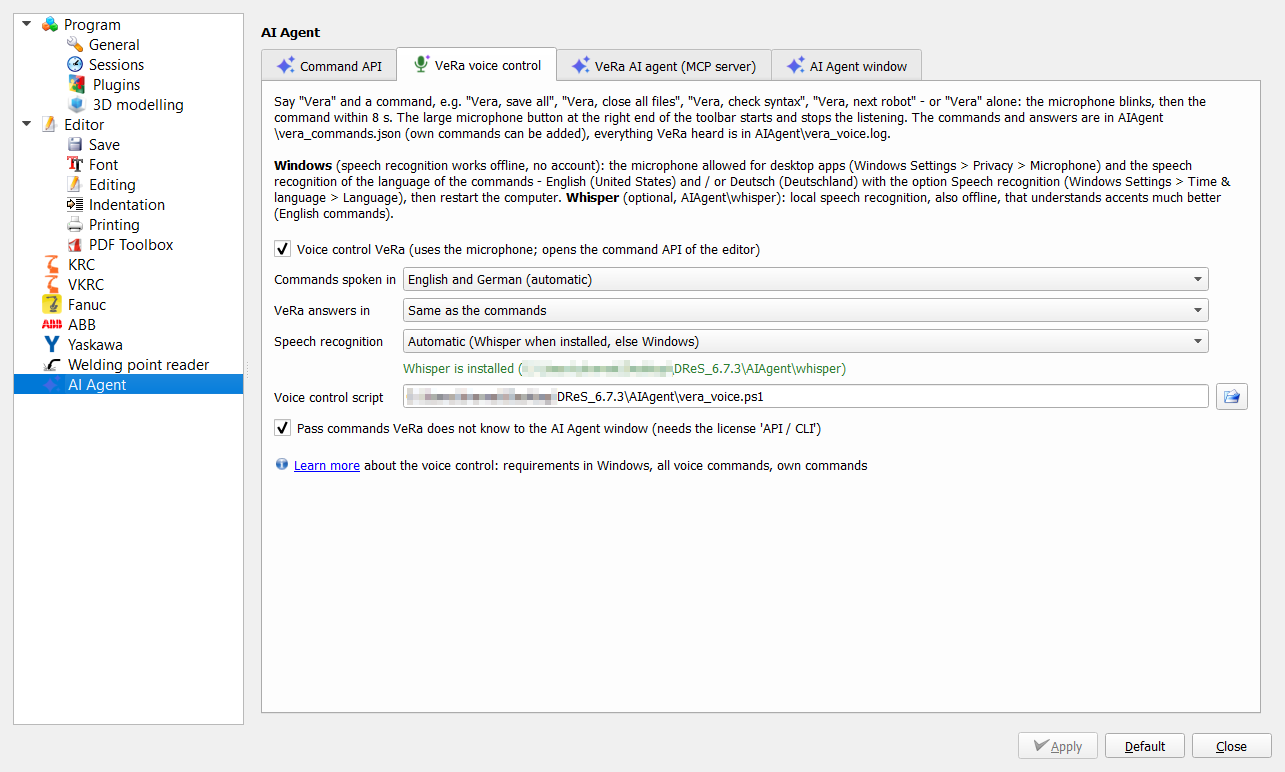
Everything is off by default. Settings > Configure > AI Agent (editor): Command API of the editor (scripts, AI assistant), Voice control VeRa (microphone), the language of the commands and of the answers, the paths of the scripts, and on the tab VeRa voice control the check box Pass commands VeRa does not know to the AI Agent window (on by default, see Unknown commands). Extras > Settings > AI Agent (Robot Cell Simulator): the command API of the simulator. The large button VeRa (microphone) at the right end of the toolbar starts and stops the listening; it is green while VeRa listens.
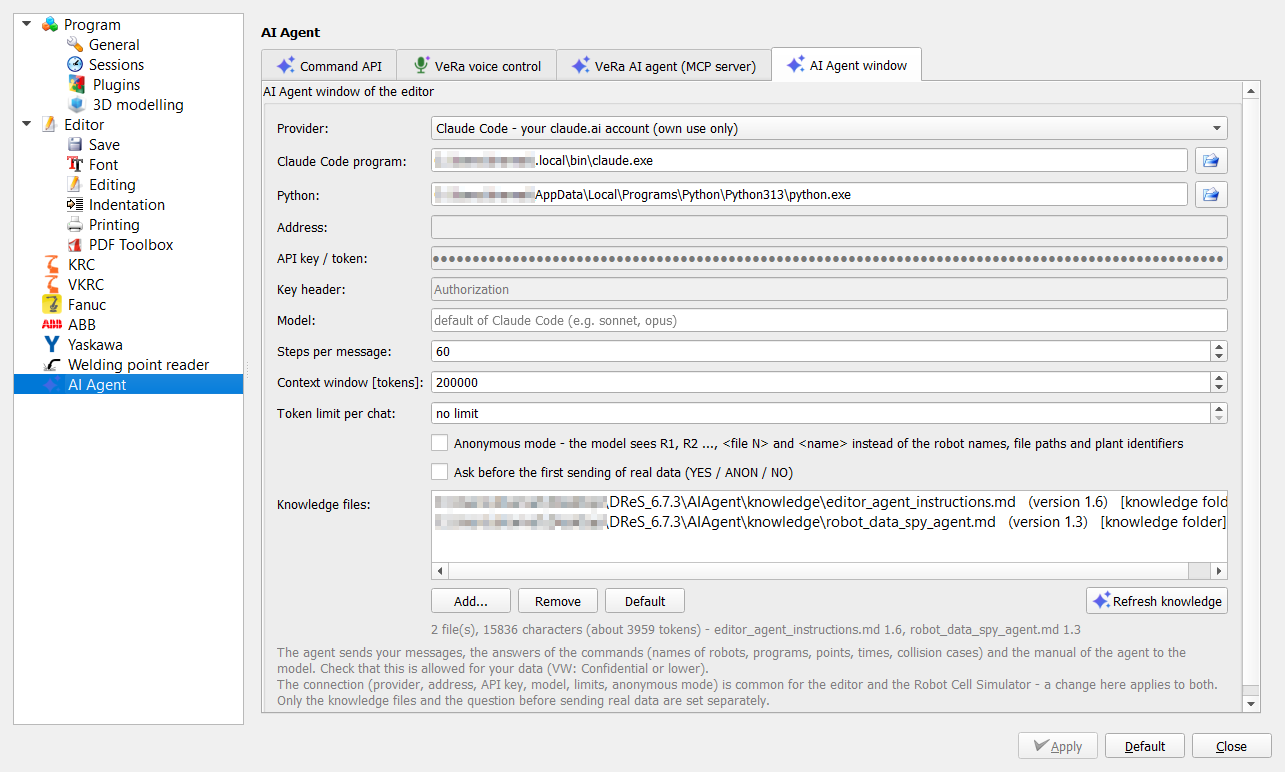
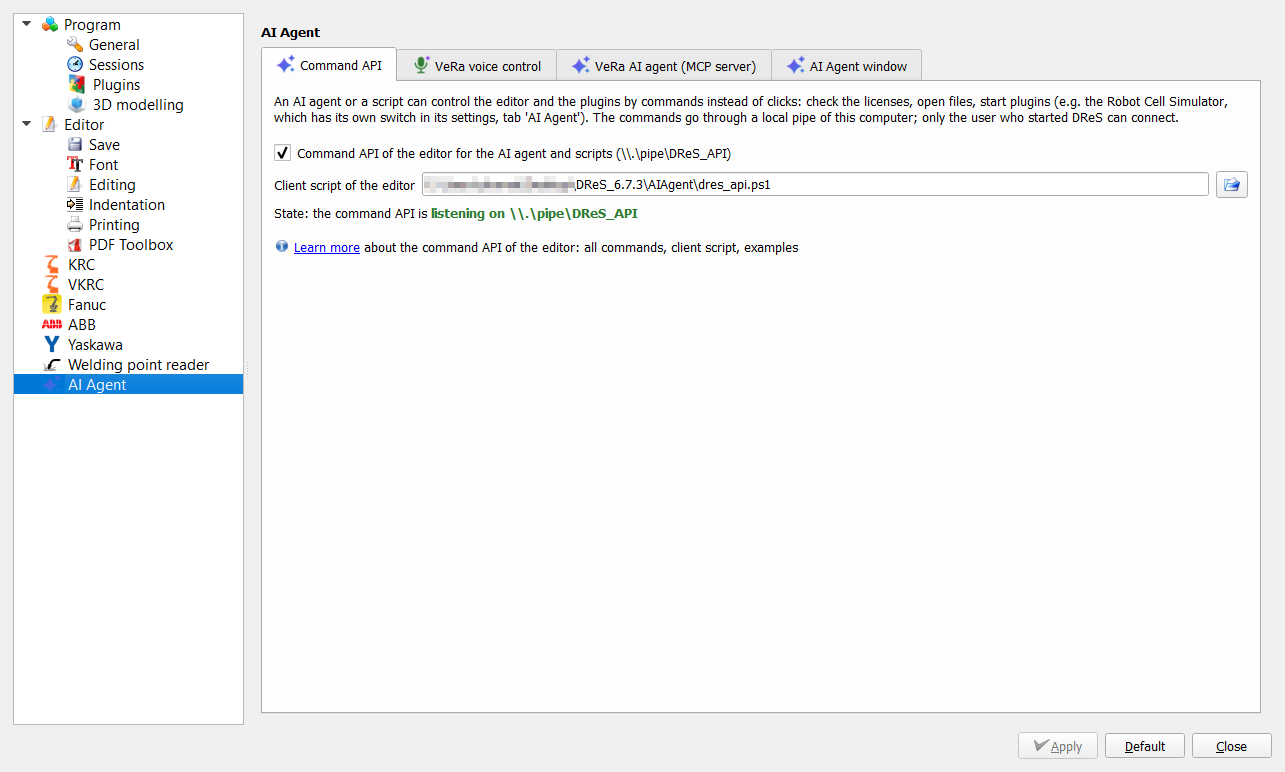
The page Settings > Configure > AI Agent has four tabs: AI Agent window (connection of the chat windows of the editor and of the Robot Cell Simulator to the model, knowledge files), VeRa voice control, Command API (see Editor API) and VeRa AI agent (MCP server) (see AI assistant). On the tab AI Agent window you choose the provider (Anthropic API key, OpenAI-compatible API such as VW LLMaaS, Azure OpenAI or a local Ollama, or Claude Code with your claude.ai account), the model, the limits and the anonymous mode, and you see the list of the knowledge files of the agent with their versions - described in AI Agent window (editor) > Settings.
Requirements in Windows
- Microphone for desktop apps - Windows Settings > Privacy > Microphone: "Allow apps to access your microphone" and "Allow desktop apps to access your microphone" switched on (usually already on). Any microphone works: built in, headset or webcam; Windows uses the default recording device (Sound settings > Input).
- Speech recognition of the language of the commands - installed with the language in Windows Settings > Time & language > Language: English (United States) for English commands and/or Deutsch (Deutschland) for German commands, each with the option Speech recognition (in Language options > Speech). After adding a language let Windows finish the download (Windows Update) and restart the computer. VeRa listens in every installed language of the two at the same time.
- Voices for the answers (optional) - the text-to-speech voices of the same language packs (e.g. Zira for English, Hedda for German, Paulina for Polish); VeRa takes a female voice of the language, without one it answers in English.
- In DReS - Settings > Configure > AI Agent: Voice control VeRa switched on, then the microphone button at the right end of the toolbar.
Not needed: online speech recognition of Windows, an internet connection or any account - the recognition runs completely on the computer. For the AI assistant (MCP server) also Python 3 (python.org, no further packages) and an MCP client such as Claude Code.
When VeRa does not react: look into AIAgent\vera_voice.log - it shows what VeRa heard (with the confidence), what it did not understand and errors, e.g. no speech recognizer for English or German installed in Windows (point 2 missing). Speak the name first ("Vera, ..."), clearly and in one go; a grey microphone button means VeRa does not listen (click it). The thresholds are in vera_commands.json.
Voice control
The speech recognition of Windows works offline. English commands need nothing more; German commands need the German speech pack (Windows Settings > Time & language > Speech). Windows must allow the microphone for desktop apps (Windows Settings > Privacy > Microphone). VeRa answers by voice in Polish, German or English. The commands are in AIAgent\vera_commands.json - phrases in English and German, the command of the editor and the answer; add your own and restart the listening. What is not in the file goes to the AI Agent window (when switched on).
Whisper (speech recognition offline)
Whisper (open source, whisper.cpp, MIT license) writes the spoken command as text - it understands accents much better than the speech recognition of Windows, which only compares the sound with the fixed phrases (e.g. "activate last project" was heard as "last line"). It runs on this computer: a small server AIAgent\whisper\whisper-server.exe listens only on 127.0.0.1 (port 8178), started and stopped together with the listening of VeRa; no internet connection, no account. How it works: Windows still finds the name "Vera" and cuts out what was said; Whisper writes it (about 0.5 s on a laptop processor) and VeRa looks for the phrase of vera_commands.json that is nearest to the text - small differences ("activate the last project", "files" / "file") are allowed, commands that close, reload or restore need the exact words. Whisper is used for English commands; German commands keep the recognition of Windows.
Model: recommended is ggml-medium.bin (multilingual, about 1.5 GB) - it recognizes German words inside the commands (e.g. Folge) and numbers much better than ggml-base.en.bin (English only, about 148 MB). It is slower: about 4 s per command on 6 processor threads instead of about 0.4 s. Set it in vera_commands.json: "whisper": {"model": "whisper/models/ggml-medium.bin"}. The model file can lie in AIAgent\whisper\models; a folder link (junction) to another drive is fine. Download: file ggml-medium.bin from huggingface.co/ggerganov/whisper.cpp (a ready download package on dramat.eu is planned).
Choice: Settings > Configure > AI Agent > VeRa voice control > Speech recognition: Automatic (Whisper when installed, else Windows - default), Windows speech recognition or Whisper. Below the choice DReS shows whether Whisper is installed. The change is used when the listening is started again (button VeRa twice).
Manual installation (when DReS was installed without the component or the download failed): extract https://dramat.eu/download/whisper.zip into <installation>\AIAgent\whisper - or download from the official sources whisper-bin-x64.zip (release of github.com/ggml-org/whisper.cpp) and the model ggml-base.en.bin (huggingface.co/ggerganov/whisper.cpp, about 148 MB); copy whisper-server.exe and all *.dll of the zip and the model to <installation>\AIAgent\whisper.
Settings in vera_commands.json, part "whisper": enabled, exe and model (relative to the file or absolute - a bigger model, e.g. ggml-small.en.bin, is more exact but slower), port, threads (processor threads), audioCtx (512 = up to about 10 s of speech, faster), prompt (words that Whisper should expect), maxDistance (how different the text may be from a phrase, 0.34 = about a third of the words). In vera_voice.log every command shows what Whisper wrote and which phrase was taken (Whisper: ..., -> ...).
How to speak
Two ways: in one go - "Vera, check syntax" - or in two steps - say "Vera", the microphone button starts to blink (orange / green), then say the command without the name within 8 seconds. Without the name at the start VeRa does not react, so it does not take talks in the room as commands. VeRa listens in English and German at the same time (each language when its speech recognizer is installed in Windows) and answers in the language of the command; in the settings the commands and answers can also be fixed to one language (answers also in Polish).
| English | German | Command of the editor | Answer |
|---|---|---|---|
| Vera, save, Vera, save file | Vera, speichern, Vera, Datei speichern | {"cmd": "save"} | Saved. |
| Vera, save all | Vera, alles speichern | {"cmd": "save_all"} | All saved. |
| Vera, close, Vera, close file, Vera, close the file, Vera, close this file, Vera, close current file, Vera, close the current file, Vera, close active file, Vera, close the active file | Vera, schließen, Vera, Datei schließen, Vera, diese Datei schließen, Vera, aktive Datei schließen | {"cmd": "close"} | Closed. |
| Vera, close all files, Vera, close all the files, Vera, close all windows | Vera, alle Dateien schließen, Vera, alles schließen, Vera, alle schließen | {"cmd": "close_all"} | All closed. |
| Vera, restore last session, Vera, restore the last session, Vera, open last session | Vera, letzte Sitzung wiederherstellen | {"cmd": "restore_session", "what": "all"} | Restoring the last session. |
| Vera, restore robots from last session, Vera, restore robots from the last session, Vera, restore robot projects from last session, Vera, restore robot projects from the last session | Vera, Roboter aus der letzten Sitzung wiederherstellen | {"cmd": "restore_session", "what": "robots"} | Restoring the robots of the last session. |
| Vera, restore files from last session, Vera, restore files from the last session, Vera, restore the files from the last session | Vera, Dateien aus der letzten Sitzung wiederherstellen | {"cmd": "restore_session", "what": "files"} | Restoring the files of the last session. |
| Vera, reload, Vera, reload file | Vera, neu laden, Vera, Datei neu laden | {"cmd": "reload"} | Reloaded. |
| Vera, check syntax | Vera, Syntax prüfen | {"cmd": "check_syntax"} | |
| Vera, next window, Vera, next file | Vera, nächstes Fenster, Vera, nächste Datei | {"cmd": "window_next"} | |
| Vera, previous window, Vera, previous file | Vera, vorheriges Fenster, Vera, vorherige Datei | {"cmd": "window_previous"} | |
| Vera, first file, Vera, first window | Vera, erste Datei, Vera, erstes Fenster | {"cmd": "window_first"} | |
| Vera, last file, Vera, last window | Vera, letzte Datei, Vera, letztes Fenster | {"cmd": "window_last"} | |
| Vera, undo | Vera, rückgängig | {"cmd": "undo"} | |
| Vera, redo | Vera, wiederholen | {"cmd": "redo"} | |
| Vera, start simulator, Vera, open simulator | Vera, Simulator starten, Vera, Simulator öffnen | {"cmd": "run_plugin", "name": "Robot Cell Simulator"} | Starting the simulator. |
| Vera, next robot, Vera, next robot active, Vera, activate next robot, Vera, set next robot active, Vera, next project, Vera, next robot project, Vera, set next robot project active, Vera, next robot project active, Vera, activate next robot project, Vera, activate next project, Vera, set next project active, Vera, next project active, Vera, activate the next project, Vera, activate the next robot | Vera, nächster Roboter, Vera, nächstes Projekt, Vera, nächsten Roboter aktivieren, Vera, nächstes Roboterprojekt, Vera, nächstes Roboterprojekt aktivieren | {"cmd": "project_next"} | |
| Vera, previous robot, Vera, previous robot active, Vera, activate previous robot, Vera, set previous robot active, Vera, previous project, Vera, previous robot project, Vera, set previous robot project active, Vera, previous robot project active, Vera, activate previous robot project, Vera, activate previous project, Vera, set previous project active, Vera, previous project active, Vera, activate the previous project, Vera, activate the previous robot | Vera, vorheriger Roboter, Vera, vorheriges Projekt, Vera, vorherigen Roboter aktivieren, Vera, vorheriges Roboterprojekt, Vera, vorheriges Roboterprojekt aktivieren | {"cmd": "project_previous"} | |
| Vera, close robot project, Vera, close robot, Vera, close active robot project, Vera, close the robot project, Vera, close project | Vera, Roboterprojekt schließen, Vera, Roboter schließen, Vera, aktives Projekt schließen, Vera, Projekt schließen | {"cmd": "close_project"} | Project closed. |
| Vera, next line, Vera, go to next line, Vera, move to next line, Vera, go to the next line, Vera, move to the next line | Vera, zur nächsten Zeile, Vera, nächste Zeile | {"cmd": "goto", "target": "line", "direction": "next"} | Line {0}. |
| Vera, previous line, Vera, go to previous line, Vera, move to previous line, Vera, go to the previous line, Vera, move to the previous line | Vera, zur vorherigen Zeile, Vera, vorherige Zeile | {"cmd": "goto", "target": "line", "direction": "previous"} | Line {0}. |
| Vera, first line, Vera, go to first line, Vera, go to the first line, Vera, move to first line, Vera, move to the first line | Vera, zur ersten Zeile, Vera, erste Zeile | {"cmd": "goto", "target": "line", "direction": "first"} | Line {0}. |
| Vera, last line, Vera, go to last line, Vera, go to the last line, Vera, move to last line, Vera, move to the last line | Vera, zur letzten Zeile, Vera, letzte Zeile | {"cmd": "goto", "target": "line", "direction": "last"} | Line {0}. |
| Vera, next fold, Vera, go to next fold, Vera, move to next fold, Vera, go to the next fold, Vera, move to the next fold | Vera, zum nächsten Fold, Vera, nächster Fold | {"cmd": "goto", "target": "fold", "direction": "next"} | Line {0}. |
| Vera, previous fold, Vera, go to previous fold, Vera, move to previous fold, Vera, go to the previous fold, Vera, move to the previous fold | Vera, zum vorherigen Fold, Vera, vorheriger Fold | {"cmd": "goto", "target": "fold", "direction": "previous"} | Line {0}. |
| Vera, first fold, Vera, go to first fold, Vera, go to the first fold, Vera, move to first fold, Vera, move to the first fold | Vera, zum ersten Fold, Vera, erster Fold | {"cmd": "goto", "target": "fold", "direction": "first"} | Line {0}. |
| Vera, last fold, Vera, go to last fold, Vera, go to the last fold, Vera, move to last fold, Vera, move to the last fold | Vera, zum letzten Fold, Vera, letzter Fold | {"cmd": "goto", "target": "fold", "direction": "last"} | Line {0}. |
| Vera, next tech, Vera, go to next tech, Vera, move to next tech, Vera, go to the next tech, Vera, move to the next tech | Vera, zum nächsten Tech, Vera, nächster Tech | {"cmd": "goto", "target": "tech", "direction": "next"} | Line {0}. |
| Vera, previous tech, Vera, go to previous tech, Vera, move to previous tech, Vera, go to the previous tech, Vera, move to the previous tech | Vera, zum vorherigen Tech, Vera, vorheriger Tech | {"cmd": "goto", "target": "tech", "direction": "previous"} | Line {0}. |
| Vera, first tech, Vera, go to first tech, Vera, go to the first tech, Vera, move to first tech, Vera, move to the first tech | Vera, zum ersten Tech, Vera, erster Tech | {"cmd": "goto", "target": "tech", "direction": "first"} | Line {0}. |
| Vera, last tech, Vera, go to last tech, Vera, go to the last tech, Vera, move to last tech, Vera, move to the last tech | Vera, zum letzten Tech, Vera, letzter Tech | {"cmd": "goto", "target": "tech", "direction": "last"} | Line {0}. |
| Vera, next point, Vera, go to next point, Vera, move to next point, Vera, go to the next point, Vera, move to the next point | Vera, zum nächsten Punkt, Vera, nächster Punkt | {"cmd": "goto", "target": "point", "direction": "next"} | Line {0}. |
| Vera, previous point, Vera, go to previous point, Vera, move to previous point, Vera, go to the previous point, Vera, move to the previous point | Vera, zum vorherigen Punkt, Vera, vorheriger Punkt | {"cmd": "goto", "target": "point", "direction": "previous"} | Line {0}. |
| Vera, first point, Vera, go to first point, Vera, go to the first point, Vera, move to first point, Vera, move to the first point | Vera, zum ersten Punkt, Vera, erster Punkt | {"cmd": "goto", "target": "point", "direction": "first"} | Line {0}. |
| Vera, last point, Vera, go to last point, Vera, go to the last point, Vera, move to last point, Vera, move to the last point | Vera, zum letzten Punkt, Vera, letzter Punkt | {"cmd": "goto", "target": "point", "direction": "last"} | Line {0}. |
| Vera, next up call, Vera, go to next up call, Vera, move to next up call, Vera, next up, Vera, go to next up, Vera, move to next up, Vera, go to the next up call, Vera, move to the next up call, Vera, go to the next up, Vera, move to the next up, Vera, next U P call, Vera, go to next U P call, Vera, move to next U P call, Vera, go to the next U P call, Vera, move to the next U P call, Vera, next U P, Vera, go to next U P, Vera, move to next U P, Vera, go to the next U P, Vera, move to the next U P, Vera, next subprogram call, Vera, go to next subprogram call, Vera, move to next subprogram call, Vera, go to the next subprogram call, Vera, move to the next subprogram call, Vera, next subprogram, Vera, go to next subprogram, Vera, move to next subprogram, Vera, go to the next subprogram, Vera, move to the next subprogram | Vera, zum nächsten UP Aufruf, Vera, nächster UP Aufruf | {"cmd": "goto", "target": "up", "direction": "next"} | Line {0}. |
| Vera, previous up call, Vera, go to previous up call, Vera, move to previous up call, Vera, previous up, Vera, go to previous up, Vera, move to previous up, Vera, go to the previous up call, Vera, move to the previous up call, Vera, go to the previous up, Vera, move to the previous up, Vera, previous U P call, Vera, go to previous U P call, Vera, move to previous U P call, Vera, go to the previous U P call, Vera, move to the previous U P call, Vera, previous U P, Vera, go to previous U P, Vera, move to previous U P, Vera, go to the previous U P, Vera, move to the previous U P, Vera, previous subprogram call, Vera, go to previous subprogram call, Vera, move to previous subprogram call, Vera, go to the previous subprogram call, Vera, move to the previous subprogram call, Vera, previous subprogram, Vera, go to previous subprogram, Vera, move to previous subprogram, Vera, go to the previous subprogram, Vera, move to the previous subprogram | Vera, zum vorherigen UP Aufruf, Vera, vorheriger UP Aufruf | {"cmd": "goto", "target": "up", "direction": "previous"} | Line {0}. |
| Vera, first up call, Vera, go to first up call, Vera, go to the first up call, Vera, move to first up call, Vera, move to the first up call, Vera, first up, Vera, go to first up, Vera, go to the first up, Vera, move to first up, Vera, move to the first up, Vera, first U P call, Vera, go to first U P call, Vera, move to first U P call, Vera, go to the first U P call, Vera, move to the first U P call, Vera, first U P, Vera, go to first U P, Vera, move to first U P, Vera, go to the first U P, Vera, move to the first U P, Vera, first subprogram call, Vera, go to first subprogram call, Vera, move to first subprogram call, Vera, go to the first subprogram call, Vera, move to the first subprogram call, Vera, first subprogram, Vera, go to first subprogram, Vera, move to first subprogram, Vera, go to the first subprogram, Vera, move to the first subprogram | Vera, zum ersten UP Aufruf, Vera, erster UP Aufruf | {"cmd": "goto", "target": "up", "direction": "first"} | Line {0}. |
| Vera, last up call, Vera, go to last up call, Vera, go to the last up call, Vera, move to last up call, Vera, move to the last up call, Vera, last up, Vera, go to last up, Vera, go to the last up, Vera, move to last up, Vera, move to the last up, Vera, last U P call, Vera, go to last U P call, Vera, move to last U P call, Vera, go to the last U P call, Vera, move to the last U P call, Vera, last U P, Vera, go to last U P, Vera, move to last U P, Vera, go to the last U P, Vera, move to the last U P, Vera, last subprogram call, Vera, go to last subprogram call, Vera, move to last subprogram call, Vera, go to the last subprogram call, Vera, move to the last subprogram call, Vera, last subprogram, Vera, go to last subprogram, Vera, move to last subprogram, Vera, go to the last subprogram, Vera, move to the last subprogram | Vera, zum letzten UP Aufruf, Vera, letzter UP Aufruf | {"cmd": "goto", "target": "up", "direction": "last"} | Line {0}. |
| Vera, close window, Vera, close the window, Vera, close warnings window, Vera, close dialog, Vera, close the dialog | Vera, Fenster schließen, Vera, Dialog schließen, Vera, Meldungsfenster schließen | {"cmd": "close_dialog"} | Window closed. |
| Vera, close program, Vera, close editor, Vera, exit program, Vera, exit editor, Vera, close the program, Vera, close the editor | Vera, Programm beenden, Vera, Programm schließen, Vera, Editor schließen, Vera, Editor beenden | {"cmd": "ui_click", "action": "File > Exit"} | Goodbye. |
| Vera, stop listening, Vera, goodbye | Vera, nicht mehr zuhören, Vera, auf Wiedersehen | stop | Goodbye. |
| Vera, set active project / active project / activate robot three | Vera, aktives Projekt / aktiviere Roboter drei | {"cmd":"set_active_project"} | Active project: {0}. |
| Vera, first / second ... ninth / last robot (also: activate second robot, set fifth robot active) | Vera, erster / zweiter ... letzter Roboter (auch: zweiten Roboter aktivieren) | robot by its position in the project tree | Active project: {0}. |
| Vera, next robot / previous robot (also: next robot active, activate next robot) | Vera, nächster / vorheriger Roboter | next / previous robot project | Active project: {0}. |
| Vera, first / second ... ninth / last file (also: second file active, activate fifth file) | Vera, erste / zweite ... letzte Datei (auch: zweite Datei aktivieren) | open document by its position (Window menu) | Active file: {0}. |
Unknown commands → AI agent
When VeRa hears its name but the rest is not one of its voice commands, it does not give up: the text written by Whisper is sent as a message to the AI Agent window of the editor (like {"cmd":"ai_chat"}), the window opens and VeRa says "I passed it to the AI agent" (German "Ich habe es an den KI-Agenten weitergegeben", Polish "Przekazałam to agentowi AI"). The AI agent plans the steps and answers in the chat. Examples:
- "Vera, open Folge 125 for all robots"
- "Vera, how many robot projects are open?"
Setting: Settings > Configure > AI Agent, tab VeRa voice control, check box Pass commands VeRa does not know to the AI Agent window (needs the license 'API / CLI') - on by default (INI key AI_Agent_Voice_Forward; for the script: vera_voice.ps1 -ForwardUnknown on|off). When it is off, VeRa says that it does not know the command. Without the license API / CLI the AI agent cannot answer. For long, free sentences the multilingual Whisper model ggml-medium.bin gives the best text.
Your own commands
The commands are not fixed in the program: they are in AIAgent\vera_commands.json (a text file, edit it with Notepad and click the VeRa button twice to restart the listening). Each command has the phrases ("say", English and German, words only - no digits), the command of the editor ("cmd") and the spoken answer ("reply", Polish, German, English). Any command of the editor API can be used, also every menu action by its path, e.g. {"cmd":"ui_click","action":"Tools > Compare files"} or {"cmd":"ui_click","action":"File > Reload all files"} - the list of all paths: menu actions for own commands (about 620 actions of all menus; current list also from {"cmd":"ui_actions"}). Example:{ "say": { "en": ["compare files"], "de": ["Dateien vergleichen"] }, "cmd": { "cmd": "ui_click", "action": "Tools > Compare files" }, "reply": { "pl": "Porównuję.", "de": "Ich vergleiche.", "en": "Comparing." } }
Thresholds, signal and log
In vera_commands.json: minConfidence (default 0.5) - how sure the speech recognition must be to run a command; wakeConfidence (0.4) - the same for "Vera" alone (a short word, Windows is less sure of it); lower values react more easily but also to wrong words. awakeSignal after "Vera" alone: none (only blinking, default), beep or voice ("listening"). Everything VeRa heard, did or did not understand is written to AIAgent\vera_voice.log (in %TEMP% when the installation directory is read-only).
AI assistant (MCP server)
Without an external AI assistant: the Robot Cell Simulator has its own chat with an AI agent, the AI Agent window (tab next to the messages; connection to the model in the settings of the simulator, license API / CLI). With the provider Claude Code - your claude.ai account this window uses VeRa too: the simulator starts Claude Code with this MCP server and Claude Code controls the simulator with the tools rcs and status (see Configuration step by step, way B).
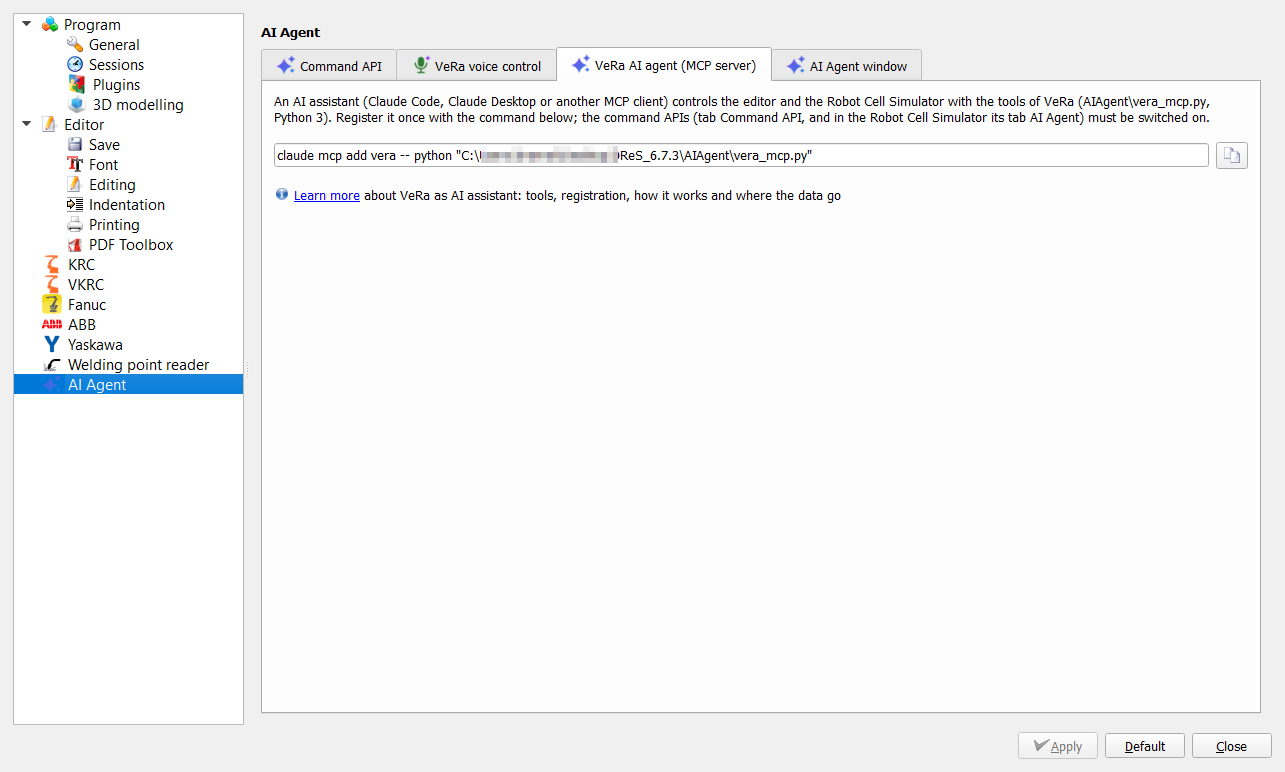
AIAgent\vera_mcp.py (Python 3, no other packages) is an MCP server. Register it once in Claude Code: claude mcp add vera -- python "<installation>\AIAgent\vera_mcp.py" (the same command is shown in the settings with a copy button). Then tell the assistant what to do, e.g. "VeRa, open UP48 of robot R03 and check the syntax" or "VeRa, simulate variant C3 Folge 81 ten times and compare it with the original". Tools: License: the AI assistant (MCP server) and every other program or script that controls DReS or the Robot Cell Simulator through the command APIs need the additional license API / CLI (control by other programs, scripts and AI agents); without it only reading commands work (state, open documents, windows) and the settings of the command APIs are locked. The voice control works without this license.
| Tool | What it does |
|---|---|
| status | State of the editor and the simulator: APIs reachable, licenses ready, active file, open dialog, RCS loading / running. |
| editor | Any command of the editor API (DReS_API), e.g. {"cmd":"plugins"}, {"cmd":"documents"}, {"cmd":"ui_actions"}, {"cmd":"ui_click","action":"File > Save all"}, {"cmd":"ui_list"}, {"cmd":"settings_get","filter":"..."} - see Editor API. |
| rcs | Any command of the Robot Cell Simulator API (DReS_RCS_API): load, set, run, fast_run, stop, report, run_data, zones, check_interlocks, ui_windows, ui_list, ui_actions, ui_get, ui_set, ui_click, ui_view, ui_view_set, ui_context, ui_close, ui_key, ui_file, ui_shot, settings_get, settings_set. wait_idle = true waits until loading / simulation is finished. See rcs_api and rcs_api_reference. |
| open_file | Opens a robot program or any text file in the editor (optionally at a line). |
| save | Saves the active document, or the given open file. |
| save_all | Saves all modified documents. |
| close_file | Closes the active document, or the given open file. An unmodified file closes at once. A modified file: without action the editor asks the user (Save / Discard / Cancel); the assistant asks the user first and passes action = save (save and close), discard (drop the changes and close) or cancel (keep it open). |
| close_all | Closes all documents. Unmodified ones close at once; for modified ones the editor asks the user, unless action = save / discard / cancel (cancel keeps the modified ones open). |
| reload | Reloads the active document (or the given file) from the disk. |
| documents | Open documents of the editor (file, modified, active). |
| projects | Robot projects in the project tree (name, controller type, config file, active). |
| set_active_project | Sets the active robot project (name or part of it, e.g. 'R03' or '0001R03'). |
| close_project | Closes a robot project like 'Close robot' in the project tree: its open files (a modified file asks Save / Discard / Cancel in the editor) and the robot in the tree. Without name: the active project. |
| restore_session | Restores the last session of the editor (the session saved last): what = all (robot projects and files, default), robots (only the robot projects) or files (only the open files). Files and robots already open stay open. |
| goto | Moves the cursor in the active document (or the given open file) and returns line and text. target: line, first_line, last_line, point (motion), fold (main fold), tech (TECH command), up (UP / subprogram call); direction: next or previous (from the cursor), first or last (in the document). Collapsed folds around the target are expanded. |
| check_syntax | Checks the syntax of the active document (or the given open file) and returns the messages. |
| menu | Lists the menu actions of the editor (path like 'File > Save all'), optionally filtered. |
| menu_click | Triggers a menu action of the editor by its path, e.g. 'File > Save all' or 'Window > Close all'. A dialog it opens is seen with editor {"cmd":"ui_windows"} and answered with ui_set / ui_click. |
| start_rcs | Switches on the API of the Robot Cell Simulator and opens it (waits until it answers). |
| rcs_study | Simulation study in RCS: loads a simulation file, optional Folge 125 to HOME, runs a Folge (loops, speed, SPS) and returns the run data (station cycle, robots, waits). Optional report file. |
Waiting: the tool rcs with "wait_idle": true (and timeout_s) waits until the
simulator is idle: no loading, no preparation, no simulation, no open action of the window – and now also until a
running robustness test is finished.
Key of the session: when DReS itself starts the process (the AI Agent window of the simulator with Claude Code,
the voice control), it gives it the key of the session in the environment variable DRES_API_TOKEN.
vera_mcp.py adds this key to every command it sends to the editor or the simulator.
How it works and where the data go
Voice control runs completely on this computer: the speech recognition of Windows (offline) recognizes only the phrases of vera_commands.json, the script sends the command to the editor through a local pipe. Nothing is sent to the internet and no AI account is needed. AI assistant (MCP): you write (or dictate) to the assistant, e.g. Claude Code with your account; the language model of its provider decides which tools of VeRa to use, vera_mcp.py runs them on this computer and returns the results (e.g. file names, program lines, results of a simulation) to the assistant - these results are part of the conversation and are processed by the provider under the terms of your account. The voice control and the AI assistant are independent; both only work while their APIs are switched on in the settings. The voice control is part of DReS and works without the additional license API / CLI: DReS starts it itself and gives it a key of the session, which no other program knows.
Editor API
Commands of \\.\pipe\DReS_API (AIAgent\dres_api.ps1) besides those in Command API. Changes that may open a dialog answer queued; a dialog is seen with ui_windows. Commands other than reading ones need the additional license API / CLI (the voice control works without it).
The AI Agent window of the editor (Tools > Show / hide AI Agent chat, Alt+4) uses these commands too: a chat with an AI model that works in the editor for you (tool editor_command); its direct commands (/documents, /projects …) run these commands without the model.
| Command | Parameters | What it does |
|---|---|---|
| documents | open documents (file, modified, active) | |
| activate | file | makes an open document active |
| save | file | saves the active document or the given one |
| save_all | saves all modified documents | |
| close | file, save | closes a document; a modified one only with save=true |
| close_all | save | closes all documents; modified ones only with save=true |
| reload | file, force | reloads from the disk; a modified one only with force=true |
| projects | robot projects of the project tree (name, config, type, active) | |
| set_active_project | name | sets the active robot project (name or its end, e.g. R03) |
| open_project | config | opens a robot project from its configuration file like File > Open robot project (VKRC / KRC $config.dat, Fanuc system.va, ABB system.xml, Yaskawa SYSTEM.SYS); the project appears in the project tree and becomes active; answer queued |
| check_syntax | file | checks the syntax (result in the console) |
| window_next / window_previous / window_first / window_last | next / previous / first / last document window | |
| undo / redo | undo / redo in the active document | |
| goto | file, target, direction | moves the cursor in the active document (or the given open file) and returns line and text; target = line | fold | point | tech | up, direction = next | previous | first | last |
| tech | action, file, scope, projects, maxFiles, fileMask, openFiles, command, line, where, fields, full, summaryOnly, csv, set, dryRun, useSelectedVwUser | lists (action=list) or changes (action=set) the parameters of technology commands in the open programs or in all programs of the robot projects (scope=projects), list also to a CSV file: VKRC TECH folds and SERVOZANGE folds, Fanuc CALL VW_USER(...); the change stays in the editor (not saved) |
| search | pattern, scope, projects, files, path, fileMask, ignoreCase, where, fields, max, maxFiles, context, text, csv | searches with a regular expression in the files of the robot projects on the disk (nothing is opened); named groups are the values: hits, summary of the values with their counts, hits per project / file, optionally a CSV file |
| robot_data | projects, sections, all | data of the robots from their configuration – what the tabs Robot info, Profinet and CTB data show (name, model, serial, software, VW user, IP, tools, bases, loads, Profinet, calibration, axis limits), also for inactive projects |
| points | file, table, path, motions, acc, ranges, process, maxRows; scope, projects, files, fileMask, maxFiles, checks, select | points of a program as a table (X Y Z A B C S T, tool, base ...), length of the TCP path, motion time, lengths between points, process (glue) length; for many programs the checks samePoints and callStart computed by DReS |
| ai_chat | show, message, stop, newChat, anonymous, last | the AI Agent window of the editor: show (true) / hide (false), send a message (also the answer yes | anon | no to the question before the first real data), stop the agent, new chat, anonymous mode, last = number of the last entries; answer visible, busy, anonymous, consentPending, transcript |
| ui_windows, ui_list, ui_actions, ui_get, ui_set, ui_click, ui_close, ui_key, ui_view, ui_view_set, ui_context, ui_shot | every menu action (File, Edit, Window, Tools ...), dialog, context menu of the file / project tree and of the editor - as in the simulator (UI commands). ui_set with scroll instead of value scrolls a text field or a list (also a read-only one, e.g. the conversation of the AI Agent window): "top", "bottom", a number 0..1 (position) or "find:text" (the first place of the text at the top of the view), e.g. {"cmd":"ui_set","id":12,"scroll":"find:Programs that fail"} (id from ui_list); answer queued |
tech – parameters of technology commands
Reads and changes the parameters of technology commands in the open documents without a dialog – like the plugins VKRC Tech Updater / Fanuc Tech Updater. It works on VKRC Folge, UP and Makro programs (TECH folds %VUSER and SERVOZANGE folds %VSERVOGUN) and on Fanuc programs (CALL VW_USER(...)). Requires the license API / CLI.
| Parameter | Meaning |
|---|---|
| action | list (default) – the commands and their parameters; set – change parameters |
| file | an open document; without file all open documents |
| scope | file (the given file, or the active document when file is empty), open (all open documents) or projects (the programs of the robot projects, see below); default open without file, file with it |
| projects | with scope projects: only robot projects whose name contains one of these texts, e.g. ["R05","R06"]; without it all VKRC and Fanuc projects of the project tree |
| maxFiles | with scope projects: at most this number of files (default 300) |
| csv | only with action list: writes the found commands to this CSV file, e.g. "D:/x/servozange.csv" |
| fileMask | only these programs (scope projects and open), e.g. ["up*"], ["folge*"], ["makro*"] or ["folge81*"] |
| openFiles | list with scope projects: true – reads the files through the editor (the files are opened) instead of from the disk (default false) |
| fields | only these parameters, e.g. ["Programmnummer","Punktnummer","FahrzeugTyp","Offset"] |
| full | true – the detailed answer of list (see below); default false – compact answer |
| summaryOnly | true – only the summary and a count per document; false – always the list of the commands; without it: only the summary when more than 400 commands are found |
| command | only this command: group.subgroup of the TECH command (e.g. TECH1.EZ/SP/KE, a comma is read as a dot), SERVOZANGE.Schweissen or SERVOZANGE (all SERVOZANGE folds) |
| line | only the command in this line |
| where | only commands whose current values meet these conditions: "6" (equal), ">0", ">=2", "<5", "<=5", "!=6"; e.g. {"P1":"5"}, {"FahrzeugTyp":"6"} or {"Offset":">0"} |
| set | new values: {"<name or P#>":"<value>"} |
| dryRun | true – only shows what would change, nothing is changed |
| useSelectedVwUser | true – a file outside all robot projects is changed with the VW user selected in the toolbar (default false) |
Parameter names come from the VW user definitions – the same names as in the dialog of the command (e.g. Fzg-Typ, Techaufruf); P1, P2 … (or only the number) work too. Case, spaces and characters like - or _ are ignored, a unique beginning of the name is enough. SERVOZANGE parameters: Programmnummer, Punktnummer, FahrzeugTyp (also Fz-Typ), Offset, TeachIn (Auto / Manual), Ausgleich (AUS / SCHWACH / MITTEL / STARK / INDIVIDUELL), Kraft, Blechdicke, …, Bedingung; Strom, Doppelhub and Messen can be changed only in the dialog of the fold. Values from a list (enum) may be given as the number or as the text.
Answer of list (compact, default) – per document with hits: file, project, vwUser, projectVwUser,
errors and commands [{line, command, params}], where params is an object of the used parameters, e.g.
{"Programmnummer":"99","FahrzeugTyp":"6"} (P# for a parameter without a name; unused parameters, the text
of the line and the lists of allowed values are left out; documents without hits are left out). With full: true the
detailed format: params [{P, name, value, values (allowed values of a list, "n=text"), used:
false for a parameter not used by this command}] and text. The answer field summary gives every used value of
each parameter with its count, e.g. {"SERVOZANGE.Schweissen FahrzeugTyp": {"6": 52, "7": 46}} (at most 100
values per parameter). With more than 400 commands only the summary and a count per document are returned
(summaryOnly forces it on or off). Answer of set – per document changes [{line, command, old,
new, error, unchanged}], in total found, changed and a note.
scope projects: all Folge, UP and Makro files of the VKRC and Fanuc robot projects of the project tree are searched on the disk (VKRC folge*.src, up*.src, makro*.src under KRC\R1, Fanuc folge*.ls, up*.ls, makro*.ls; fileMask narrows it). list reads the files from the disk and does not open them – line is the line in the file on the disk; with openFiles: true they are read through the editor (opened). set opens the files that contain matching commands (SERVOZANGE – %VSERVOGUN, TECH – %VUSER, Fanuc – VW_USER(), because the change is made in the editor; they stay open, the answer field opened lists the files opened by the command.
CSV export (csv, only with list): one row per command, columns Project;File;Line;Command, one column per parameter name (P# for a parameter without a name) and Text; separator ;, UTF-8 with BOM (opens in Excel). Answer fields csv (path of the file) and csvRows (number of rows).
VW user: the definitions of the VKRC TECH commands come from the VW user selected in the toolbar (combobox Select vw user); it is set automatically when a robot project is activated.
- a file of the active robot project: changed;
- a file of another (inactive) project: the VW user of its project is read from the disk (KRC\R1\VW_User\vw_usr_s.src); the same one as in the toolbar – changed without switching the project, another one – refused (first set_active_project);
- a file outside all robot projects: only with useSelectedVwUser: true;
- Fanuc: only files of the active robot project (VW_USER file of the active project);
- SERVOZANGE folds do not need a VW user.
The change stays in the editor: the document is modified but not saved – save / save_all on request. Undo does not work for these changes (the folds carry block data). On saving the KRL code is generated again (e.g. VW_SGB_SPOT_ADV/MAIN(...,FahrzeugTyp,...)); saving a VKRC program normalizes its format.
Examples:
{"cmd":"tech","action":"list","command":"SERVOZANGE"}
{"cmd":"tech","action":"list","file":"D:/x/KRC/R01/Program/folge81.src","command":"TECH1.EZ/SP/KE"}
{"cmd":"tech","action":"set","command":"SERVOZANGE.Schweissen","set":{"FahrzeugTyp":"2"},"dryRun":true}
{"cmd":"tech","action":"set","command":"SERVOZANGE.Schweissen","where":{"FahrzeugTyp":"6"},"set":{"FahrzeugTyp":"2"}}
{"cmd":"tech","action":"set","file":"D:/x/KRC/R01/Program/folge81.src","line":120,"set":{"P1":"5"}}
{"cmd":"tech","action":"list","scope":"projects","command":"SERVOZANGE","csv":"D:/x/servozange.csv"}
{"cmd":"tech","action":"list","scope":"projects","command":"SERVOZANGE","fields":["Programmnummer","Punktnummer","FahrzeugTyp","Offset"],"fileMask":["up*"],"where":{"Offset":">0"}}
{"cmd":"tech","action":"set","scope":"projects","projects":["R01","R02"],"command":"SERVOZANGE.Schweissen","set":{"FahrzeugTyp":"2"},"dryRun":true}
search – regular expression in the files of the robot projects
Searches line by line with a regular expression in the files of the robot projects on the disk – nothing is opened in the editor, nothing is changed. Independent from the plugin Robot Data Spy. Used by the agent RobotDataSpy. Requires the license API / CLI.
| Parameter | Meaning |
|---|---|
| pattern | regular expression per line (required); named groups (?<name>...) are the values that come back in groups and summary |
| scope | projects (default) – the files of the robot projects of the project tree; files – the files or folders in files (default when files is given); open – the open documents |
| projects | only robot projects whose name contains one of these texts, e.g. ["R01"]; without it all projects |
| files | with scope files: paths of files or folders (folders with sub-folders) |
| path | sub-folder of every robot project, e.g. "KRC/R1/System" |
| fileMask | e.g. ["folge*.src","up*.src"], ["$config.dat"]; default VKRC / KRC *.src, *.dat, *.sub, Fanuc *.ls, *.va, ABB *.mod, *.modx, *.sys, *.prg, *.cfg, Yaskawa *.jbi, *.dat, *.prm |
| ignoreCase | default true |
| where | conditions on the groups: "6", ">0", ">=2", "<5", "<=5", "!=6", "~text" (contains), e.g. {"tool":">0"} |
| fields | only these groups in the answer |
| max | hits listed (default 200, at most 5000); found counts all |
| maxFiles | at most this number of files (default 5000) |
| context | lines before and after a hit (0 to 5, default 0) |
| text | true – the text of the line also when the pattern has groups (to check the pattern) |
| csv | writes all hits to this CSV file: columns Project;File;Line, one column per group and Text |
Answer: filesSearched, filesWithHits, found, hits [{project, file (relative to the robot project), line, groups, text, context}], summary (every value of each group with its count, at most 100 values per group), perProject, perFile (up to 100 files), note when not all hits are listed, filesLimit, csv and csvRows.
Examples:
{"cmd":"search","pattern":"BAS\\s*\\(#TOOL,\\s*(?<tool>\\d+)","fileMask":["folge*.src","up*.src"],"where":{"tool":">0"}}
{"cmd":"search","pattern":"&PARAM TPVW_VERSION\\s*=\\s*(?<v>[\\d.]+)","projects":["R01"],"csv":"D:/x/tpvw.csv"}
robot_data – data from the robot configuration
The data of the robots from their configuration – what the tabs Robot info, Profinet and CTB data show. The active project gives the loaded configuration; another project is read from the disk without dialogs (the state of the editor stays the same). VKRC, KRC, Fanuc, ABB, Yaskawa. Requires the license API / CLI.
| Parameter | Meaning |
|---|---|
| projects | robot projects whose name contains one of these texts, e.g. ["R01"]; ["*"] all; without it the active project |
| sections | info (name, model, serial number, software, VW user, trafo, IP / netmask / gateway, WorkVisual and KUKA.Load project), tools, bases, loads, profinet (devices, camera IPs), cal (calibration / mastering), softend (axis limits), all; default info, tools, bases, loads |
| all | true – also tools / bases / loads without data (default false: only the defined ones) |
Answer: robots [{project, config, active, type (VKRC, KRC, Fanuc, ABB, Yaskawa), info, tools, bases, loads, profinet, cal, softEnd, error}], note when no project matches. VKRC / KRC: tools, bases and loads with no, name, x, y, z, a, b, c; Fanuc: UT / UF (x, y, z, w, p, r), payloads per tool; ABB: tooldata / wobjdata (quaternions); Yaskawa: tools, user frames, loads.
Examples:
{"cmd":"robot_data","projects":["*"],"sections":["info"]}
{"cmd":"robot_data","projects":["R01"],"sections":["tools","bases","loads"]}
points – point table and TCP path of a program
The points of one program as a table (as the export of the point table) and the TCP path (the Path (TCP) tools of the point tables). A file open in the editor is read from the editor (also unsaved changes), otherwise from the disk in a hidden editor (it is not opened). VKRC, KRC, Fanuc, ABB, Yaskawa. Requires the license API / CLI.
| Parameter | Meaning |
|---|---|
| file | the program (.src, .ls, .mod, .jbi); without it the active document |
| table | true (default) – columns and rows: Point, Motion, X, Y, Z, A, B, C, S, T, E1.., Tool, Base, VB, VE (VKRC) |
| maxRows | at most this number of rows (default 500) |
| path | true (default) – the TCP path in path |
| acc | acceleration for the motion time in mm/s² (default 2000) |
| ranges | lengths between points, e.g. [["P5","P12"]] |
| process | process (glue, MAG, laser) length: {"on":"<regex of the line that switches it on>","off":"<regex off>"} |
| motions | true – every motion with its segment, speed, approximation and switching points (motionList) |
Answer: file, open, type, columns, rows, pointCount, rowsNote, notes and path {motions, lengthMM (TCP path with approximation), lengthExactMM (geometry), timeCpS (CP motions with acceleration), timePlannedS (with PTP and axis data), ranges, process {ranges, lengthMM}, motionList, notComputed, configNote, error}.
Many programs and checks (with checks, scope projects or files): the point tables of all selected programs, the distances are computed by DReS.
| Parameter | Meaning |
|---|---|
| scope, projects, files | projects – the programs of the robot projects (projects filter: a part of the project name; "*" or "all" = all robot projects – the same in tech, search and robot_data), or the list files |
| fileMask | default ["folge*","up*"]; without an extension the extension of the controller is added |
| maxFiles | at most this number of files (default 300) |
| checks.samePoints | pairs of points whose distance is checked in every program: "1" (first), "2", "last", "-2" or a name "P5", e.g. [["1","2"],["1","last"]] |
| checks.callStart | true – every call of a UP / MAKRO in the program: the point where it is called vs the first point of the called program (same robot project) |
| checks.tolerance | in mm (default 2); different bases with the same tool are compared in world coordinates (bases from $config.dat), different tools are not comparable |
| checks.onlyFailed | true (default) – only the programs that break the condition |
| select | these points of every program, e.g. ["1","last"] (selected) |
Answer: filesChecked, toleranceMM, samePoints {checked, failed}, callStart {checked, failed}, files [{project, file, points, checks [{check, a, b, distMM, ok, world | frames}], calls [{program, atPoint, line, firstPoint, distMM, ok, world | frames, error}], selected, error}]. About 2 s per program.
Examples:
{"cmd":"points","file":"D:/x/KRC/R01/Program/up42.src","table":true,"path":true,"ranges":[["P5","P12"]]}
{"cmd":"points","file":"D:/x/KRC/R01/Program/up12.src","table":false,"process":{"on":"A1544.*EIN","off":"A1544.*AUS"}}
{"cmd":"points","scope":"projects","projects":["R01"],"fileMask":["folge*"],"checks":{"samePoints":[["1","2"],["1","last"]],"callStart":true,"tolerance":2}}