
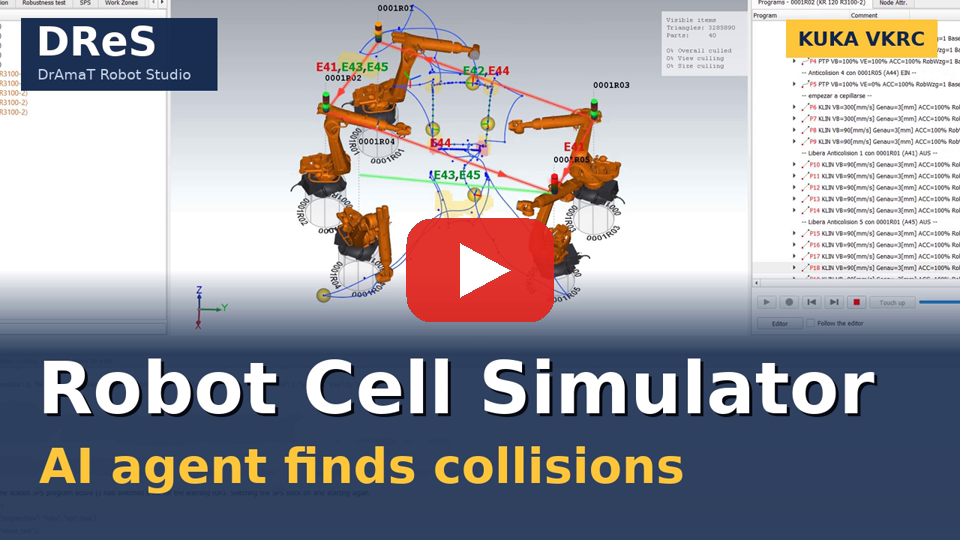
 DReS Robot Cell Simulator - AI Agent Finds the Collisions of a Robot Station with One Prompt (YouTube, English)
AI Agent window API / CLI
Find all possible collisions of the open station: baseline run, work zones, check interlocks, then write and run a robustness test plan with Live 3D. Give me the report.This replaces the manual steps:
- send all robots to HOME (Folge 125),
- baseline run of the Folge (times, waiting, request races),
- calculate the work zones,
- Check interlocks,
- export the anonymized study, give it to an AI assistant and copy its answer,
- write or import the robustness test plan,
- run the robustness test with Live 3D and wait,
- open the report and sort out the collision cases.
Data: with the anonymous mode (
/anonymous on) the chat sends
identifiers (R1, R2 …, <file N>, <name>) instead of the real names to the model – like the
anonymized study – and the whole study still runs by itself. Without it the chat asks before the first real data are
sent.The second tab next to the Message Window (bottom, AI icon) is a chat with an AI agent. You write what the agent should do, e.g. "Run the simulation of the station and find all possible collisions"; a language model plans the steps and uses the commands of the simulator like the buttons, without dialogs. The chat shows your messages, the answers of the agent and every command with its result.
| Control | What it does |
| State line | in the title bar of the window (instead of the title AI Agent): provider and model; while the agent works the current step and the progress of the simulation (simulation running: cycle x / y, about n min left); the usage (see Usage in the state line); red text when the license or the API key is missing |
| New chat | column on the right of the conversation, at the top: forgets the conversation and starts a new one |
| Settings button | only the icon, below New chat: opens Tools > Settings... > AI Agent (connection to the model, knowledge files, see below) |
| Conversation | your messages, the answers and the commands of the agent. Links open in the web browser. Context menu: Copy, Select All, Larger font (Ctrl + wheel), Smaller font, Copy the whole conversation (to the clipboard, e.g. for a report or the support), Clear (new chat) (like New chat) |
| Message field | the message to the agent; Enter sends it, Shift+Enter starts a new line. The
hint in the empty field shows the commands /help and /reload. A message starting with
/ and a letter is a direct command of the simulator: it does not use any tokens
– it does not go to the model; the simulator runs it at once and shows the answer (JSON) in the conversation.
Context menu: the standard
commands (Undo, Redo, Cut, Copy, Paste, Delete, Select All),
Larger font (Ctrl + wheel), Smaller font and Clear (empties the field) |
| Send | next to the message field: sends the message; while the agent works see Messages while the agent works |
| Stop | below Send: stops the agent: the request to the model and the waiting for the end of the simulation. A simulation started by the agent goes on – stop it on the Simulation tab |
The buttons New chat, settings, Send and Stop have one width, so the right edge of the conversation and of the message field is the same.
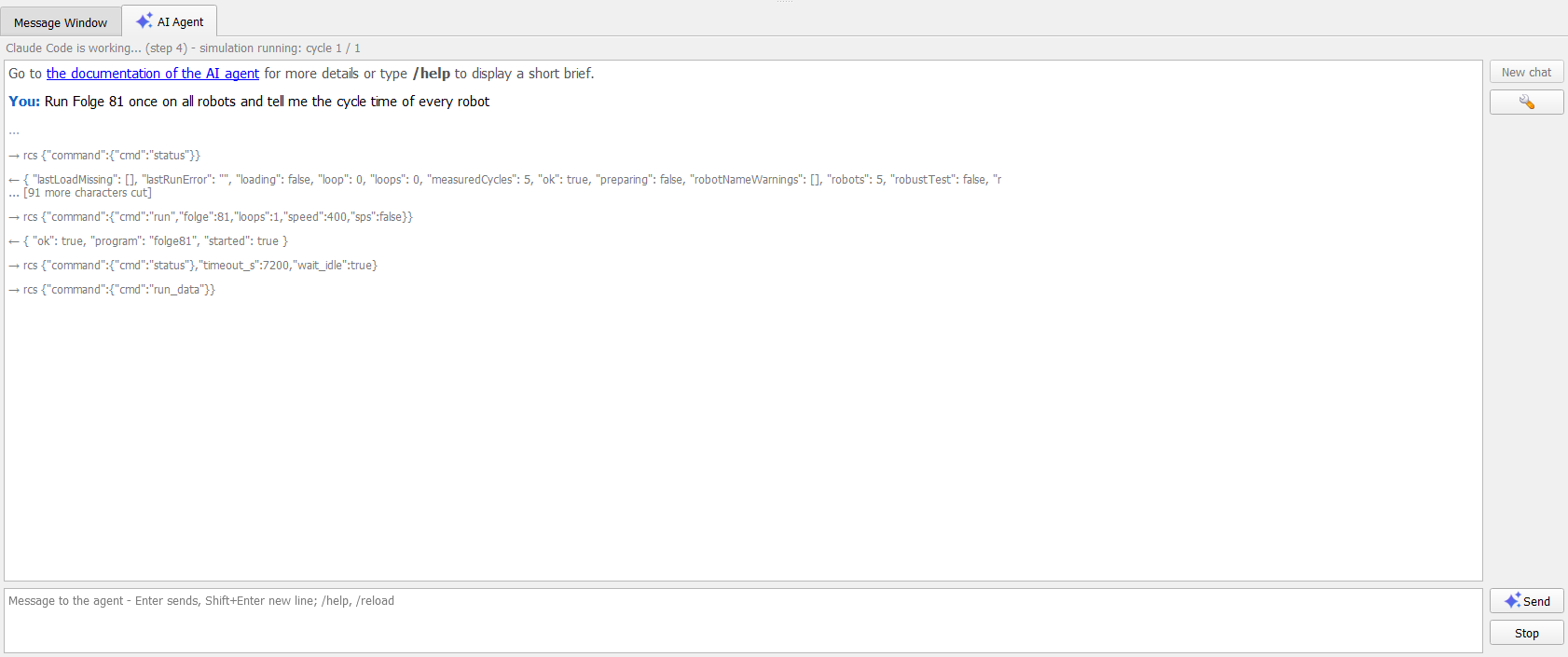
Answer live: with all three ways of connection (A, B, C, see Configuration) the answer appears word by word while the model writes it. When a block of text is complete, it is shown formatted (bold, lists, code). Reasoning blocks of the model (thinking) are supported: they are kept in the conversation and sent back to the model, but not shown.
Tables in the answers of the agent (Markdown tables, e.g. the cycle times of the robots) are shown with aligned columns in a fixed-width font, so the numbers stand one below the other.
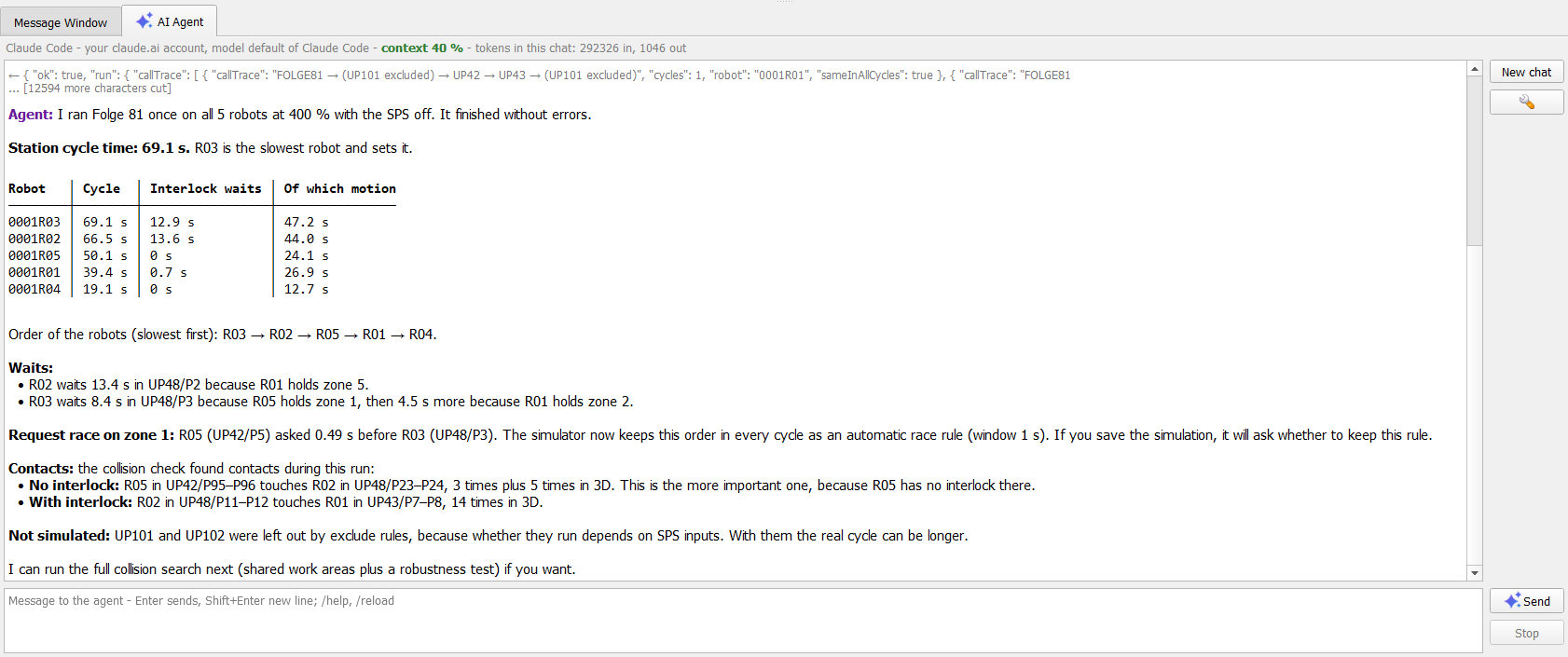
Usage in the state line: after the first answer the state line shows context NN % – how full the context window of the model was with the last request (setting Context window [tokens]) – and the tokens of this chat (in, out), optionally with (NN % of the limit) of the setting Token limit per chat. The colors are like in the window of Anthropic: green below 60 %, orange below 85 %, red from 85 %. When it is red, start a New chat – a full context makes the agent slower and less exact. The limit is only a warning, the agent does not stop.
Change of the provider or the model: a new provider or model (in the settings) always starts a new chat – the token counters start from zero. When the change is made while the agent works, the current task is finished first and the new chat starts as soon as the agent has finished.
Messages while the agent works: a message sent while the agent works waits in a queue
((queued - sent when the agent has finished; …)) and is sent when the agent has finished; Stop ends the
waiting. Exception in the ways A and C (API): when the agent waits for the end of the simulation, your message ends this
waiting and goes to the agent at once ((sent to the agent while it waits for the simulation)). The agent handles it
– e.g. hiding the paths works during the simulation – and then waits again. The simulation goes on. In the way B
(Claude Code) the message always waits in the queue. The commands in the chat (/help, /reload
and the direct commands of the simulator) never wait – they run at once.
Question before the first real data: when the anonymous mode is off, the first message of a
DReS session that would go to the model is held, and the chat asks (orange Question) whether the real data of the cell
may be sent. Answer in the chat: YES (also JA / TAK) – send the real data (asked only once per
session); ANON – switch on the anonymous mode and send the data anonymized; NO (NEIN / NIE)
– cancel, nothing is sent. Another text gives Please answer YES, ANON or NO. The local commands
(/help, /status …) work also while the question waits. The question can be switched off in
the settings: check box Ask before the first sending of real data (YES / ANON / NO) (in the simulator on by default,
see Settings).
Font size of the conversation and of the message field: Ctrl + mouse wheel, Ctrl+Plus /
Ctrl+Minus or the context menu (Larger font, Smaller font), 7 … 32 pt. The size is remembered
(setting RCS_Group/AiChat_FontSize).
The tabs of the bottom area (Message Window / AI Agent) have their titles at the top; the tab of the agent carries the AI icon.
Welcome: every time the plugin is opened and after New chat the chat shows a short line with a link to this documentation and the hint type /help.
Commands in the chat (they work locally – no request to the model, no license and no API key needed):
/help– a short brief: what the agent does, examples of messages, the commands, the current connection (provider), the path of the log of the agent and a link to this documentation.
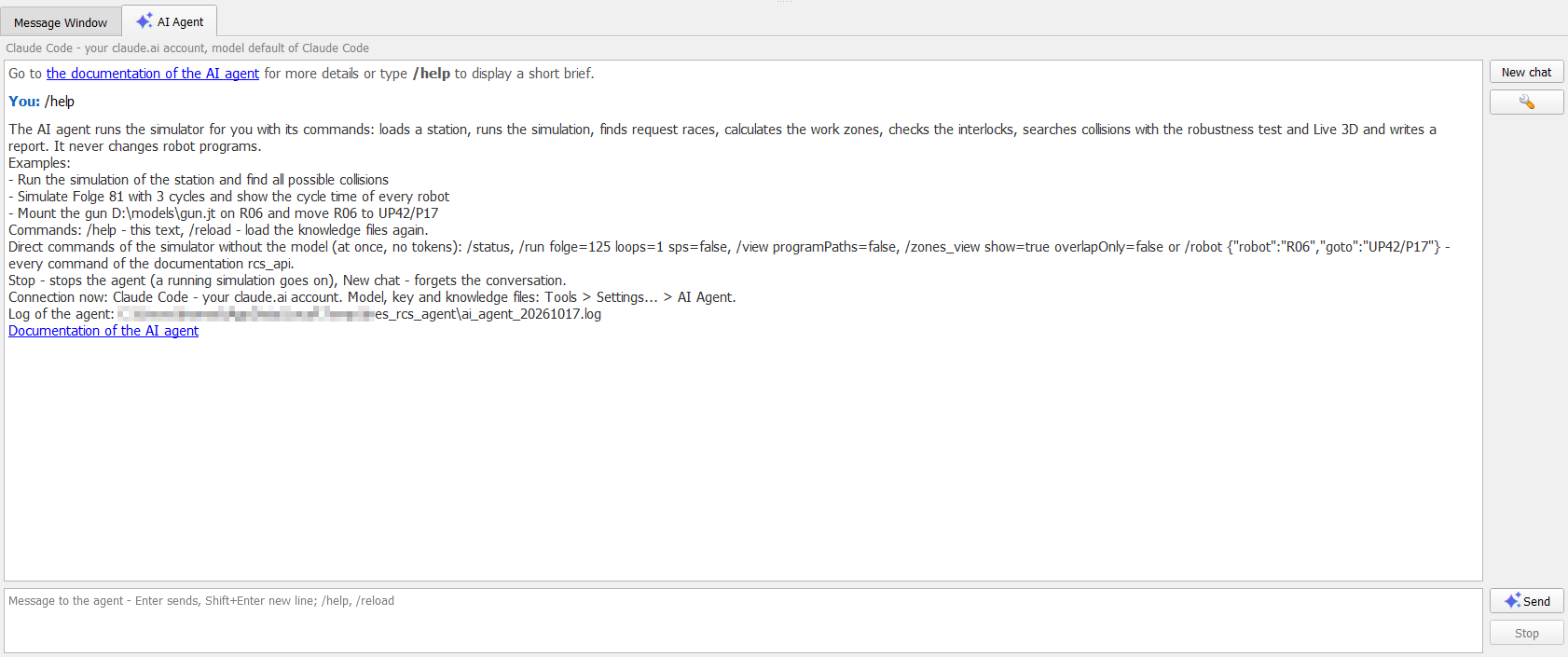
/help: what the agent does, examples, the commands, the connection and the log/reload(also reload knowledge, przeładuj wiedzę, odśwież wiedzę, Wissen neu laden) – loads the knowledge files again. The chat shows an entry with the summary (number of files, characters, tokens, missing files). The conversation stays./anonymous on|off(also/anon on|off) – switches the anonymous mode on or off (a new chat starts);/mode– shows the mode and, when it is on, the key R1 = 0001R01, ….- Direct commands of the simulator – every other message that starts with
/and a letter is a command of the command API, run at once in the program: without the model and without tokens, also while the agent works (no queue). Syntax:/name key=value …(valuestrue/false, numbers, text; text with spaces in quotes, e.g.name="R06 UP42") or/name {json}. Examples:/status,/set– state of the simulator, settings;/run folge=125 loops=1 sps=false– starts the simulation;/view programPaths=false recordedPath=false– hides the paths in the 3D view;/zones_view show=true overlapOnly=false– shows the work zones including the green ones (areas of one robot only);/robot {"robot":"R06","goto":"UP42/P17"}– the same in JSON.
/ai_chatis not available in the chat. The list of the commands and their parameters: command API.
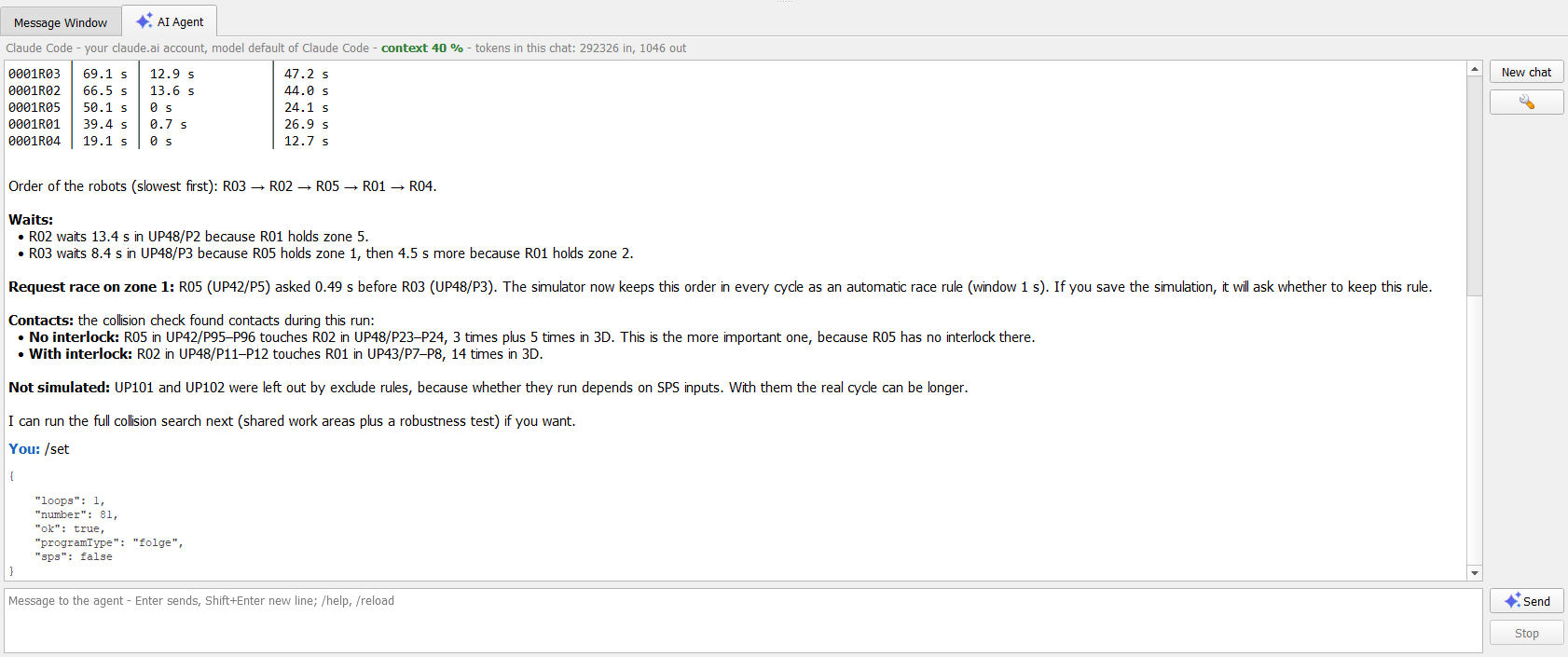
/set: the simulator answers at once (JSON) – without the model, no tokens/) does not use
any tokens – it does not go to the model; the simulator runs the command at once and shows the answer (JSON) in the
conversation.Tools of the agent: rcs_command – any command of the command API, run inside the simulator (no pipe, no windows); wait_until_idle – waits until loading, preparation, simulation and robustness test are over; read_doc – reads the pages doc\rcs_*.html of this documentation (e.g. rcs_api before it uses a command it does not know). Steps per message in the settings limits the number of commands for one message. A file the user names ("load my example", "the last simulation") the agent finds in the list of the recent simulations (command recent_files) – it does not search the disk.
Instructions of the agent: <installation>\template\RCS\AIAgent\rcs_agent_instructions.md (the
default knowledge file; can be adapted or extended by your own files). The standard procedure find all possible collisions:
- state of the simulator (load the station if needed),
- tool models on the robots (only when the user asks: tool_model, check with robot goto in a weld point, see Tools on the robots),
- HOME first: before every simulation of a program / Folge all robots go to HOME with Folge 125
(
run folge=125 loops=1 sps=false, wait for the end); only then the real run – otherwise the cycle times start from random positions, - learning run: 1 normal cycle, cycle time and order of the robots,
- request races and the Interlock priority blocks added to the SPS program,
- work zones and Check interlocks (MISSING, LATE, EARLY, ...),
- robustness test with Live 3D and a plan made by the agent for the risky places,
- round 2 when places are still not checked,
- report: cycle time, races, every collision place with its cause, what could not be tested.
The agent always answers every message – also when something cannot be done: then it says why (e.g. the work zones are not calculated yet). The instructions contain a dictionary of the display, so the agent uses the same words as the 3D view: green zones = area of one robot only, yellow = common area with an interlock, red = common area without an interlock; paths in the colors of the interlocks, labels. The zones must be calculated first (command zones) – not while the simulation runs.
License: the window needs the additional license API / CLI (L_248_API). Without it the messages are
rejected and the group of the connection in the settings is locked (/help and /reload still
work; the direct commands follow the rules of the command API).
Anonymous mode
In the anonymous mode the model does not see the names of the cell: the simulator replaces them by identifiers before a text goes to the model and puts the real names back in what comes from the model. The study runs as usual – the agent simulates, checks and reports with R1, R2 … instead of the robot names.
| Switch | How |
| Chat | /anonymous on | off (also /anon on | off);
/mode shows the mode and the key R1 = 0001R01, R2 = 0001R02, … |
| Settings | Tools > Settings... > AI Agent: check box Anonymous mode - the model sees R1, R2 ..., <file N> and <name> instead of the robot names, file paths and plant identifiers |
| API | command ai_chat, parameter "anonymous": true | false; the answer has the fields
anonymous and consentPending (see the command API) |
Switching the mode starts a new chat. While the mode is on, the state line shows anonymous in green.
| Data | What the model sees |
| robot names, in all forms (e.g. 0001R01, also short forms in comments: number of the station + R01) | R1 … Rn – in the alphabetical order of the robots of the scene |
| file paths | <file N> |
| identifiers of the plant, line and part (words with digits and underscores; 2–4 letters + 3 digits) | <name> |
| Folge / UP numbers, points, signals, times, robot model (e.g. KR 210 R3100-2) | unchanged |
Both directions: the answers of the commands and your messages go to the model with the identifiers; the commands
of the model (e.g. {"cmd":"robot","robot":"R2","goto":"UP42/P5"} or
{"cmd":"load","file":"<file 1>"}) come back to the simulator with the real names; the answer of the agent
is shown to you with the real names. The lines of the tools in the chat show what the model saw.
All connections: Anthropic API (A), Claude Code (B) and VW LLMaaS / OpenAI-compatible API (C). With Claude Code the
MCP server VeRa gets the environment variable DRES_AI_ANON=1 and adds "anon": true to every command
of the simulator; in this mode Claude Code may not read files (no Read, Grep, Glob – the files
contain the real names).
Speed: the simulation itself is not changed and not slower – only the text of the commands and answers is translated (fractions of a millisecond). The key (real name ↔ identifier) stays only in the memory of the simulator.
When the mode is off, the chat asks before the first real data are sent (YES / ANON / NO, see Question before the first real data).
Configuration step by step
Your own access to the AI model: the agent uses your account or API key (Anthropic, an OpenAI-compatible service such as VW LLMaaS / Azure OpenAI, your own claude.ai account) or a local model. The usage of the model is paid directly to your AI provider under your own contract – DReS adds no AI fees and no usage limits of its own.
Choose one of the three ways to connect the agent to a language model. For all of them the license API / CLI is needed.
| Way | Account / costs | Speed and how it works |
| A. Anthropic API – API key | console.anthropic.com; you pay for the tokens, separate from a Claude Pro / Max plan | the fastest: DReS talks with the model directly, the commands of the simulator run in the program itself; the answer comes live (SSE stream) |
| B. Claude Code – your claude.ai account (Pro / Max) | no API key; tokens from the limit of your plan; only for your own use | slower: every message goes through the local Claude Code, the local MCP server
AIAgent\vera_mcp.py (Python) and the pipe of the command API of the simulator; Claude Code adds its own
large instructions. The first message of a chat starts the process (a few seconds), the next ones go to the running
session. A message sent while the agent waits for the simulation waits in the queue (it does not end the
waiting) |
| C. VW LLMaaS / OpenAI-compatible API | token of the LLMaaS portal (or of another provider) | like A: directly from DReS, answer live (SSE stream) |
A. Anthropic API (Claude) – with an API key
- Open console.anthropic.com and create an account. In Settings > Billing buy credit: you pay for what you use. The API is not part of a Claude Pro / Max plan.
- Settings > API Keys > Create Key. Copy the key (
sk-ant-...) – it is shown only once. - In the simulator: Tools > Settings... > AI Agent. Provider: Anthropic API (Claude), paste the key in API key / token. Model: empty = claude-sonnet-5-5; claude-opus-5-5 is more exact and costs more. OK.
- Tab AI Agent: type
/help, then your message, e.g. "Run the simulation of the station and find all possible collisions".
B. Claude Code – your own claude.ai account (Pro / Max), no API key – only for your own use
- Install Claude Code (claude.com/claude-code).
- Log in – before the first use and when the session has expired: the program claude.exe started
by the simulator has its own login, independent of the Claude desktop application. Open a terminal (e.g.
cmd or PowerShell), run
claude, log in with/login(your claude.ai account) and close it with/exit. When the login is missing or has expired, the chat shows Failed to authenticate… and a red hint with these steps – log in and send the message again. - Python 3 must be installed – it runs the MCP server
AIAgent\vera_mcp.py(found automatically, see Python below). - In the simulator: Tools > Settings... > AI Agent:
- switch on Command API of the Robot Cell Simulator for the AI agent and scripts (pipe
DReS_RCS_API) – Claude Code controls the simulator through the MCP server VeRa; - Provider: Claude Code - your claude.ai account (own use only);
- Claude Code program and Python: filled in automatically the first time the settings are opened; check them or choose the file with the button next to the field;
- Model: empty = the default of Claude Code (e.g. sonnet or opus); OK.
- switch on Command API of the Robot Cell Simulator for the AI agent and scripts (pipe
- Tab AI Agent: write your message.
How it works: the first message of a chat starts claude -p --input-format stream-json --output-format
stream-json --include-partial-messages ... with the MCP server VeRa (tools rcs and status); the next
messages go to this running process. The knowledge files go in as additional instructions
(--append-system-prompt-file), the documentation doc\ can be read (tool Read). The
conversation goes on (--resume); New chat starts a new process and a new session. The tokens come from the limit of your
plan; the state line shows the tokens used.
C. VW LLMaaS or another OpenAI-compatible API
- Tools > Settings... > AI Agent, Provider: OpenAI-compatible API.
- Address: the address from the LLMaaS portal (.../chat/completions); API key / token: your token.
- Key header: Authorization (Bearer token, default) or api-key (Azure OpenAI).
- Model: a model from the LLMaaS list, e.g. claude-sonnet-4.6 or gpt-5.1; OK.
- Data: only Confidential or lower (see Data protection below).
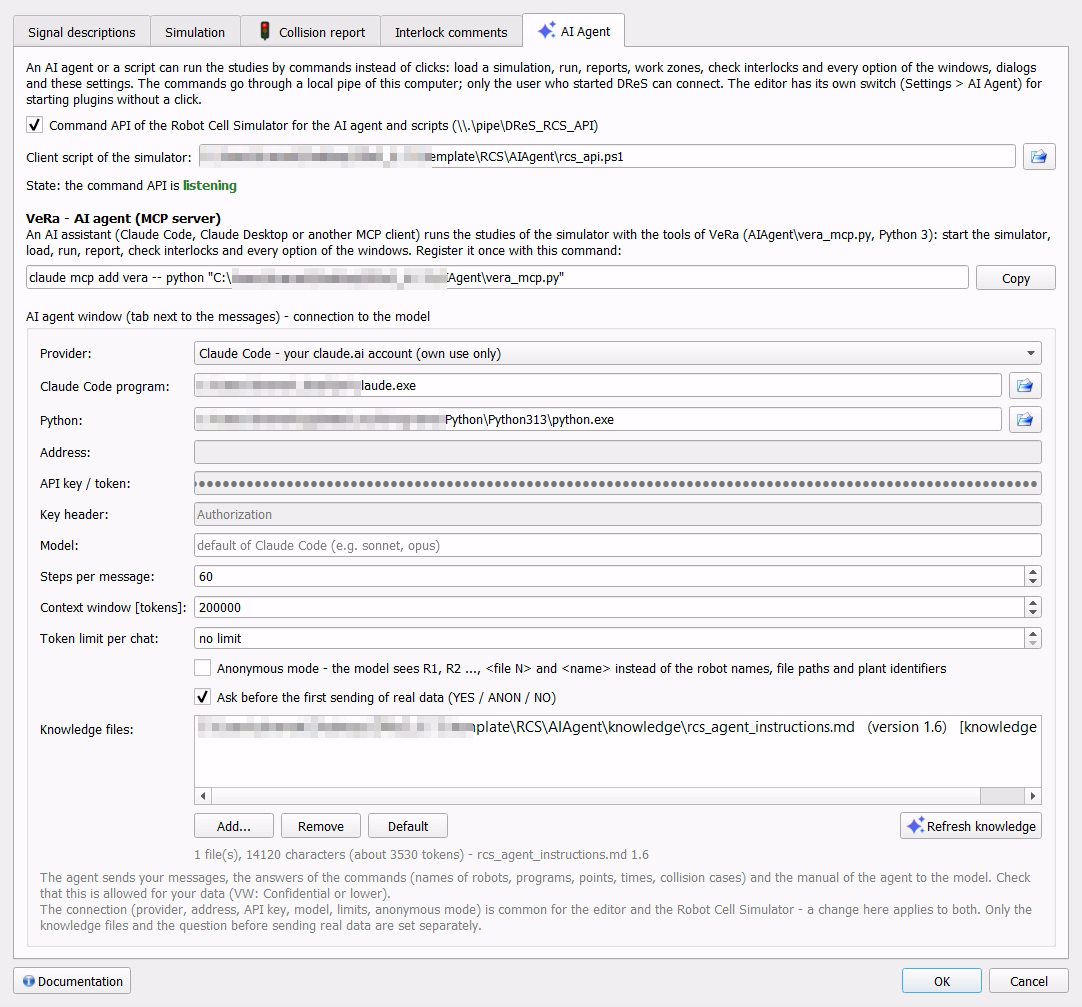
Settings (Tools > Settings... > AI Agent, group AI agent window (tab next to the messages) – connection to the model):
| Field | Meaning |
| Provider | Anthropic API (Claude), OpenAI-compatible API (VW LLMaaS, Azure OpenAI, OpenAI, local Ollama) or Claude Code - your claude.ai account (own use only) (see Configuration step by step, way B) |
| Claude Code program | only for Claude Code: the program claude.exe (or claude.cmd). The button
next to the field selects the file. When the field is empty, it is filled in the first time the settings are opened
(saved with OK); search order: PATH, %USERPROFILE%\.local\bin\claude.exe, npm
(%APPDATA%\npm\claude.cmd), WinGet (%LOCALAPPDATA%\Microsoft\WinGet\Links\claude.exe) |
| Python | only for Claude Code: Python 3 that runs the MCP server AIAgent\vera_mcp.py. The
button next to the field selects python.exe. Instead of the default python the field is filled in
the first time the settings are opened (saved with OK): the newest Python 3.x from the registry
(Software\Python\PythonCore, first the user, then the computer), otherwise python from the
PATH without the alias of WindowsApps (Microsoft Store) |
| Address | address of the API; filled with the default address of the provider
(https://api.anthropic.com/v1/messages for Anthropic, https://api.openai.com/v1/chat/completions
for the OpenAI-compatible API) – it changes with the Provider; your own address stays. VW LLMaaS: the
address from the LLMaaS portal (.../chat/completions). Empty and locked for Claude Code |
| API key / token | stored obfuscated in the settings of this user |
| Key header | only for the OpenAI-compatible API: Authorization (Bearer token, default) or e.g. api-key (Azure OpenAI) |
| Model | name of the model; empty = claude-sonnet-5-5 (Anthropic), gpt-4.1 (OpenAI-compatible) or the default of Claude Code (e.g. sonnet, opus); VW LLMaaS e.g. claude-sonnet-4.6, gpt-5.1 |
| Steps per message | 5 … 500 (default 60): most commands of the agent for one message – protects against loops and costs |
| Context window [tokens] | 8000 … 2000000 (default 200000): context window of the model (Claude:
200000, some models 1000000). The state line shows in color how full it is (Usage). Setting
RCS_Group/AiChat_Context |
| Token limit per chat | 0 = no limit (default): tokens of one chat (in + out) for the colored
percentage (NN % of the limit) in the state line. Only a warning – the agent does not stop. Setting
RCS_Group/AiChat_Budget |
| Anonymous mode - the model sees R1, R2 ..., <file N> and <name> instead of the robot names, file paths and plant identifiers | check box (default off): the anonymous mode, the same as
/anonymous on | off in the chat and ai_chat anonymous in the API; a change starts a new
chat. Setting RCS_Group/AiChat_Anonymous |
| Ask before the first sending of real data (YES / ANON / NO) | check box (in the simulator default on, in the editor off): when the anonymous mode is off, the first message of a DReS session with real data waits for the answer YES / ANON / NO (see Question before the first real data); off = the messages are sent without the question. Separate for the simulator and the editor |
| Knowledge files | list of Markdown / text files (.md, .txt) sent to
the model as the instructions of the agent, in the order of the list: the procedure, rules of the cell, your own
notes. Buttons: Add... (select one or more files), Remove (the selected files), Default (only
template\RCS\AIAgent\rcs_agent_instructions.md), Refresh knowledge (saves the list and loads the
files again into the AI Agent window – after you changed a file; the conversation stays). Below the list:
summary n file(s), x characters (about y tokens) and the files that were not found. Setting
RCS_Group/AiChat_Knowledge |
| Documentation | button at the left of the OK / Cancel row of the settings window (shown while the tab AI Agent is open): opens this description (Configuration step by step) in the web browser |
Credit and costs (way A): the remaining credit is shown only in console.anthropic.com
> Billing; the usage and the costs in Console > Usage / Cost. Through the API they can be read only
with an administration key of the organization (sk-ant-admin...), not with the normal API key – the
simulator does not read them. In the window: the tokens of the chat in the state line and every request in the
log of the agent.
The knowledge is read once – with the first message, with Refresh knowledge, /reload or
OK in the settings – and stays the same between the requests. The provider can then use its prompt cache, so
long instructions cost less. A changed file is used only after /reload or Refresh knowledge.
Fixed system instructions: the instructions sent to the model contain only the knowledge files – no
changing data of the scene (number of robots, state). The agent reads the current state itself with the command
status. So the instructions stay the same during the whole chat and the prompt cache works. After /reload
or a change of the knowledge the reasoning blocks of the model (thinking) of the earlier answers are removed from the
history (they are signed for the old instructions – the API would answer HTTP 400 Invalid signature in thinking
block); the conversation itself stays.
Log of the agent: %TEMP%\dres_rcs_agent\ai_agent_YYYYMMDD.log (one file per
day). It holds every entry of the conversation, the commands and the full results of the tools (the window shows only
a short form), HTTP errors with the text of the answer, and for Claude Code the final result, its error output (stderr) and
the exit code. /help shows the path. The folder %TEMP%\dres_rcs_agent also holds the working files
of the provider Claude Code (mcp_vera.json – the MCP server VeRa, rcs_agent_prompt.md –
the instructions of the agent); they are written again for every message.
Problems (the details are in the log of the agent):
| Symptom | Cause | What to do |
| Failed to authenticate…, Not logged in, OAuth token has expired + red hint Claude Code is not logged in… | Claude Code (way B) was never logged in or the session has expired; its login is independent of the Claude desktop application | open a terminal (e.g. cmd or
PowerShell), run claude, log in with /login (claude.ai account), close it with
/exit, send the message again |
| Claude Code not found… | claude.exe is not installed or not in the searched places
(PATH, %USERPROFILE%\.local\bin, npm, WinGet), or the path in the field does not exist | install Claude Code or choose the file in the field Claude Code program (button next to the field) |
| Claude Code reaches the simulator through its command API – switch it on… | the command API of the simulator is off | Tools > Settings... > AI Agent: switch on Command API of the Robot Cell Simulator for the AI agent and scripts |
| MCP server not found: …, or the agent has no tools rcs / status | the file
<installation>\AIAgent\vera_mcp.py is missing, or Python was not found / is the alias of
WindowsApps | repair the installation; install Python 3 (python.org) or choose python.exe in the field Python (button next to the field) |
| No API key – Tools > Settings... > AI Agent | Anthropic API or OpenAI-compatible API without a key | paste the key in API key / token (way A or C) |
| Request to the model failed (HTTP …) | Anthropic / LLMaaS: wrong address, key or model name, no credit, or the network | check Address, API key / token, Key header and Model; the answer of the server is in the log |
| Limit of n steps reached – the agent stops | the agent needed more commands than Steps per message | send go on, or raise Steps per message in the settings |
| context NN % red in the state line, the agent gets slow or forgets things | the context window of the model is almost full (long chat, many results of commands) | start a New chat; check Context window [tokens] in the settings |
| (NN % of the limit) orange / red | the chat used most of the Token limit per chat | only a warning; start a New chat or raise the limit |
| Claude Code (way B): the first answer comes only after some seconds, a message during the simulation waits | the first message starts the process of Claude Code; in the way B a message during the waiting goes to the queue | normal; for faster answers use the way A or C (see comparison) |
| HTTP 400 about a thinking block | an older version sent an empty reasoning block back | fixed: reasoning blocks are put together from the stream; if it still appears, start a New chat and send the log to the support |
| HTTP 400 … Invalid signature in thinking block | an older version changed the instructions of
the agent during the chat (data of the scene, /reload) – the signed reasoning blocks in the history
did not fit any more | fixed: the instructions stay the same and after
/reload the reasoning blocks are removed from the history; if it still appears, start a New
chat |
a /… message gives an error instead of an answer of the agent | a message starting with
/ and a letter is a direct command of the simulator (unknown command, wrong
parameter, missing license) | see the command API; for a question to the agent
do not start the message with / |
| orange Question: send the real data? YES / ANON / NO; the message is not sent | the anonymous mode is off and this is the first message of the DReS session that goes to the model | answer in the chat: YES (real data, asked once per session), ANON (anonymous mode on, data
anonymized) or NO (nothing is sent), see Question before the first real data; through
the API: ai_chat answer consentPending true, answer with message "yes" |
"anon" | "no" |
Script / API: command ai_chat (message, newChat, stop, last, anonymous – answer busy, transcript, anonymous, consentPending), see the command API. Other ways to use AI: anonymized study for an AI assistant, the AI Agent window of the editor (same connection) and VeRa (voice control, AI assistant over MCP).