
Find all possible collisions of the open station: baseline run, work zones, check interlocks, then write and run a robustness test plan with Live 3D. Give me the report.This replaces the manual steps:
- send all robots to HOME (Folge 125),
- baseline run of the Folge (times, waiting, request races),
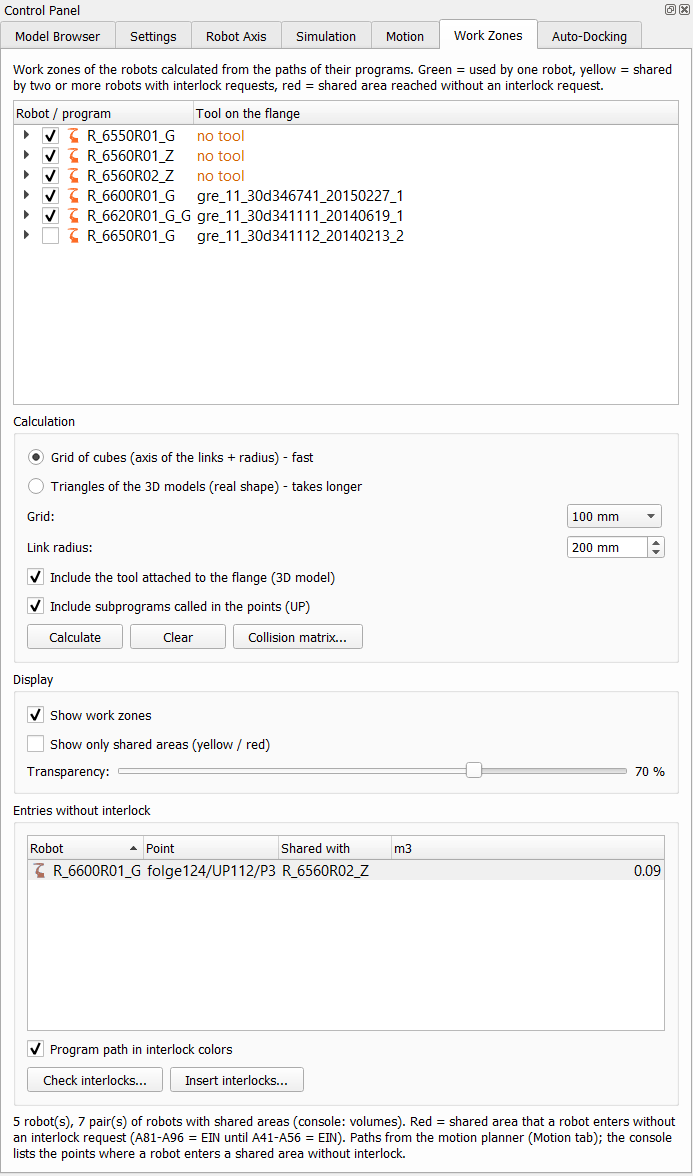
- calculate the work zones,
- Check interlocks,
- export the anonymized study, give it to an AI assistant and copy its answer,
- write or import the robustness test plan,
- run the robustness test with Live 3D and wait,
- open the report and sort out the collision cases.
Data: with the anonymous mode (
/anonymous on) the chat sends
identifiers (R1, R2 …, <file N>, <name>) instead of the real names to the model – like the
anonymized study – and the whole study still runs by itself. Without it the chat asks before the first real data are
sent.Idea
The analysis of the interlocks and of the cycle time of a cell (bottleneck, missing interlocks, where to request and release a zone earlier or later, chain effects on other robots) can be supported by an AI assistant. Robot programs, names and the layout of a plant are confidential and must not be sent to an AI service. The Robot Cell Simulator therefore does all calculations locally (kinematics, work zones of arm and tool, shared volumes, simulation of the cell with the station SPS) and saves only their results in an abstract form: robots R1…Rn, programs F# (Folge) / U# (UP), points P# – without names, coordinates, comments or program text.
The AI only proposes changes. The programmer applies them locally, the Robot Cell Simulator checks them with a new simulation, the decision stays with the human.
How to use
- Load the cell and the programs (e.g. Simulation > Load simulation...).
- Work Zones: check the programs of the robots, Calculate.
- Optional but recommended: Simulation tab, Run on all robots (several cycles) – the study then contains cycle times, waits and how long the zones are held.
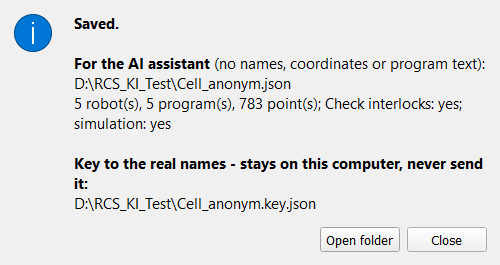
- Work Zones: Anonymized study for AI... – choose the file. Two files are written:
- <name>.json – for the AI assistant;
- <name>.key.json – the key from the IDs to the real names. It stays on this computer – never send it.
- Give the .json and the briefing for the AI agent to the AI assistant (see With Copilot).
What is in the file
| Part | Content |
|---|---|
| robots, zoneCalculation | R1…Rn; grid and radius of the work zone calculation |
| sharedAreas | robot pair: shared volume (m³), part entered without interlock, interlocks of the pair, largest entry without interlock |
| programs[].steps | every point in execution order with called UPs: point (F1/U2/P5), motion type, exact stop, process path, zones requested / released, zones held during the motion and after the point, contact with the work zones of other robots, motion without interlock |
| checkInterlocks | findings of Check interlocks, names replaced |
| simulation | station cycle, cycle and waiting time of every robot, waits for zones (where, which zone, held by whom), how long zones are held, wait chains, requests at the same moment |
| interlockTexts, commentTemplates | only when you answer Yes to the question when saving (the choice is remembered): the interlock comments above the points (only comments with an interlock word), the interlock commands of the points and the long texts of E41..E56 / A41..A56 / A81..A96 of every robot, robot and program names replaced by R# / F# / U#; the comment templates of Settings > Interlock comments. The AI checks whether the comments and long texts are written well and match the programs (rules in the briefing, chapter 6) and answers in "texts". |
Data protection
Not in the file: coordinates, names of robots, station, line or plant, program names, program text, comments (quoted text becomes "<text>"), signal texts, file paths (<path>), robot type, identifiers from program headers (<name>). In the file: IDs, point numbers, zone numbers 1–16, motion types, volumes, times and the standard signals (E41, A81, SPSMAKRO20, Makro45) – they carry the meaning, are not confidential.
Before saving, the Robot Cell Simulator checks the file for parts of the real names (all known forms, short robot names, long digit sequences of the names, identifiers with underscore, paths). The result is shown in the message.
Anonymized study or anonymous mode of the AI agent? The anonymized study is a file: you export it, hand it
to the AI assistant yourself and import its answer – a manual way; the key file stays on your computer. The
anonymous mode of the AI Agent window (/anonymous on) works
automatically: the simulator replaces robot names, file paths and plant identifiers by R1, R2 …,
<file N> and <name> in every text that goes to the model and puts the real names back in its
commands; the key stays only in the memory of the simulator. The anonymized study removes more (also program text, comments
and coordinates); in the anonymous mode free words in comments that do not look like names can still reach the model.
With Microsoft Copilot
Copilot does not access the Robot Cell Simulator directly – the exchange goes through files, the user sees and controls everything that is handed over:
- In the Copilot chat upload the briefing (anon_agent_brief_en.md or _de.md) and the anonymised .json.
- Prompt, for example: "Read the briefing and analyse the anonymised robot cell in the JSON file as described in section 1: station cycle, missing interlocks, proposals with expected effect, confidence. List the changes at the end also as JSON."
- Copy the whole answer of Copilot and import it in the Robot Cell Simulator: Work Zones > Import AI proposals... (see Import of the AI proposals). The IDs (R5, U2 …) are mapped back to the real robots and programs with the local key file.
Import of the AI proposals
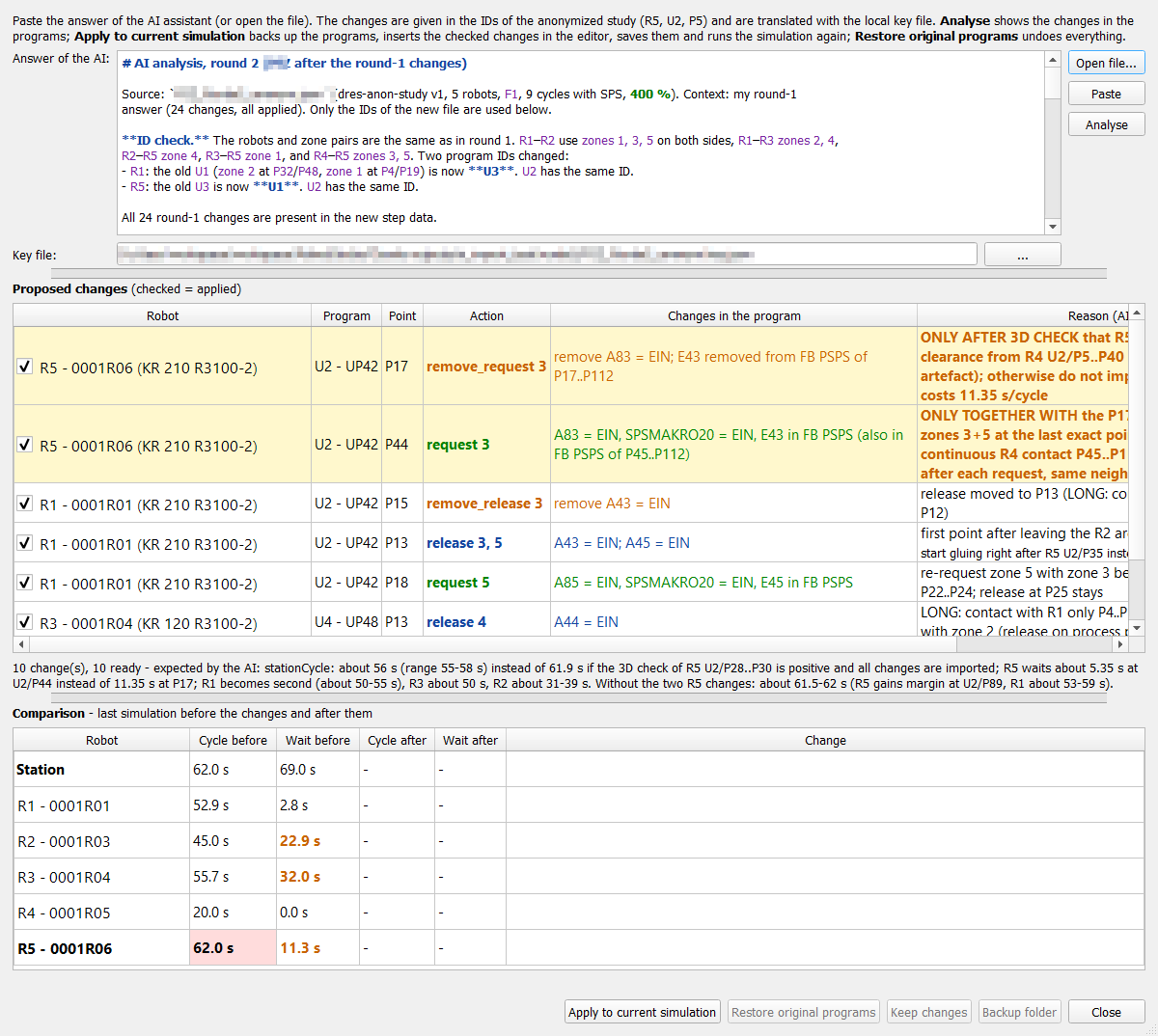
Work Zones > Import AI proposals... reads the answer of the AI assistant and shows what it means in the programs of the cell:
- Paste the answer (the whole chat answer – the block {"changes": [...]} is found in the text) or Open file...; the key file of the last export is chosen automatically.
- Analyse – table of the proposed changes: robot, program and point (ID and real name), action, the changes in the program (e.g. A81 = EIN, SPSMAKRO20 = EIN, E41 in FB PSPS), the reason given by the AI (shown as the AI wrote it – in the language of the briefing) and a note. Changes that cannot be applied (point or program not found, zone outside 1..16) are red; changes to be checked (zone already requested there, wait on the process path, partner unknown) are orange and not checked. Colours: the answer of the AI – findings red (MISSING, LOGIC, bottleneck), conditions and warnings orange (ONLY AFTER, check), IDs violet, times and percentages green, the JSON block grey; the table – request green, release blue, remove_* orange, a change that the AI marks as conditional (ONLY AFTER ...) on a yellow background – decide about it before applying (uncheck it if the condition is not met).
- Apply to current simulation – the programs are backed up (RCS_AI_backup_<date> in the folder of the anonymized study), the checked changes are inserted in the editor with the same code as Insert interlocks (comments with the partner robot, A81..A96, SPSMAKRO20, E41..E56 in FB PSPS, A41..A56), the programs are saved and the simulation runs with the settings of the Simulation tab. With After applying, check with the 3D models checked, the work zones are first calculated from the triangles of the 3D models with the changed programs: green = no entry into a shared area without interlock, red = list of the entries (robot, point, partner) and the rows of this robot and program marked red – restore the original programs. This confirms changes that the AI marks as conditional (only after 3D check), e.g. a request moved because a small contact of the grid of cubes is not real. The calculation mode of the Work Zones tab is restored afterwards.
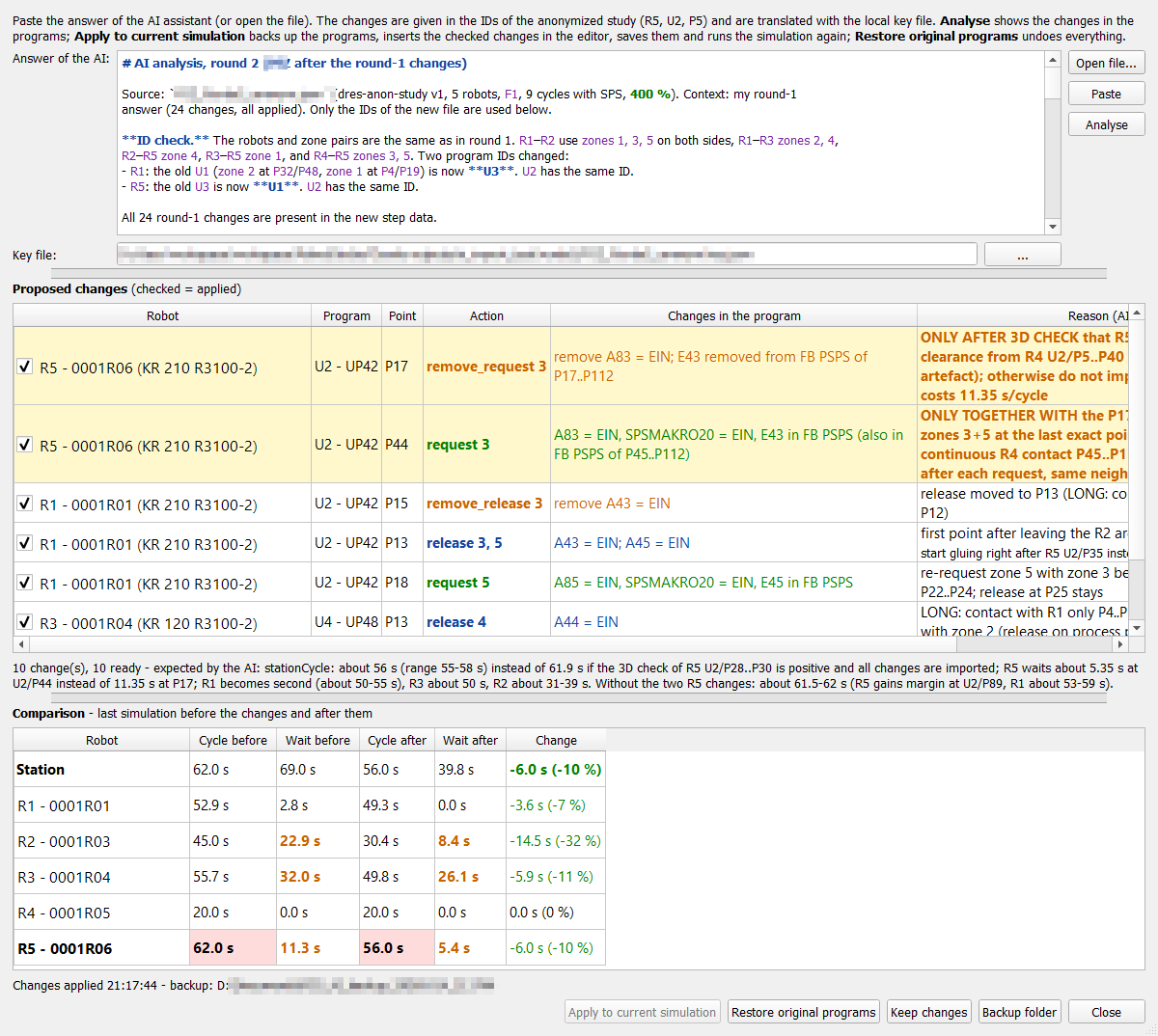
- Comparison – station cycle, cycle and waiting time of every robot before and after the changes, with the change in seconds and percent (shorter green, longer red), and the expected result of the AI. The robot that determines the station cycle (bottleneck) is marked red before and after, waits of 5 s or more per cycle orange. When the simulation has finished, the window comes to the front with the complete comparison. The window can be maximised; drag the bars between the three parts to enlarge the answer, the table or the comparison.
- Restore original programs – the programs are copied back from the backup (the editor windows of these programs are closed without saving). Keep the variant: check the programs in the editor and keep them.
Actions in the answer of the AI: request (request zones in the point), release (release zones in the point), remove_release and remove_request (remove the existing release / request from the point, e.g. when it is moved to another point; remove_request also removes the input E41..E56 of the zone from FB PSPS up to its release and SPSMAKRO20 when no other request is left in the point). Optional: partner (robot of the comment), reason, and expected with the expected station cycle.
{"changes":[{"robot":"R5","program":"U2","point":"P1","action":"request","zones":[1,4],"reason":"..."},
            {"robot":"R5","program":"U2","point":"P44","action":"remove_release","zones":[1]},
            {"robot":"R5","program":"U2","point":"P68","action":"release","zones":[1]}],
 "expected":{"stationCycle":"52-56 s"}}
The key file
Every export (Anonymized study for AI...) writes two files: <name>.json for the AI and <name>.key.json – the key from the IDs to the real names, e.g. R5 → robot of the cell, U2 → UP42, F1 → folge81. The AI sees and answers only in IDs (R5, U2, P44); the import needs the key to know which robot, program and point is meant. The key never leaves the computer.
- Each export has its own key – the import must use the key of the export that the AI analysed.
- Key file in the import window: the key of the last export is chosen automatically; choose another one with ... (e.g. when the answer belongs to an older export).
- Keep the .json and its .key.json together (same folder, same name).
Next round
After Apply to current simulation the comparison shows the result. Then:
- Keep changes – the changes stay in the programs (the backup stays on disk) and become the new starting point: export a new anonymized study (new .json + new key), give it to the AI for the next round, import the answer again.
- Restore original programs – back to the state before the import.
Before each program is saved, the VKRC controller and the VW Tech-User of the robot are set (as when the robot project is activated, fields in the toolbar): $config.dat of the robot (KRC/R1/System), version from TPVW_VERSION or am.ini, Tech-User from KRC/R1/VW_User/vw_usr_s.src. If this Tech-User is not yet in DReS, it is added from the archive of the robot. The previous settings are restored afterwards. If the editor finds existing syntax warnings in the program when saving (e.g. Invalid default value for P2), it asks before saving; the check of the default value can be switched off in the VKRC settings (VW User > Check default P value for invisible parameter).
Comments and long texts (answer part "texts"): a row comment rewrites the interlock comment above the point from the plant's templates (Settings > Interlock comments, up to three lines / languages) - the AI gives only the interlock number, request or release and the partner robot, so the text always follows the templates. A row longtext is only reported (the long texts are changed in the robot configuration), a row text is a note. The long texts are valid: a comment naming another robot than the long texts is corrected, not the long text.
Other AI connections
- Local AI model – nothing leaves the computer; the same file and briefing.
- AI Agent window of the simulator – a chat inside RCS: the agent runs the simulation, Check interlocks and the robustness test itself (Anthropic API or an OpenAI-compatible API, e.g. VW LLMaaS). It works with the real names of the cell, not with the anonymized study – only for data that may be sent to this model.
- AI assistant with tools (MCP), e.g. Claude Code, or other clients that support MCP servers – can run the study itself through the command API (anon_study) and VeRa.
- AI service of the customer (e.g. in the company tenant) with an interface – to be agreed with the IT of the customer.
Example
Cell with 5 robots, Folge 81, station cycle 72.2 s. An AI agent got only the anonymised file and a few sentences on the interlock rules – no key, no knowledge of an earlier study – and reached the same results as the programmer on the real programs: the robot that determines the cycle and why (21.6 s waiting for two zones held by two partners during their gluing paths), the same missing interlocks (same point ranges), the same solution (earlier request, longer hold, second request) and the chain effect on a third robot; estimated cycle 52–56 s – the simulation of the best variant gave 53.0 s.
{"at":"F1/U2/P5",  "motion":"PTP", "exact":true,  "request":[1,4], "zonesAfterPoint":[1,4]}
{"at":"F1/U2/P45", "motion":"PTP", "exact":false, "contact":["R3","R4"], "unprotected":["R3"], "zonesDuringMotion":[5]}
{"robot":"R5", "where":"U2/P5", "zones":"1 (E41) + 4 (E44)", "by":"R2 (4), R3 (1)", "perCycle":21.6}
Command API
{"cmd":"anon_study", "file":"C:/temp/cell.json", "check":true, "run":true}
Answer: file, keyFile, stats (robots, programs, steps) and leaks (must be empty). See Command API.