
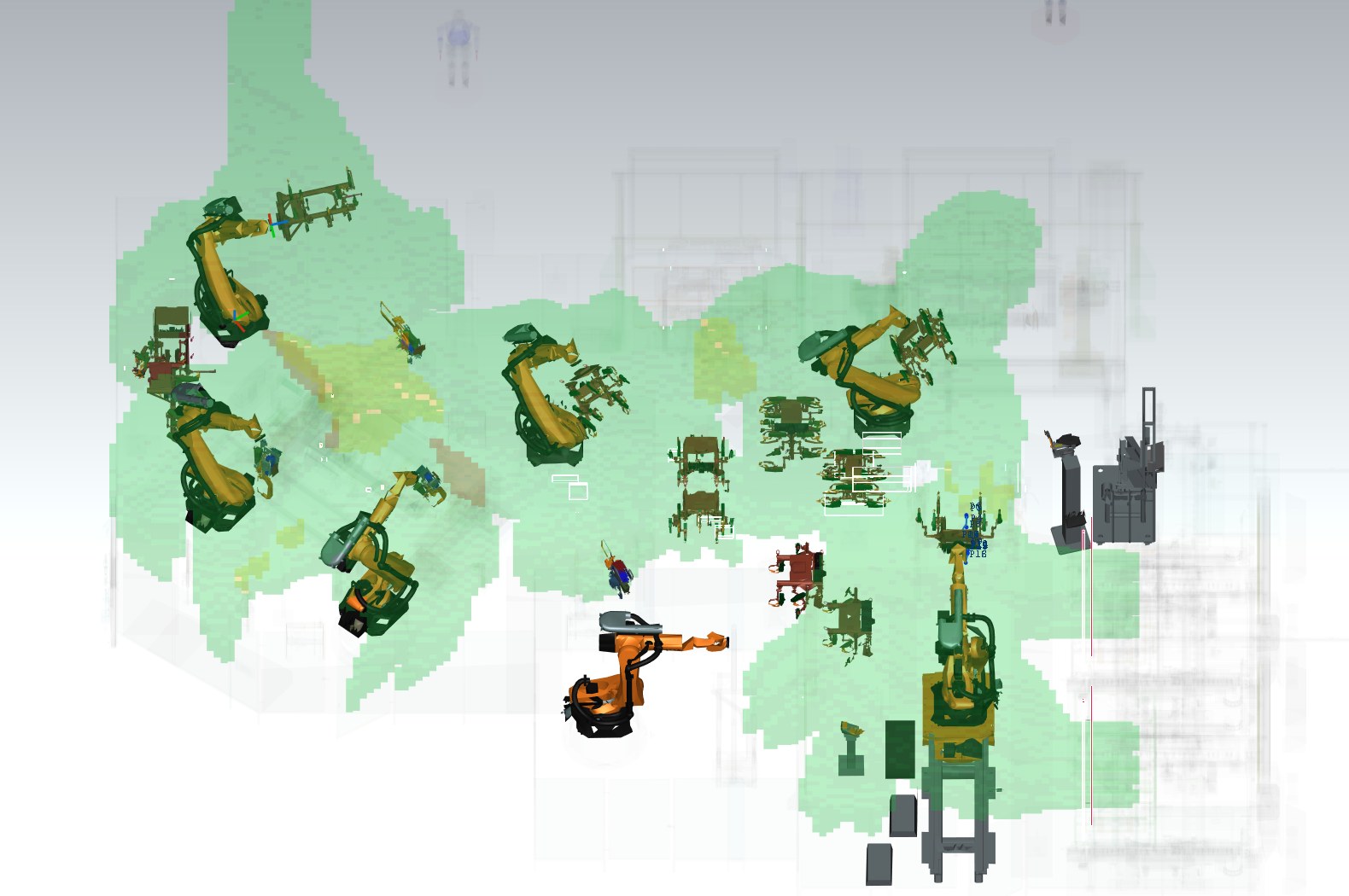
The work zone of a robot is the space swept by the robot, its tool and its arm along the paths of the selected programs. Areas used by two or more robots are shared areas. The interlocks of the programs (A81–A96 = EIN request, A41–A56 = EIN release, comments Verriegelung n Roboter ...) are compared with the moments when a robot enters a shared area.
 DReS Robot Cell Simulator - Work Zones: Shared Areas of the Robots from the Real Programs (YouTube, English)
Calculation
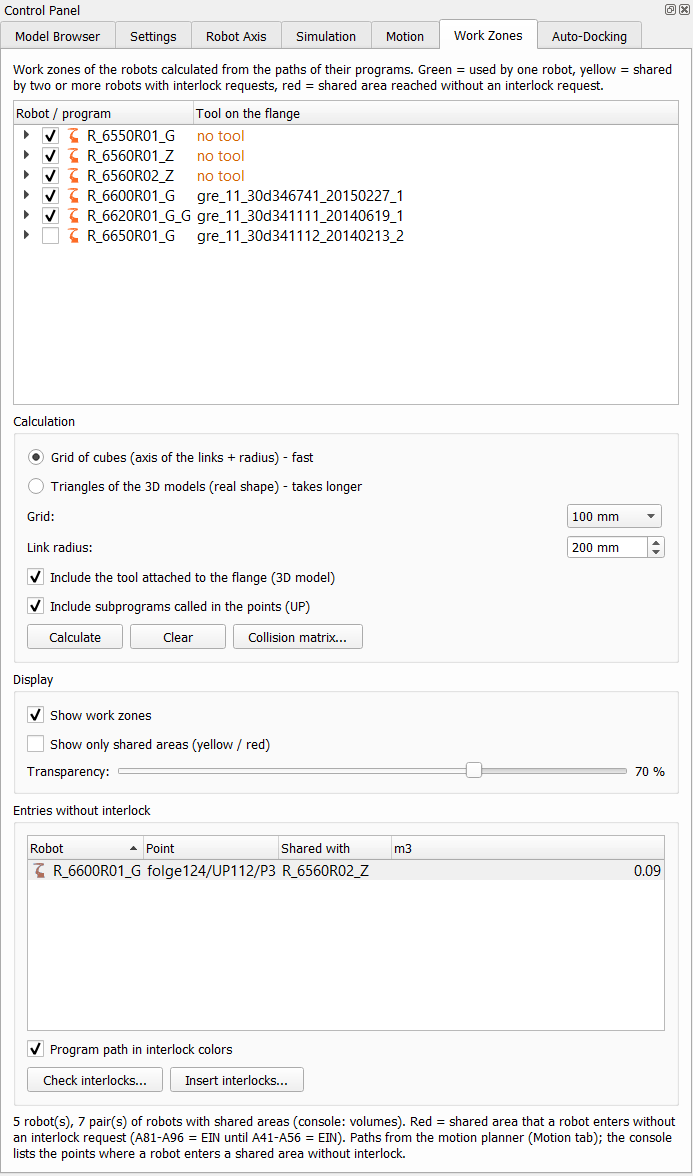 |
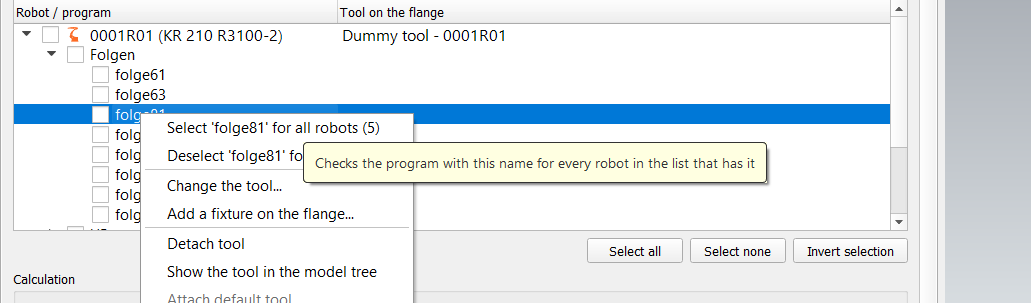
Check the robots or single programs in the list (the tool on the flange is shown next to each robot) and press Calculate. Right click on a program (Folge / UP): Select '...' for all robots checks the program with the same name for every robot of the list that has it (the number in brackets), Deselect '...' for all robots unchecks it – e.g. Folge 81 of the whole station with one click. Parameters:
The paths come from the motion planner (LIN / CIRC along the path, approximation). A whole robot, a group (all Folgen / all UPs) or single programs can be checked. Unchecking hides a zone at once, checking it again shows it without a new calculation; Calculate always recalculates everything. Clear removes the zones. Since 2026-10-25 the motion planner and the marking of the cells run in the background on all processor cores – for Calculate and also when the zones are calculated before a run (Calculate and run). The window of the simulator responds during the calculation, the 3D view is drawn and Cancel works; the result is identical to the calculation before (the parallel marking keeps the order of the samples). The tool in the zone is the real 3D model attached to the flange (with fixtures) – the TCP of the tool data is not used. Robots without an attached tool are listed before the calculation (No tool is attached to the flange of: ...; Continue calculates without the tool for these robots). A tool of the study that is mounted as a fixture (e.g. a welding gun on a tool changer) counts as the tool, so there is no question for such a robot; only the adapter of the tool changer alone (a part named swv_...) is not a tool. Without the Work Zones license the zones of the first 2 checked robots are calculated (a message is shown once). Work Zones |
Display
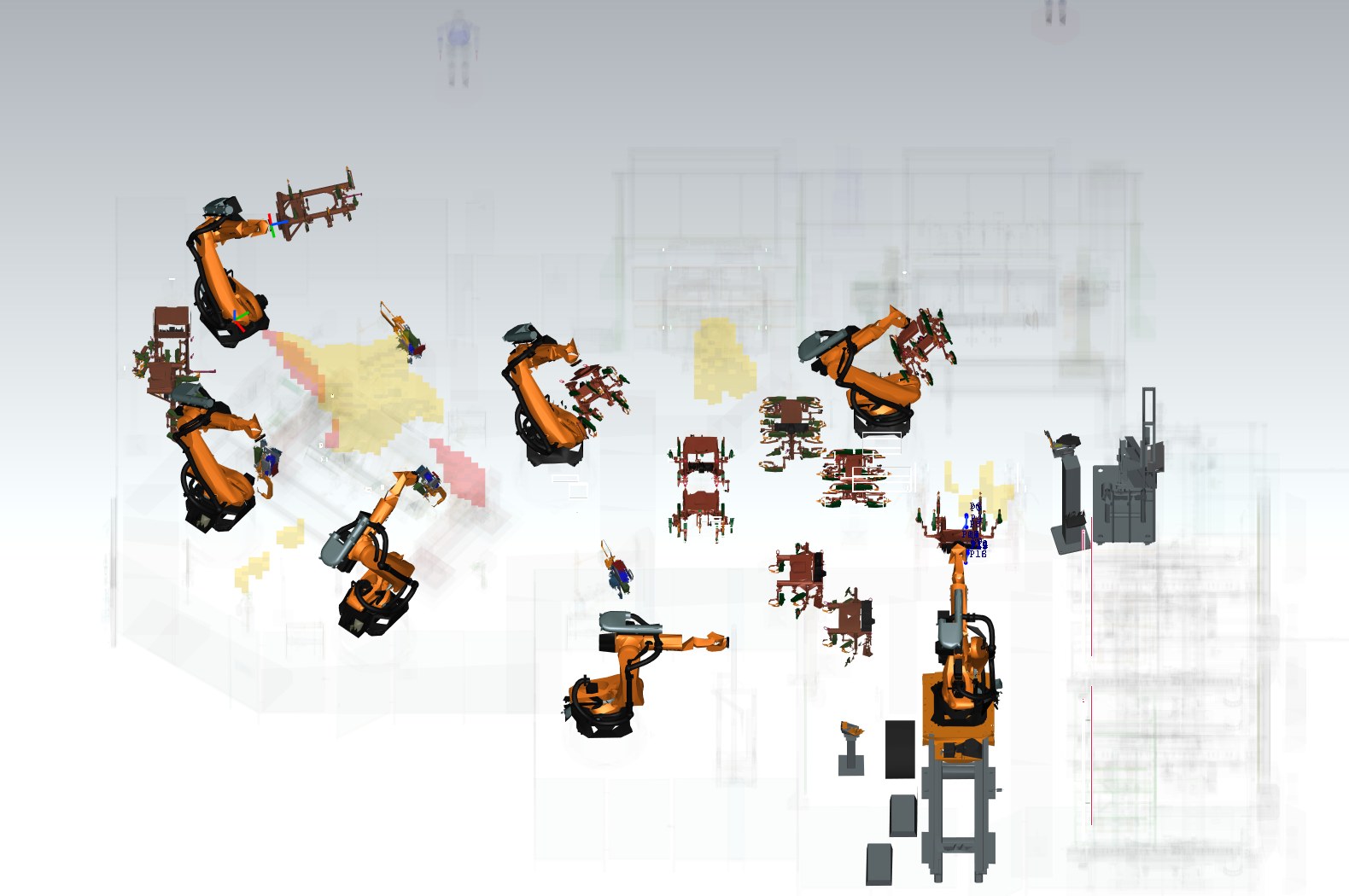
- green – area used by one robot,
- yellow – area shared by two or more robots with interlock requests,
- red – shared area reached without an interlock request.
Show only shared areas (yellow / red) hides the green parts (available when Show work zones is on). The transparency slider sets how much of the cell remains visible through the zones (default 70 %). Overlapping zones are drawn with one uniform color.
Entries without interlock
The table lists every point where a robot enters a shared area without an interlock request: robot, program / point, the other robot and the volume of the entered part. A double click on a row moves the robot to that point and selects it in the Programs panel – ready for Touch up or for opening in the editor. The point is the place of the first entry: the interlock has to be requested earlier, in the point before the motion into it. The console contains the same list.
Below the table: Program path in interlock colors (see below), Check interlocks... – evaluation of all interlocks on the paths (see Check interlocks) and Insert interlocks... – automatic proposals of stops or interlocks for these entries (see Insert interlocks).
Anonymized study for AI
Anonymized study for AI... (Work Zones tab) saves the results of the work zones, Check interlocks and the last simulation without names, coordinates or program text for an AI assistant (robots R1..Rn, programs F#/U#); the key to the real names is saved in a separate file that stays on this computer. Details, data protection and use with Copilot: Anonymised study for AI.
Import AI proposals... reads the answer of the AI assistant (changes of the interlocks in the IDs of the study), shows the changes in the programs, applies them to the current simulation (with a backup of the programs) and compares the cycle times before and after: Import of the AI proposals.
Collision matrix Work Zones
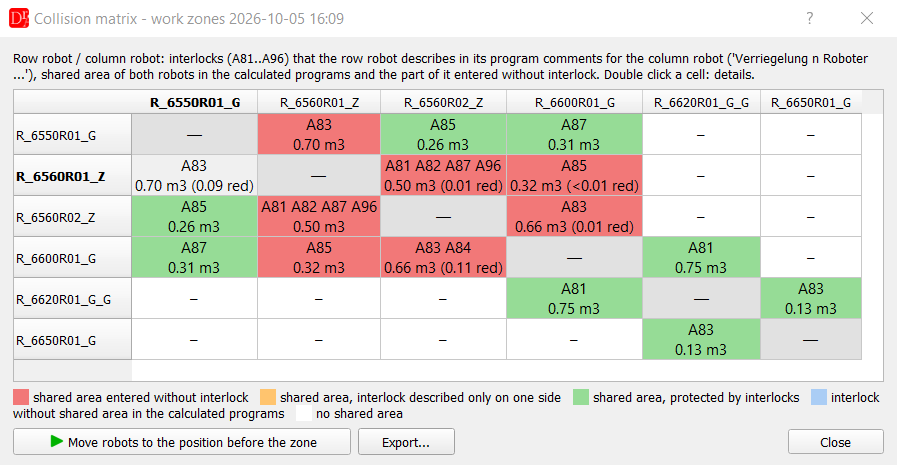
Collision matrix... (Work Zones tab) shows for every pair of robots of the cell row robot / column robot which interlocks protect them against each other and whether the programs use them correctly. It answers three questions:
- Which interlocks are used, with whom? – a cell lists the interlock requests (A81..A96) of the row robot for the column robot. The partner of an interlock comes from the program comments (Verriegelung 4 mit 0001R02 EIN, Anticolision 3 con ...) and from the long texts of the robot archive. A request without a known partner protects against all robots – the diagonal cell (tooltip) lists such requests.
- Are they programmed correctly? – the list under the matrix shows the errors of the signal logic, the same rules as Check interlocks (code LOGIC) and Robot Collisions Analyzer: interlock released again without a request, Makro20 without a request / later than the request / never called, the robot leaves the Grundstellung (A15 = AUS) without releasing a zone it uses, A15 = AUS not in the second point of the Folge, comment and program do not match, program copied from another robot (header). A double click moves the robot to the point.
- Do the robots really meet? – after Calculate the cells also show the volume of the area shared by both robots and the part entered without interlock (colors below), Move robots to the position before the zone becomes available.
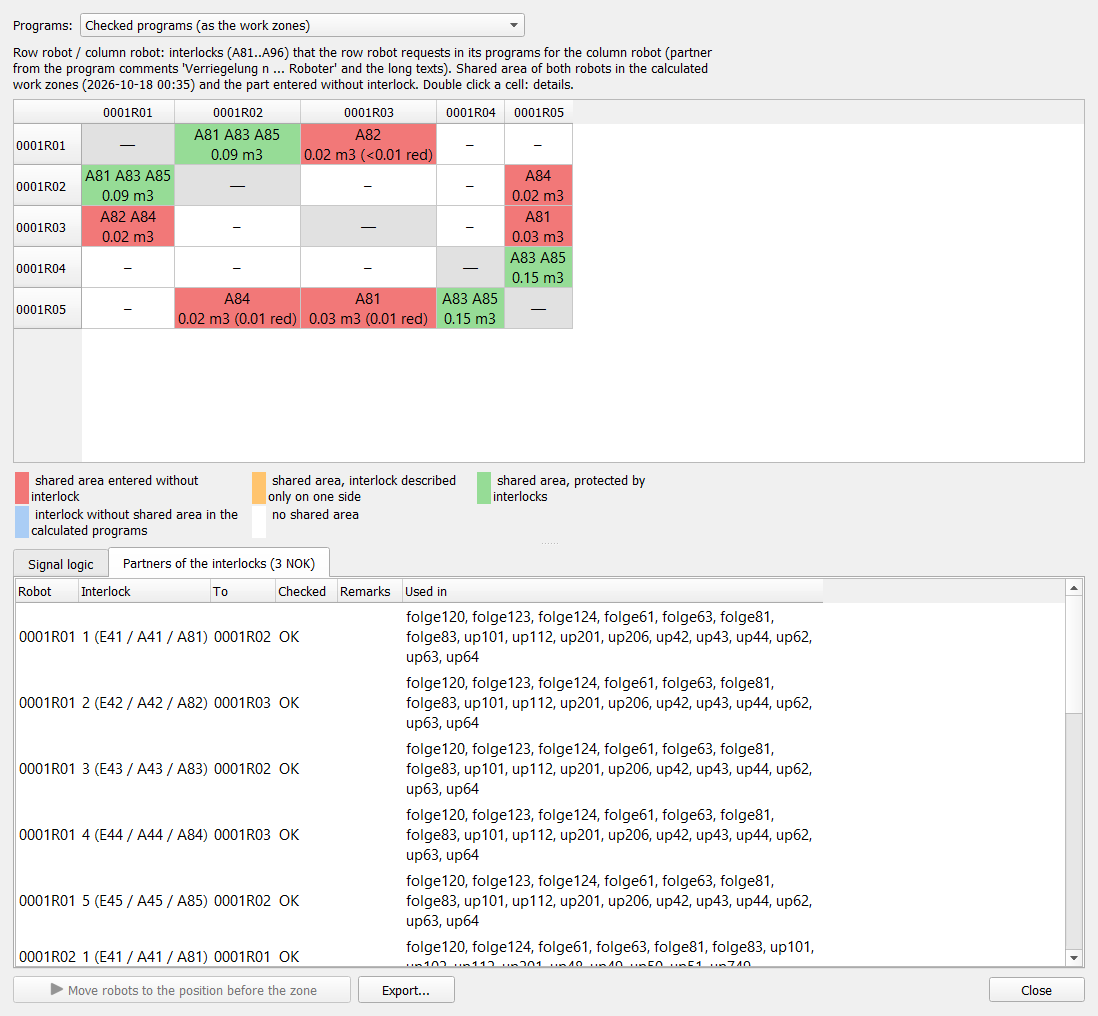
Programs: Checked programs – the Folgen / UPs checked in the list of the Work Zones tab (as the work zones) and the UPs they call; Whole archive – every Folge of the robot archives with the UPs they call (the full report of Robot Collisions Analyzer). The signal part is read from the programs in less than a second – no work zone calculation is needed; the geometry is added when the zones of both robots are calculated.
Drive condition FB PSPS. The list of errors also checks the drive condition of the active collisions: after a request the FB PSPS of every point must contain the release input of the collision (E41..E56), after the release the next point must not have it any more; a point with an active collision needs an FB PSPS at all. Collective markers (e.g. M8 = E41 & E43 & E45) are replaced by their inputs – they are searched in the macros of the setting Search for collision markers in macros (plugin settings > Simulation, numbers separated with ';' or ',', default 50; 20; 45; 51; 52, empty = every program). The same setting is used by Check interlocks and by Robot Collisions Analyzer.
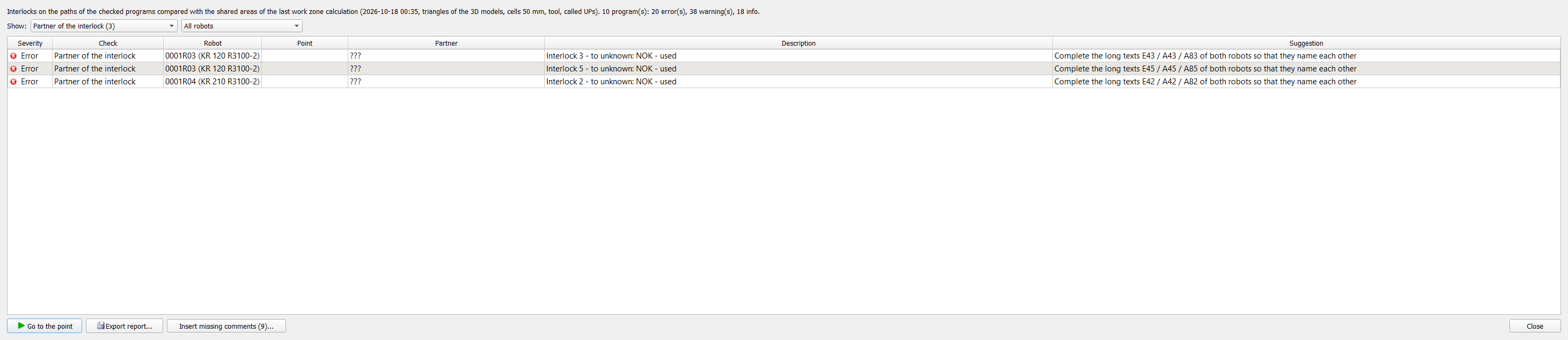
Partners of the interlocks. The second tab under the matrix checks every interlock used in the programs like the robot sheets of the Robot Collisions Analyzer: To – the partner robot named in the three long texts (E41..E56 / A41..A56 / A81..A96), unknown if none; Checked – OK when exactly one other robot names this robot on the same interlock, otherwise NOK; Remarks – comments incomplete, multiple use, partner archive not loaded, not used by the other robot, used, problems of the long texts. Orange instead of red: the interlock is used only in Makro45. The same results are in the export, in the command API and in Check interlocks (check Partner of the interlock).
| Color | Meaning |
| red | shared area entered without interlock (zones calculated) |
| orange | interlock described only on one side (the partner does not request it for this robot) |
| green | shared area, protected by interlocks (zones calculated) |
| blue | interlocks on both sides – without calculated zones, or without shared area in the calculated programs |
| white | no interlock and no shared area |
A double click shows the details of a cell. Export... saves the matrix and the signal logic errors as CSV.
The window is not modal – it can stay open while the robots are moved. Command API:
{"cmd":"collision_matrix","scope":"archive"} (reference).
The signal part is computed by the shared function of Robot Logic Check (RLC::buildSignalMap), which Robot Collisions Analyzer is to use as well – both tools give the same result.
Move robots to the position before the zone
Select a cell with entries without interlock and press Move robots to the position before the zone: both robots are moved to the last point before they enter the shared area (first the column robot, then the row robot, which is selected in the Programs panel). The console names the point, e.g. '0001R02' at folge123/P1 - the last point before the area shared with '0001R01'. This is the starting point for checking the interlock or correcting the path.
Program path in interlock colors Work Zones
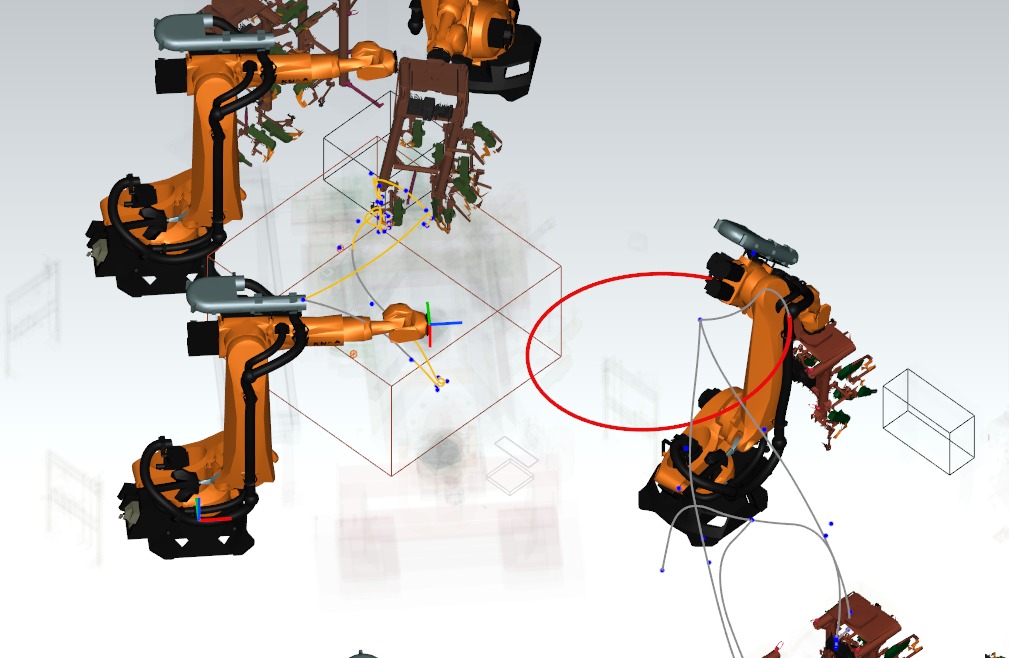 Three paths in interlock colors: yellow – motion in a shared area with an interlock (left robot, Folge12); red – motion in a shared area without interlock (right robot, UP112); gray – motion outside the shared areas (right robot, UP81) |
With Program path in interlock colors (group Entries without interlock) the paths drawn with the motion planner (Programs panel, Draw the real path in the Motion tab) are colored by the interlock state of the last work zone calculation instead of the motion type:
The console names the points of the red motions and the partner robots, e.g. Path of 'folge124.src' in interlock colors ... - motions to P3, P4 (partner: 0001R05). It also lists for every partner robot the points whose motion enters the shared area – e.g. Motions into the shared areas with 0001R05: P28-P30, P45-P48, or No motion into a shared area. The first point of a range is where the interlock zone is needed at the latest, the last one where it can be released – a zone requested much earlier or released much later than these points blocks the partner robot without need (see the interlock waits in the report). The colors use the parameters of the last calculation (method, grid, link radius, tool, subprograms). Visible paths of the current robot are drawn again when the option is switched on or off and after a new calculation; after a change of the program show the path again. Robots that were not in the last calculation keep the colors of the motion types (message in the console). |
Check interlocks Work Zones
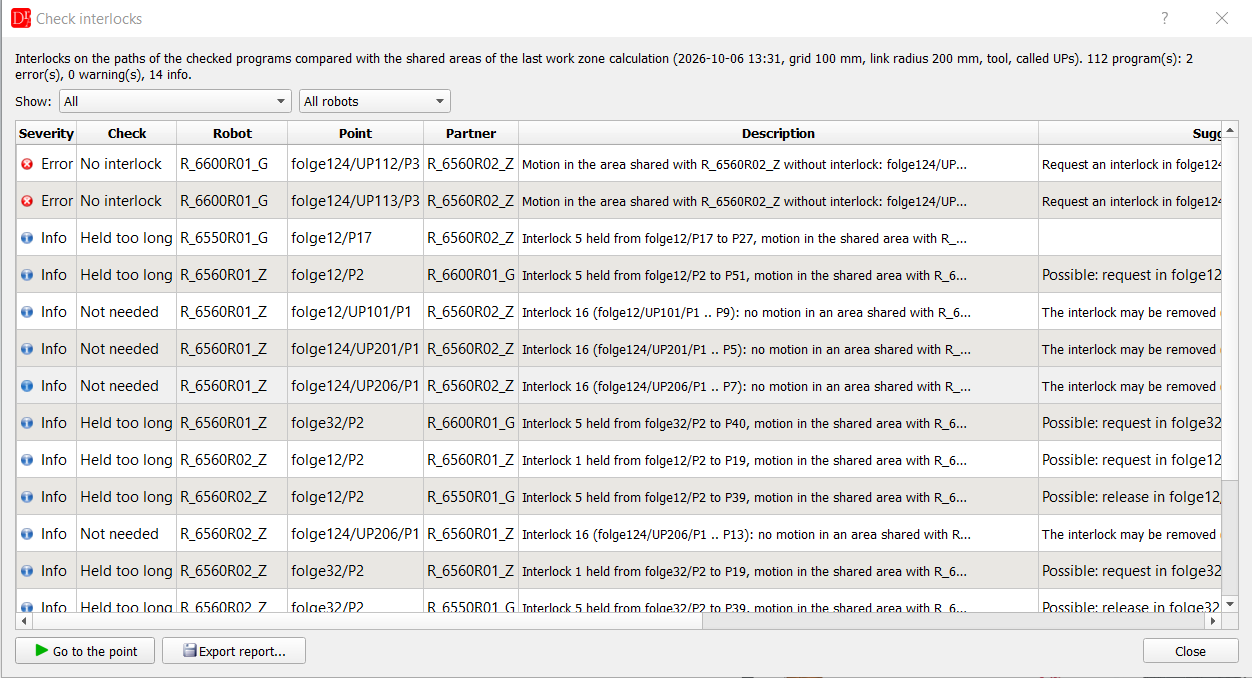
Work Zones → Check interlocks... compares the interlocks of the programs with the geometry of the last work zone calculation. The red areas show only the motions without any interlock; the check also finds interlocks that are requested too late, released too early, set only by one robot of a pair, written for another partner or held without need. It joins the logic of the programs (as in Archive Diff - interlocks) with the geometry of the cell.
How it works
- The programs checked in the Work Zones tab are analysed with the parameters of the last calculation (grid, link radius, tool, called UPs, motion planner). The motion of every program is taken from the work zone calculation – the check does not run the motion planner again; only programs changed since the calculation (e.g. by Insert interlocks) are read and planned again. A whole cell with 6 robots and 112 programs is checked in about 20 s (before: about 4 min), a repeated check without changes in about 2 s.
- For every point (in the order of execution, with the called UPs) the check knows the robots whose shared area the motion to the point (or the stop in it) touches, and the interlocks active in the motion and after the commands of the point: request A81..A96 = EIN, release A41..A56 = EIN.
- An interlock protects the motion only against the partner named in the comment (Verriegelung n Roboter X ein); without a comment it protects against all robots.
- The online conditions (FB PSPS with E41..E56) are checked with the rules of RobotLogicCheck for the whole archive; a missing input in a point inside a shared area is an error.
Checks
| Check | Severity | Meaning | Suggestion |
| No interlock | error | motion in an area shared with the partner without an interlock request (red area) | request in the last exact point before the area, release after it (Insert interlocks) |
| Requested too late | error | the interlock is requested only after the robot has entered the shared area – the first motion into the area is not protected | request in the last exact point before the area |
| Released too early | error | the interlock (A(40+n) = EIN) is released while the robot still moves in the shared area | release in the first point after the area |
| Released inside the area | warning | the interlock is released and requested again while the robot stays in the shared area – the partner may enter in between | keep the interlock over the whole area |
| One-sided interlock | warning | robot A protects the area shared with B, but B moves in it without interlock – the PLC can release A while B is inside | request the interlock also in the programs of B |
| Other partner | warning | the comment of the interlock names robot X, but during the interlock the robot meets only robot Y | check the comment and the wiring of the partner |
| Online condition | error / warning | an active interlock without its input E41..E56 in FB PSPS of the point – the robot does not stop when the release is lost during the motion (error in a shared area, warning elsewhere) | add the input to the FB PSPS condition |
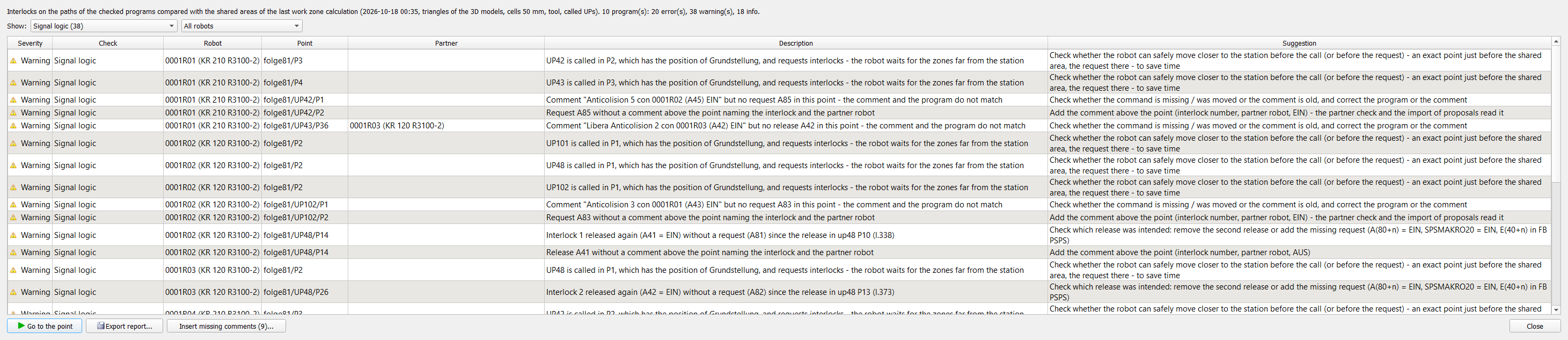
| Signal logic | error / warning | order of the interlock signals (RobotLogicCheck): an interlock released again
(A41..A56 = EIN) without a request (A81..A96 = EIN) since the last release in the program, Makro20
without a request, called in a later point than the request or never called until the end of the program. The
first release of an interlock in the program (initialization) and point 1 (release of all interlocks) are allowed,
bulk releases too: through a makro (Makro45), again after a UP was called, twice in the same point, and 3 or
more interlocks released in one point of a Folge (e.g. Roboterverriegelung Ein at the end of the Folge).
A second release has no effect on the signals, but usually shows a mix-up (release written instead of request) or
a missing request – the partner column shows whether the motion to the point touches a shared area. Also in this group:
|
check which release was intended: remove the second release or add the missing request; correct the program or the comment |
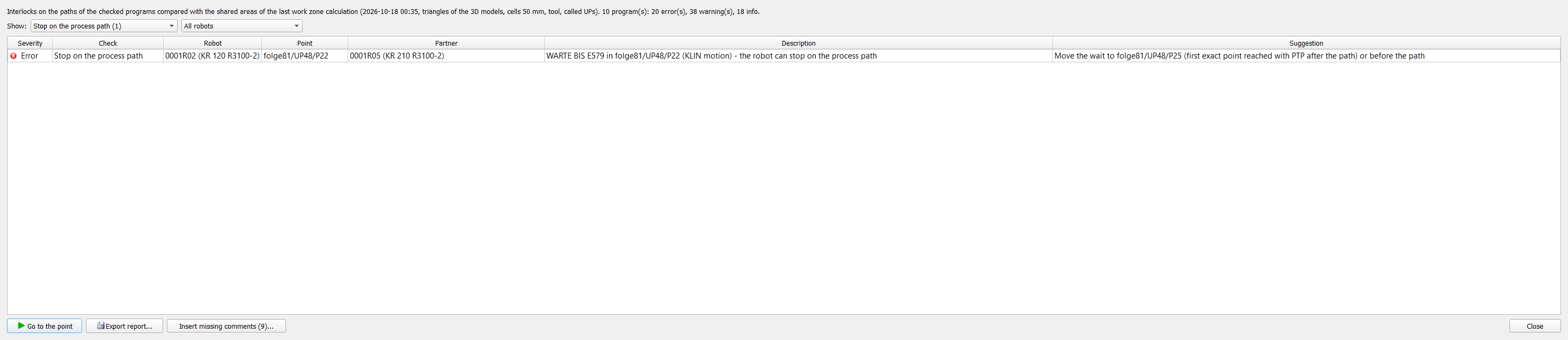
| Stop on the process path | error / warning | an interlock request (A81..A96 = EIN) in a point reached with a path motion (LIN, CIRC, KLIN, KCIR, KPTP, SLIN, SCIR, spline), or a WARTE BIS with a condition in a point reached with a technology motion (KLIN, KCIR, KPTP) – the robot can stop on the path. Error on KLIN / KCIR / KPTP; warning on a plain LIN / CIRC: a request there is not allowed on a process path (laser, MAG), but it may be necessary in a service program (e.g. tip dressing UP101) when the station has little space. In the service programs of the VW standard (UP101–163, UP201–210, Folge 120 / 123 / 124 / 125) a request on a LIN point is only an info. VW: no stop during brushing, laser, gluing, MAG etc. Only with the option No stop on the process path (see below) | request the interlock in the last exact point reached with PTP before the path |
| Not needed | info | while the interlock is held the robot never moves in an area shared with the partner | the interlock may be removed (check with the zone parameters) |
| Held too long | info | the interlock is held at least 3 points longer than the motion in the shared area – the partner waits longer than necessary. After a simulation run it becomes a warning when the partner really waited for this zone (number and seconds of the waits in the run). Without an exact point between the request and the shared area the suggestion says so – the request can be moved only to an exact point | later request (last exact point before the area) / earlier release (first point after it) |
| Wait chain | warning (≥ 1 s) / info | only after a simulation run: a robot waits for a zone of a partner while the partner itself waits – for another zone or for a condition (WARTE BIS, FB PSPS) – and keeps holding the first zone (point where the partner took it, number and seconds in the run) | request the zones together (one Makro20), take the zone only after the wait, or release it before the wait when the robot is already out of the shared area |
| Requests at the same moment | warning | only after a simulation run: two partners request the same zone closer than the race window (Plugin settings > Simulation, default 1 s; often after a common WARTE BIS) and one of them waits – the order on the line is random (unless the SPS gives the zone in a fixed order, in the simulation the SPS block Interlock priority) and it shows only in the station test at 100 %; the simulated waiting is uncertain | request the zone in one robot one exact point earlier – the robots always run together at 100 %, so the order is then fixed (the suggestion names the robot that got the zone first in the simulation) |
The times report of a simulation run (Times > Report) shows the same wait chains and requests at the same moment in its own sections; the run data (rcsrun.json, command run_data) has them as waitChains and requestRaces (see Request races).
No stop on the process path
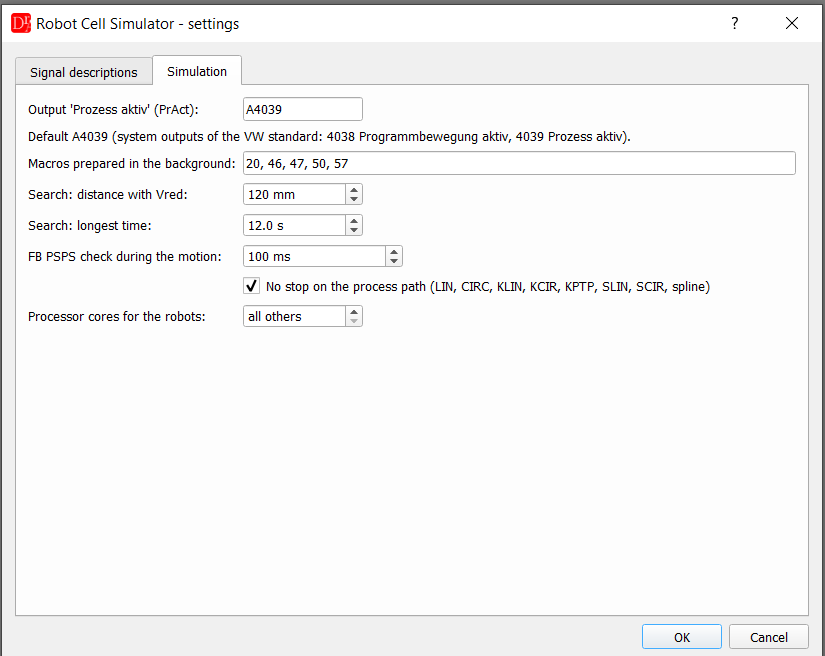
VW rule: during brushing, laser welding, gluing, MAG welding etc. the robot must not stop on the path – this applies to all LIN and KLIN / KCIR blocks of a process. Therefore the programs request the interlocks before the process path (in a point reached with PTP), even if the shared area is entered only later. The option No stop on the process path in the plugin settings (Settings > Simulation, on by default) keeps this rule:
- Check interlocks reports an interlock request in a point reached with a path motion, or a WARTE BIS with a condition in a point reached with KLIN / KCIR / KPTP, as error Stop on the process path. A plain LIN or CIRC is also used outside a process (e.g. tip dressing, gripper) – a WARTE BIS there is not reported.
- The suggestions of the checks (No interlock, Requested too late, Held too long) and Insert interlocks use only exact points reached with PTP for a request – a request is never moved into a process path to shorten the waiting of the partner.
- The simulation writes an error to the console when a robot stops on a process path (FB PSPS not fulfilled during a path motion, or a wait before a path motion that follows a path motion) – see Markers, flags and FB PSPS.
Path motions: LIN, CIRC, KLIN, KCIR, KPTP, SLIN, SCIR and spline. A stop in the simulation is an error on KLIN / KCIR / KPTP and a warning on the other path motions. Switch the option off only for cells without process paths where a stop on a LIN motion is allowed.
Window
- The list shows severity, check, robot, point (folge12/UP81/P6), partner, description and suggestion; the tooltip of the check explains it.
- Show filters by severity (errors, errors and warnings) or by check, the second list by robot.
- Double click or Go to the point – the robot goes to the point and the point is selected in the Programs panel (Touch up, Editor).
- Export report... – cell report as HTML (parameters of the calculation, summary of the checks, robot pairs with shared area, area without interlock, interlocks and number of errors / warnings, all findings) or CSV for Excel.
- The console contains the number of programs, errors, warnings and the count of every check.
Example of an exported HTML report – example cell with 6 robots and 112 programs (open in a new window):
Insert interlocks Work Zones
Insert interlocks... below the table Entries without interlock proposes changes in the robot programs for every place where a robot moves in a shared area without interlock. Two modes are available:
| Mode | Inserted into the program | Use |
| Stop before the shared area | comment with the partner robot before the last exact point before the area and WARTE BIS AUS in this point | the robot stops in a safe position until the programmer inserts the correct interlock – quick protection of an unknown or unfinished program |
| Request an interlock (VW standard) | comments Verriegelung n Roboter ... ein / aus, request A(80+n) = EIN + SPSMAKRO20 = EIN, E(40+n) in the online condition FB PSPS of the motions in the area, release A(40+n) = EIN after the area | complete interlock logic for programs written without interlocks (e.g. new paths) – the PLC has to provide the release E(40+n) for the robot pair |
How the proposals are found
- Calculate the work zones (Calculate) – the dialog uses the last calculation, its parameters and the entries without interlock.
- For every program with an entry without interlock the motions are planned again with the same motion planner – the main program and the subprograms (UP) called in its points, in the order of execution.
- For every motion the dialog knows which shared areas (with which partner robot) the robot touches while moving to the point or standing in it, and whether an interlock for that partner is active (requests A81–A96, releases A41–A56, partners from the comments Verriegelung n Roboter ...).
- Consecutive motions in an area shared with one partner form an area run (e.g. folge124/P3 .. folge124/P7). A run with at least one motion without interlock gets a proposal.
- The robot must stop before the run: the proposal uses the last exact point (VE = 0) before the run, after the previous area of the same partner. In an approximated point the robot does not stop. With the option No stop on the process path only a point reached with PTP is used – a point on a process path (LIN, KLIN, KCIR ...) is skipped; without such a point the row is marked insert manually.
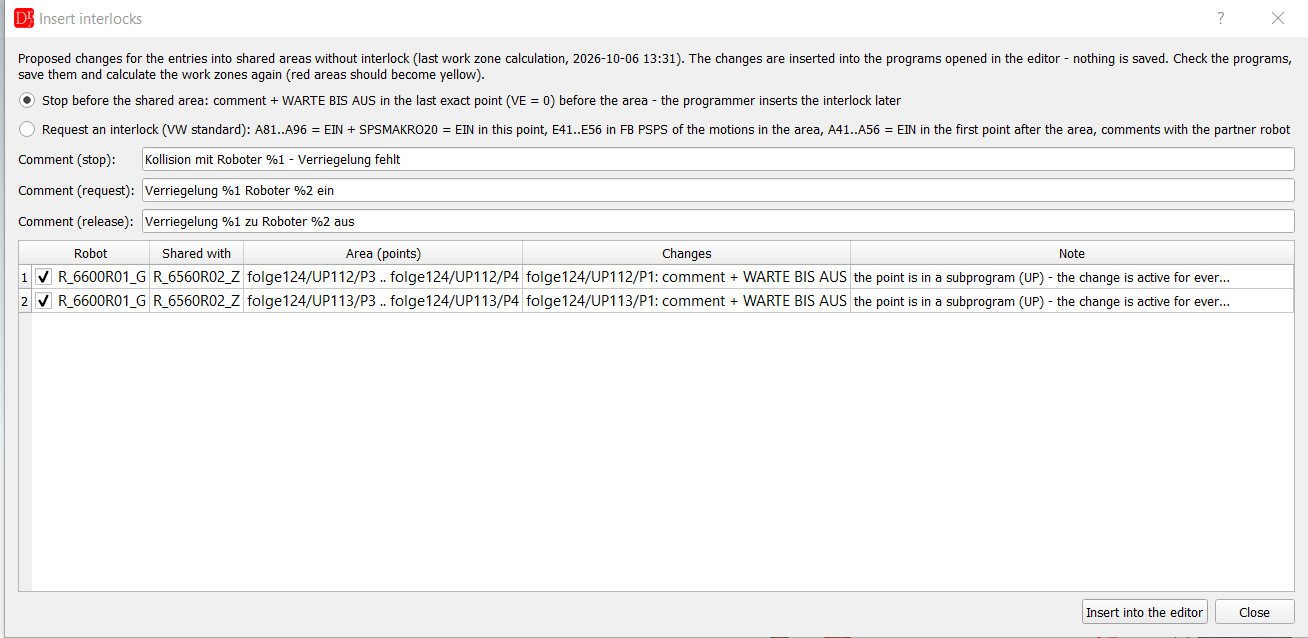
The dialog
- Mode – Stop before the shared area or Request an interlock; the table is built again when the mode changes.
- Comment (stop) – text of the comment in the stop point, %1 = partner robot (default Kollision mit Roboter %1 - Verriegelung fehlt).
- Comment (request) / Comment (release) – texts of the comments before the request and the release point, %1 = interlock number, %2 = partner robot (default Verriegelung %1 Roboter %2 ein / Verriegelung %1 zu Roboter %2 aus). Keep the words Verriegelung and the robot number – the work zones, the collision matrix and the interlock check of Archive Diff read the partner from these comments.
- The robot name in the comments is the robot number from the cell (R_0001R05_G → 0001R05).
| Column | Content |
| Robot | robot with the motion without interlock; the check box selects the proposal |
| Shared with | partner robot |
| Area (points) | first and last motion of the area run, e.g. folge124/UP112/P3 .. folge124/UP112/P6 |
| Changes | point and inserted commands, e.g. folge124/P2: A83 = EIN, SPSMAKRO20 = EIN; E43 in FB PSPS up to ... |
| Note | warnings (red rows are not selected): no exact point before the area, interlock already used for the partner, release inside the area, subprogram changed, robot still in the area at the end of the program, all 16 interlocks used |
Mode 1: Stop before the shared area
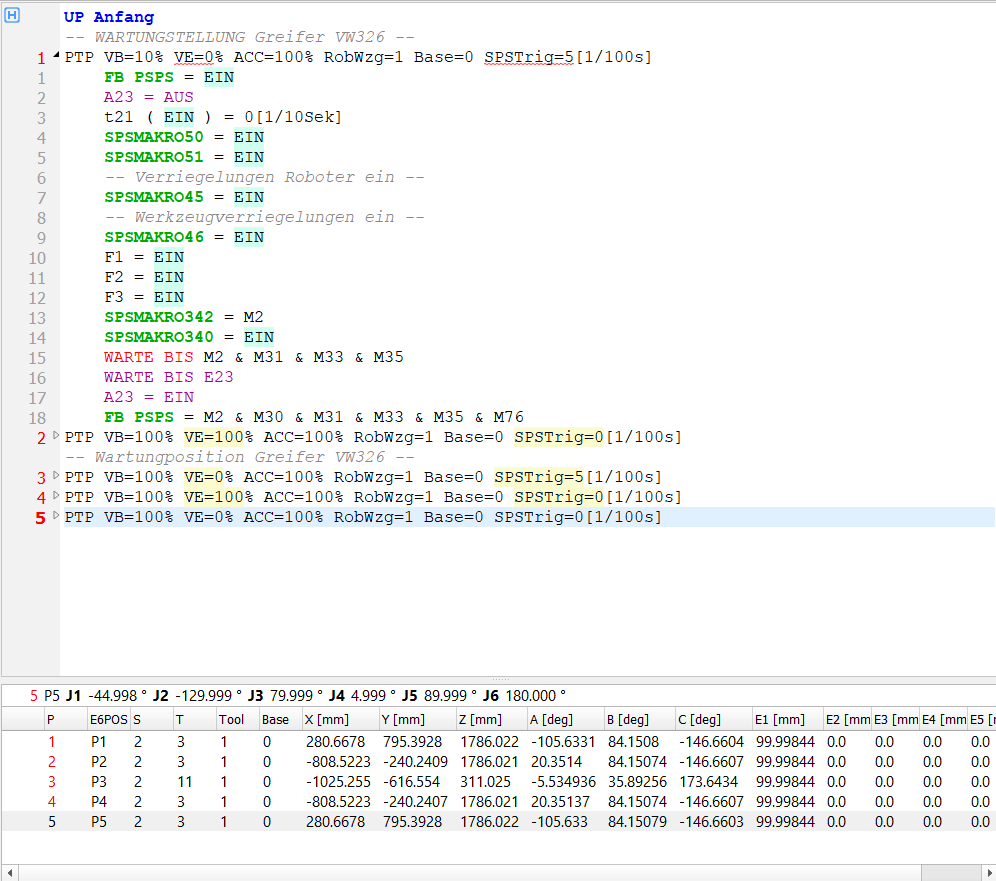
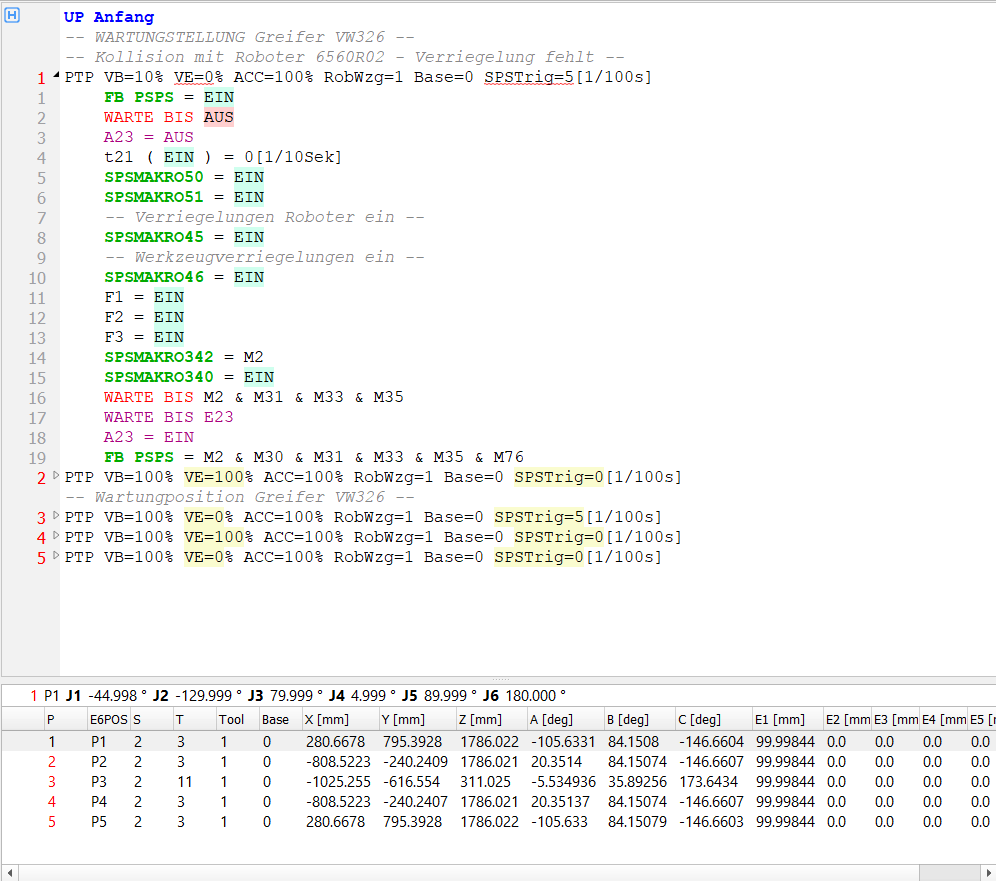
The dialog inserts a comment with the partner robot before the stop point (main fold, like in mode 2) and WARTE BIS AUS in the point after its first FB PSPS line (as the first command if the point has no FB PSPS). The fold of the point stays expanded, so the inserted lines are visible. AUS never becomes true – the robot waits in this point until the programmer replaces the wait by the interlock. When the point already contains WARTE BIS AUS (second partner in the same point) only a further comment line is added before the point.
|
Before PTP VB=100% VE=0% ... P2 FB PSPS = EIN A23 = AUS WARTE BIS E23 A23 = EIN FB PSPS = M2 & M21 & M30 |
After -- Kollision mit Roboter 0001R05 - Verriegelung fehlt -- PTP VB=100% VE=0% ... P2 FB PSPS = EIN WARTE BIS AUS A23 = AUS WARTE BIS E23 A23 = EIN FB PSPS = M2 & M21 & M30 |
Mode 2: Request an interlock (VW standard)
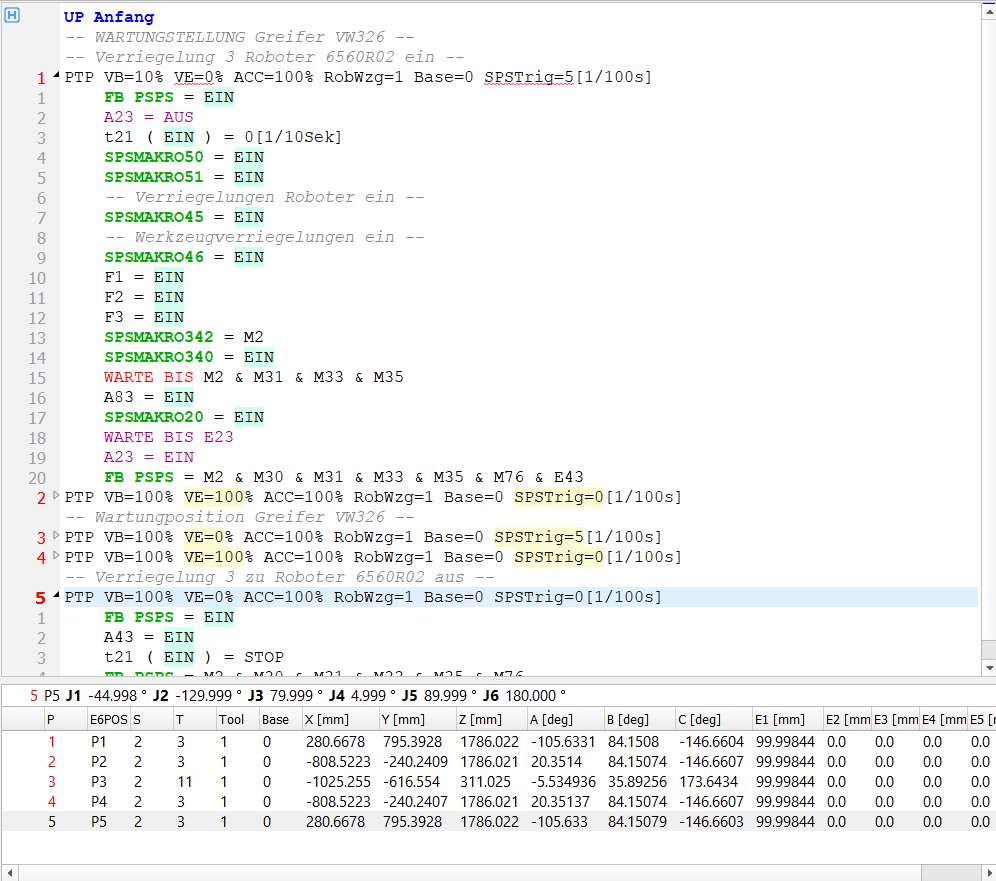
The interlock number n (1–16) is the number already used for the partner robot in the comments of the programs; otherwise the lowest number not used by the robot (requests, releases, comments in all Folgen and UPs). The same number is used for all runs of the same robot pair. The dialog inserts:
- Comment -- Verriegelung n Roboter X ein -- before the request point (main fold, like in the VW programs).
- In the request point (last exact point before the area): A(80+n) = EIN and SPSMAKRO20 = EIN before WARTE BIS E23 (or before the last FB PSPS of the point, otherwise at the end before UP calls). When the point already calls SPSMAKRO20, only the request is added before it.
- E(40+n) in the last FB PSPS of the request point (a new line FB PSPS = ... with the active condition is added when the point has no FB PSPS after SPSMAKRO20) and of every point up to the last motion in the area – the last FB PSPS of a point is the online condition of the motion to the next point. Operands are added with AND, an OR condition is put in brackets, an operand already in the condition is not added twice.
- Comment -- Verriegelung n zu Roboter X aus -- before the first point after the area and A(40+n) = EIN in this point (after its first FB PSPS) – the area is released for the partner.
|
Request point (after) -- Verriegelung 3 Roboter 0001R05 ein -- PTP VB=100% VE=0% ... P2 FB PSPS = EIN A23 = AUS A83 = EIN SPSMAKRO20 = EIN WARTE BIS E23 A23 = EIN FB PSPS = M2 & M21 & M30 & E43 |
Points in the area and release point (after) LIN VB=1.5m/s VE=100% ... P3 FB PSPS = M2 & M21 & M30 & E43 ... -- Verriegelung 3 zu Roboter 0001R05 aus -- PTP VB=100% VE=100% ... P8 FB PSPS = EIN A43 = EIN FB PSPS = M2 & M21 & M30 |
Insert into the editor
Insert into the editor applies the selected rows:
- every program file is opened in the DReS editor (a program already open is used – also with unsaved changes),
- the program must be opened in the VKRC view as Folge or UP and must be editable – otherwise the file is skipped with a warning in the console,
- the same change for the same point is inserted once (e.g. a subprogram reached from two Folgen),
- collapsed points are expanded for the change and collapsed again, the syntax is checked, the undo history is cleared,
- the console lists every inserted line (Insert interlocks: up112.src P2: A83 = EIN, SPSMAKRO20 = EIN, FB PSPS = ...) and a summary.
Then: check the programs, save them (the KRL code of the folds is generated when saving) and press Calculate again – the red areas of the changed motions become yellow.
Notes and limitations
- Changes in a subprogram (UP) are active for every call of the UP (note in the table).
- No exact point before the area (only approximated points, or the area starts with the first point of the program) – the row is not selected; insert the stop or interlock manually.
- Robot still in the shared area at the end of the program – the release is not inserted (row not selected).
- A release A(40+n) = EIN already inside the area (released too early) is reported – remove it.
- The areas come from the work zones (grid, link radius, tool model) – a coarse grid gives larger areas and earlier stop points.
- Only VKRC programs (VW standard).
Console messages
The calculation writes its results to the console of the plugin (Message Window). Values in the examples are from a test cell.
| Message (example) | Meaning | What to do |
| Calculation | ||
| Work zone 'R1': 13 program(s), 365 point(s), volume about 30.78 m3, interlock requests: A81, A83, A85, A87, path with an interlock requested 42 %, path protected against all robots of the list 0 % | Summary of one robot. Volume = volume of the whole work zone of the robot. Interlock requests = interlocks requested in the calculated programs (A81..A96 = EIN). Path with an interlock requested = part of the path (motion samples) on which the robot holds at least one requested interlock. Path protected against all robots of the list = part of the path on which the held interlocks cover every other robot of the Work Zones list; an interlock covers the partner named in its program comment (an interlock without comment covers all robots). A low value is normal: a robot usually holds an interlock only for one partner at a time. | Informative. 0 % in the first value with interlock requests listed: the requests are not reached in the calculated programs (e.g. only UPs checked) – check the selection of programs. |
| Work zone 'R1': interlock partners from the program comments: A81 -> 0002R01 (not in the list), A83 -> 0001R03 ... | Partner robot of every interlock read from the comments of the programs (Verriegelung n Roboter ...). not in the list = the partner is not in the Work Zones list (other cell or robot not in the study) – such an interlock protects against none of the calculated robots. | Check the comments if a partner is wrong; interlocks without comment protect against all robots. |
| Work zone 'R1': tool attached to the flange: Gripper (1403 surface point(s) of the 3D model) | The 3D model of the attached tool is part of the zone; number of surface points used. | – |
| Work zone 'R1': no tool attached to the flange - the zone contains only the arm | No tool is attached to the robot (or its geometry is not loaded yet). | Attach the tool (Model Browser > right click > Attach) and calculate again. |
| Work zone 'R1': tool change in the programs (... 12 point(s)) - 32 % of the path without the tool | The programs put the tool down and take it again (tool change commands of the Auto-Docking tab). The part of the path between them is calculated without the tool. | – |
| Work zone 'R1': geometry of 14 part(s) not loaded after 7.8 s | Some 3D parts (tool, or robot in the triangle method) were not loaded in time; they are missing in the zone. | Show the parts in the 3D view (zoom to the robot) and calculate again. |
| Work zone 'R1': 3D model of the robot - 900 part(s), 4 210 surface point(s) | Triangle method: number of parts of the robot model (links, cable packages) and of surface points used in every position. | – |
| Work zone 'R1': no triangles of the robot model - the zone is calculated from the axis line of the arm | Triangle method, but the robot model has no loaded geometry. The zone is calculated like the grid method. | Show the robot in the view and calculate again. |
| Work zone 'R1': flange of the arm model differs from the robot kinematics by 120 mm / chain of the robot model differs from the kinematics | The 3D model of the robot does not match the kinematics of the archive (other robot type, wrong archive) – the zone may be shifted. | Check the archive assigned to the robot. |
| Work zones calculated in 42.0 s: 6 robot(s), grid 100 mm, link radius 200 mm; shared areas about 0.32 m3 with interlocks (yellow), 0.09 m3 without interlock (red) | Summary of the calculation: method and parameters, total volume of the yellow and red areas. | – |
| Shared area 'R1' / 'R2': about 0.56 m3, of which 0.09 m3 reached without interlock | Volume used by both robots and the part entered by at least one of them without an interlock for the other. Shown as a warning when the second value is not 0. | See Entries without interlock, Check interlocks. |
| 'R1' enters the area shared with 'R2' without interlock at: folge124/UP112/P3 (0.09 m3) | Points (program/UP/point) where the robot enters the shared area without interlock, with the volume entered from this point (8 largest). | Double click the row in Entries without interlock; insert an interlock (Insert interlocks). |
| Work zones: 30 program(s) with the motion planner (LIN / CIRC along the path, approximation), 2 program(s) with axis interpolation | How the paths were calculated. Axis interpolation is used when the motion planner cannot start the program (first point not reachable). | – |
| Work zones: calculation canceled | Cancel was pressed; the zones of the unfinished robot are not kept. | Calculate again. |
| Points and paths | ||
| 'R1' at folge124/UP112/P3 - enters the area shared with 'R2' without interlock | The robot was moved to the point of the selected entry (double click / Go to the point). In Check interlocks the name of the check is written instead. | – |
| Point P3 of 'R1' cannot be reached - the robot is not moved | No axis solution for the point with the current configuration. | Check the point (Status/Turn, base, tool). |
| Path of 'up112.src' in interlock colors (last work zone calculation): ... motions to P3, P4 (partner: R2) | Path drawn in the interlock colors; red motions and the partner robots are listed. | – |
| Estimated motion time of 'up112.src' (motion planner): 15.24 s | Motion time of the drawn path (estimate of the planner). | – |
| Check interlocks | ||
| Check interlocks: 71 program(s), 2 error(s), 0 warning(s), 12 info (18.7 s) | Summary with the time of the check; the next lines give the number of every check (No interlock, Held too long ...). | Open the list, filter by robot or check. |
| R1: points in areas shared with other robots under interlock 94 % (R2 100 %, R3 68 %) | Per robot: part of the points whose motion or stop touches an area shared with another robot and is under an interlock against this robot – in total and per partner. Unlike the percentages of the work zone calculation it counts only the places where an interlock is needed. | Below 100 %: see the findings No interlock, Requested too late, Released too early for this pair. |
| R1: stop on the process path at UP48/P17 (KLIN) - stopped 2.4 s on the path (FB PSPS ...) | During the simulation the robot stopped on a process path (option No stop on the process path), once per point in a program run. | Request the interlock before the process path; see Check interlocks. |
| Check interlocks: report saved - D:\...\interlock_check.html | Report written (HTML or CSV). | – |
| Interlock colors: 'R1' was not in the last work zone calculation | The path is drawn in the colors of the motion types: the robot was not checked in the last calculation. | Check the robot and calculate the work zones again. |
| Interlock colors: ... | The steps of the program could not be calculated (reason in the message); the path keeps the colors of the motion types. | See the reason, e.g. program or configuration of the robot not found. |
| Insert interlocks: programs not found: folge124.src, ... | Programs of the last calculation that are not in the archive any more. | Check the robot archive (File > Wizard) and calculate the work zones again. |
| Insert interlocks: R1 - ... | The steps of a program could not be calculated – no proposal for this program. | See the reason in the message. |
| Insert interlocks: up112.src P1: -- Kollision mit Roboter 0001R02 - Verriegelung fehlt --, WARTE BIS AUS | Mode Stop: comment inserted before the point and WARTE BIS AUS in the point. | Program the interlock later and remove the wait. |
| Insert interlocks: up112.src P1: A83 = EIN, SPSMAKRO20 = EIN, FB PSPS = ... & E43 | Mode Request: request, macro and online condition inserted in the point (only the lines that were missing). | – |
| Insert interlocks: up112.src P3: FB PSPS = ... & E43 | Release input added to the online condition of a point in the shared area. | – |
| Insert interlocks: up112.src P5: A43 = EIN | Release of the area for the partner inserted in the first point after the area. | – |
| Insert interlocks: up112.src before P1: -- Verriegelung 3 Roboter 0001R02 ein -- | Comment inserted before the point (main fold). | – |
| ! Insert interlocks: up112.src could not be opened in the editor | The program file could not be opened – not changed. | Check that the file exists and is not locked. |
| ! Insert interlocks: up112.src is not opened as an editable VKRC program (Folge / UP) - not changed | The file is open as another document type or read only. | Close the file and insert again. |
| ! Insert interlocks: point P3 not found in up112.src | The point of the proposal is not in the program (the program was changed after the calculation). | Calculate the work zones again. |
| Insert interlocks: 2 proposal(s), 2 program(s) changed in the editor - check and save the programs, then calculate the work zones again | Summary – nothing is saved to the disk. | Check and save the programs, then calculate the work zones again. |