
How it works SPS
Without a PLC the robots of Run on all robots start together and the conditions of the programs are only partly evaluated. The simulated station PLC (SPS) drives the cell like the real station: it waits until all robots of the station are in HOME (Warte auf Folgenstart), gives Folgenstart with the Folge number and the position releases of the fixture (e.g. E76, E80), and the station cycle is finished when the robots report it with their outputs (e.g. A76, A80 = EIN, they have left the station) or are back in HOME. The SPS program is a small diagram of blocks: Start, Wait, Station and Robot.
During the run the inputs, outputs, flags and markers (E, A, F, M) of every robot are updated by the program (assignments such as A766 = F830, FB PSPS, interlocks) and used in the conditions – e.g. WARTE BIS E80 & E76 waits for the release of the station. Every robot has its own SmartPad with the current program line and the signals.
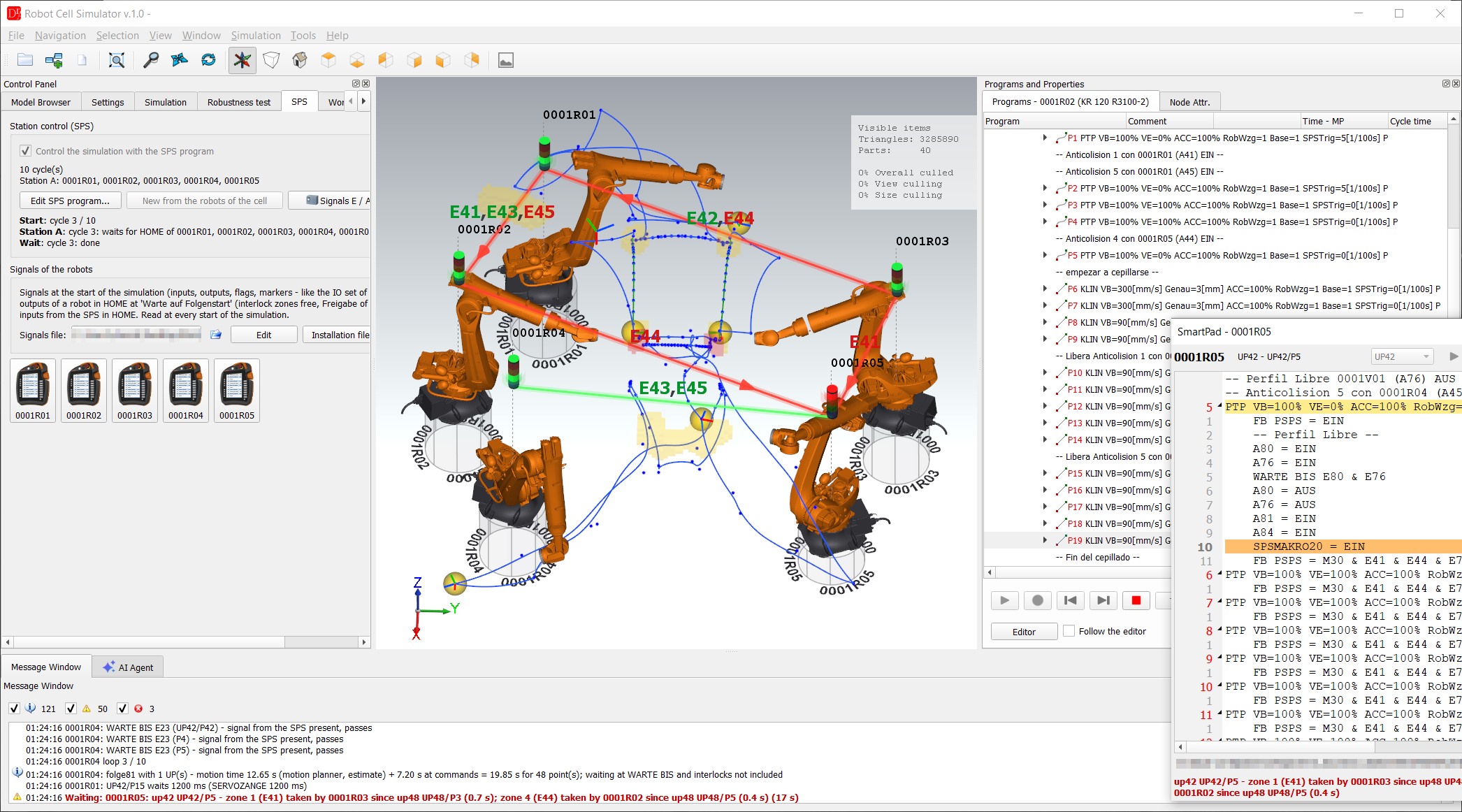
SPS tab
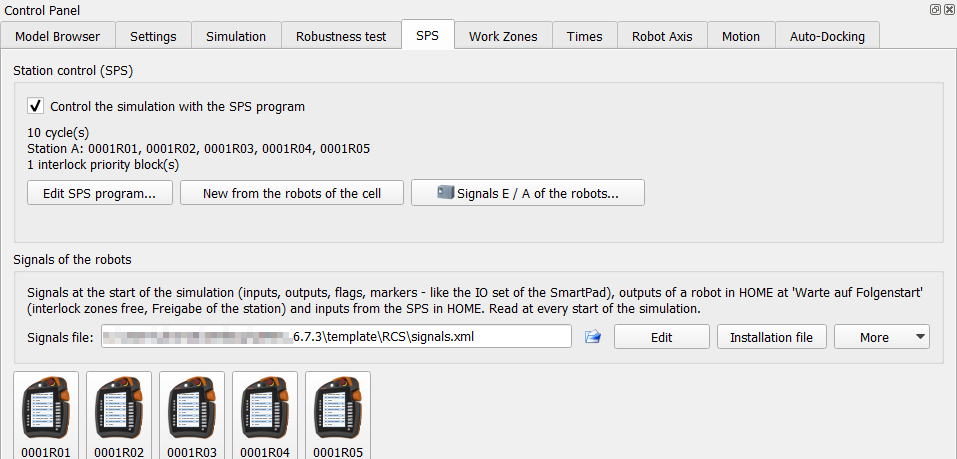 |
The SPS tab (after Simulation) shows the SPS program of the cell: number of cycles and the stations with their robots.
The tabs of the control panel can be dragged to another order; the order is saved in the settings of the plugin. |
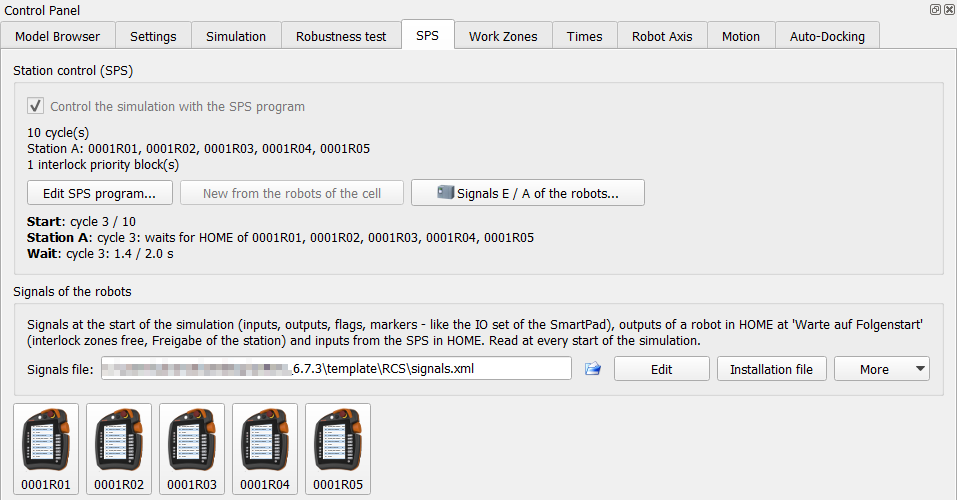
SPS program editor
While a simulation runs, Edit SPS program... opens the editor only to look at it: the states of the blocks change live, and the Interlock priority blocks added at a request race can be seen. The blocks can not be moved or changed, the list of new blocks, the tool bar and Apply are off; drag the background to move the view, Ctrl + mouse wheel zooms. After the simulation stops, the program can be changed again (an editor that is already open switches over by itself).
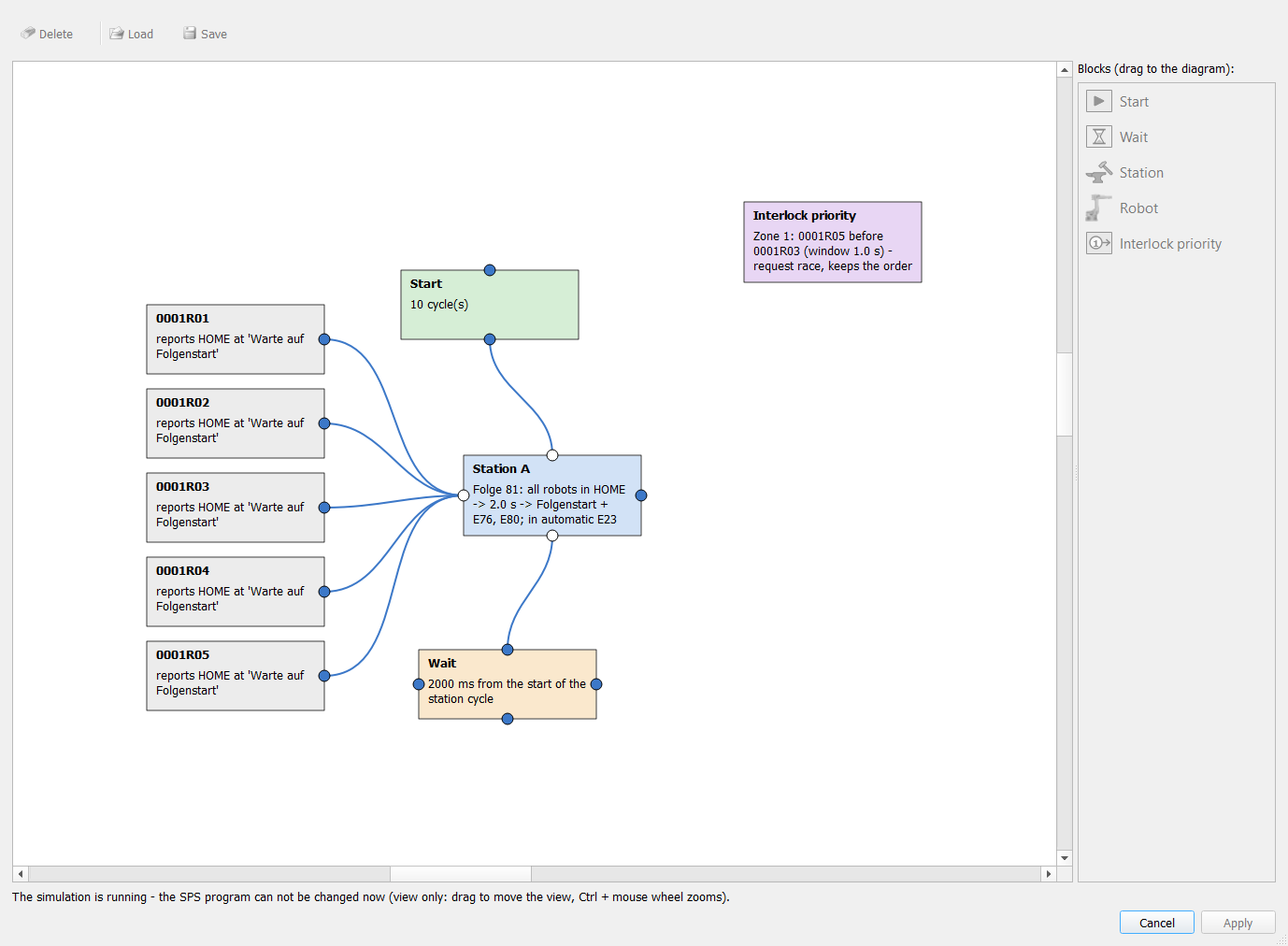
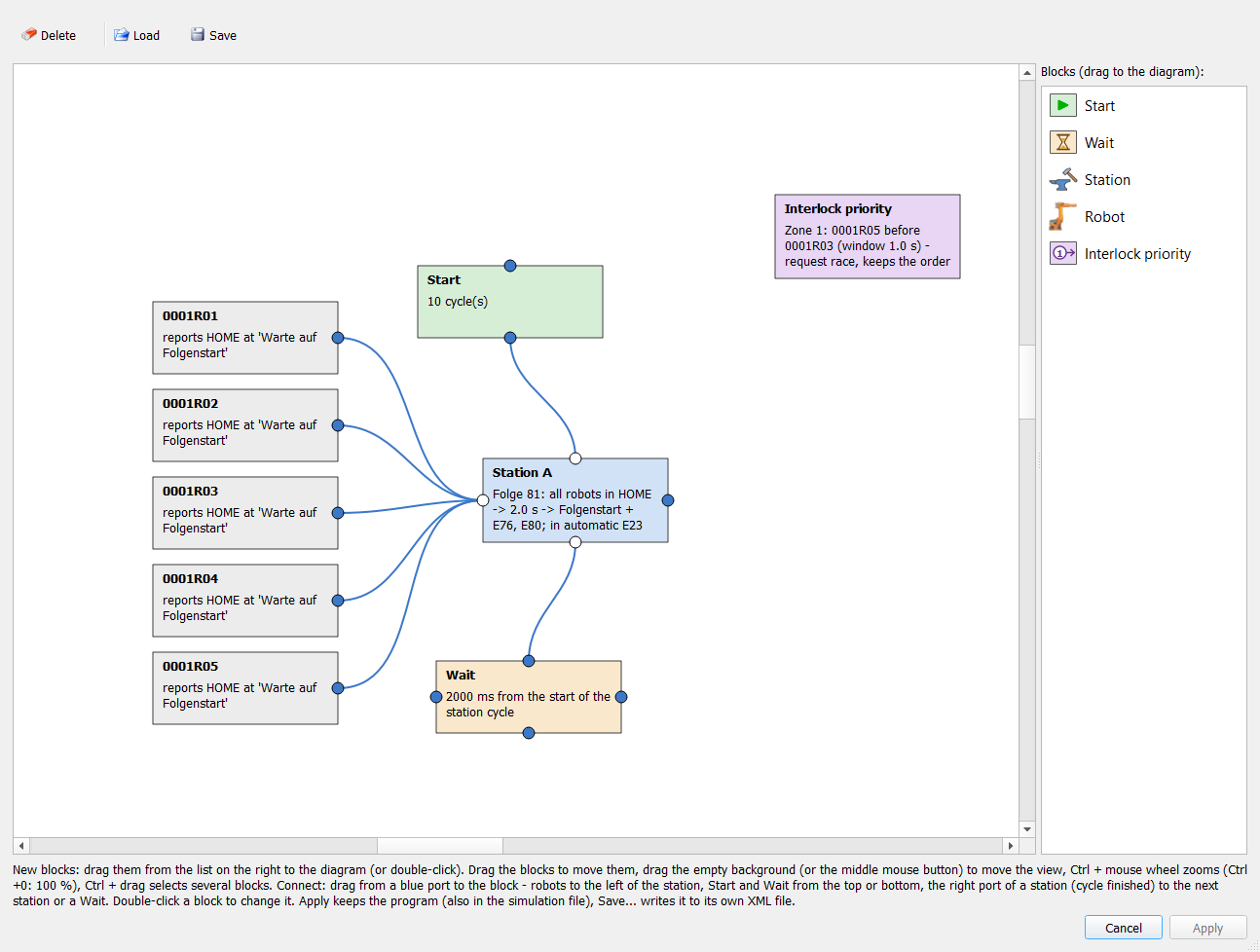
- New blocks – drag them from the list on the right into the diagram (or double-click the list),
- Move – drag a block; drag the empty background (or press the middle mouse button) to move the view,
- Zoom – Ctrl + mouse wheel, Ctrl + 0 = 100 %; Ctrl + drag selects several blocks,
- Connect – drag from a blue port to the other block (rules in Connections),
- Change – double-click a block; Delete – the selected blocks and connections (with a question); the selection has a red frame,
- Load / Save – the program as its own XML file; Load also reads the SPS program from a simulation file,
- Apply – keeps the program (also in the simulation file) and closes the editor; Cancel asks before discarding changes.
A robot already connected to a station has a red dot. A robot may work on several stations, but only once per station. The editor cannot be changed while the simulation runs; size and position of the window are saved.
Blocks
| Block | Meaning | Settings (double-click) |
| Start | start of the station cycle; one Start per program and per station | number of cycles (1–10000) |
| Station | waits until all its robots are in HOME, then gives Folgenstart and the input releases | name, Folge (0 = the Folge of the Simulation tab), station time, inputs E with Folgenstart, inputs E in automatic |
| Wait | timer in ms; without input or after Start / Station: the station waits for it before Folgenstart; after a Robot: only the Folgenstart of this robot is delayed | time, timer start, robot |
| Robot | robot of the cell; reports HOME at Warte auf Folgenstart | – |
| Interlock priority | two robots request the same interlock zone almost at the same moment: the SPS decides which robot gets the zone first (Interlock priority); no connections | zone, first robot, second robot (or every partner), rule, window, comment |
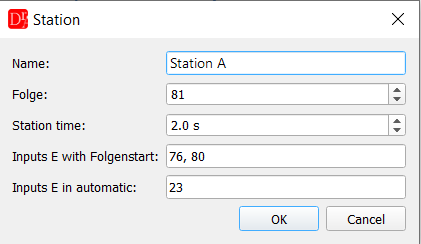 Station: Folge 81, station time 2 s, releases E76 and E80, E23 in automatic |
Folge is the Folge the station starts on its robots (e.g. 81); 0 = the Folge set on the Simulation tab. Station time is the time of the fixture (clamping, turning) between HOME of all robots and Folgenstart. Inputs E with Folgenstart are set to EIN with Folgenstart – the position releases of the VW standard (range E57–E80). The station is finished when the robots set the matching outputs (A57–A80, e.g. A76, A80) to EIN after Folgenstart; a robot without such outputs finishes with HOME. Inputs E in automatic (default 23) are EIN for the robots of the station while the simulation with the SPS runs – e.g. output A23 of the SPS gives E23 Keine Zutrittsanforderung of the robots. These inputs are always in the field Stop at WARTE BIS (first in the list), so WARTE BIS E23 waits when the SPS switches A23 off (signals window). An empty field switches it off. |
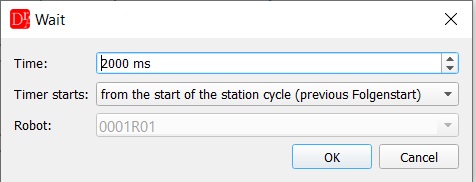 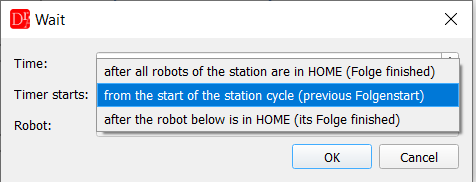 When the timer of the Wait block starts |
The timer start of a Wait block:
The station gives Folgenstart when all its robots are in HOME and all its Wait blocks are over; several Wait blocks of the station count one after another. A Wait without input belongs to the station it is connected to. Robot → Wait → Station delays only the Folgenstart of this robot. The station and the other robots start at once; the robot gets its Folgenstart after the sum of the times of the Wait chain (Robot → Wait → Wait → Station: the times are added). The timer start of these Wait blocks does not matter. The console shows SPS ...: Folgenstart cycle n for R – x s after the station (Wait). The SPS cycle ends after all delayed starts are given. Use it to start a robot later, like on the line, or to test another order of the robots. |
Interlock priority (request race of a zone)
A request race: two robots request the same interlock zone almost at the same moment (often after a common WARTE BIS). In the simulation one of them wins by a few milliseconds; on the line the order is random – sometimes the other robot gets the zone first, and the station runs another order, another cycle time or even into a collision that the simulation never showed. The simulation reports every request race in the console, in the times report, in Check interlocks (code RACE) and optionally in a window (see Request races).
The SPS of a real station can fix the order (a priority in its collision management). The block Interlock priority does the same in the simulation. The rule works in every cycle and only for the first request of the zone by the second robot in its cycle – a robot that takes the zone twice in a cycle (two passes of a UP) waits only before its first pass. Two ways:
| Rule | Meaning |
| Priority within a time window | the second robot waits up to Window seconds (simulation time) for a request of the first robot, counted from the request of the second robot; if the first robot requests the zone within the window, it gets the zone first. If it comes later (e.g. it stands in a stop and waits for other zones), the second robot waits only the window and goes – the order changes like on the line (console: window ... over, ... did not request zone ... - the order is changed). Since 2026-10-17 a request of the first robot that is already set (A8n) does not make the wait longer than the window (before, R06 waited 58 s for R03, which stood 7 s in a stop and waited for other zones; cycle 72 → 108 s). Use this rule to keep the order only at requests at almost the same moment (the automatic Keep the order at a request race uses it). |
| Order in every cycle | the second robot gets the zone only after the first robot has had it in this cycle; Window is not used. Use this rule to force variant B (the second robot always after the first one, also when the first robot is late because of other zones). |
Second (waits) = (every partner on this zone) makes the rule valid for all partners of the first robot. The rule is not used when the first robot has finished its cycle without this zone (e.g. a UP not called in this cycle), when it has finished its program or when all other robots are stuck – the simulation then lets the second robot go and writes it in the console (no deadlock caused by the rule). Every use of a rule is written in the console (Interlock priority: R06 waited 0.8 s for the priority of R03) and in the run data (raceRuleLog).
The blocks have no connections and work in every simulation of the station, also without the SPS. Several blocks are allowed (one per zone and pair). The field Comment says why the block is there (shown in the tooltip of the block). Check before the run checks the zone (1..16), that both robots take part in the run and are different and the window (0.1..30 s). A rule from the command API (race_rules) or from a step of the Robustness test (raceOrder) for the same zone replaces the blocks of this zone – so variant A (order of the simulation) and variant B (the other robot first) can be compared.
Keep the order at a request race (Plugin settings > Simulation, on by default): when a robot starts to wait for a zone that its partner requested at most the race time window earlier, the simulation keeps this order (the winner first, Priority within a time window with the race time window) in all next cycles of the run. While both robots request the zone within the window, the order of the simulation stays; when the first robot comes later than the window (a slower robot, a disturbance – e.g. 7 s later), the second robot waits only the window and goes – the order changes like on the line, and the console writes window ... over, ... did not request zone ... - the order is changed. A fixed order without the window would let the second robot wait the whole 7 s and hide this case. At the end of the simulation an Interlock priority block is added to the SPS program for every such race, with a comment: which robots and points, the smallest time difference, and that the block keeps the order of the simulation so that the robots do not change their order between the cycles and the runs. The console and a window tell which blocks were added (in the Robustness test and through the API only the console and the report). The console also writes that the SPS program of the station was changed by the simulation and that you can keep or remove these blocks when you save the simulation; the window at the end of the simulation (Request race - order kept, see Request races) says the same. For variant B swap the robots in the block (double-click) and set the rule Order in every cycle – with Priority within a time window the forced order is kept only while both robots come within the window.
Save the new blocks or not. Simulation > Save simulation with the SPS program checked asks about the Interlock priority blocks of the request races that are not confirmed yet and lists them: Save with the blocks keeps them, Save without the blocks removes them from the SPS program (also from the SPS editor and the settings) and saves without them, Cancel stops the save. After the answer the question does not come again for these blocks. Through the API: save with "raceBlocks": "keep" (default) or "remove"; the answer gives raceBlocks (none / kept / removed) and raceBlocksCount, and race_rules gives pendingBlocks (blocks still waiting for this decision). See Simulation file.
Connections
Every block has ports on four sides. The port tooltip tells what can be connected:
- left side of a station – the robots of the station (directly or through a Wait: Robot → Wait → Station),
- top and bottom of a station – Start and Wait blocks,
- right side of a station – station cycle finished: to the next station or to a Wait.
Allowed connections: Start → Station, Start → Wait, Wait → Station, Wait → Wait, Robot → Station (left port), Robot → Wait → Station, Station → Station and Station → Wait (output station cycle finished). Rules:
- a connection ends at a Station or at a Wait,
- a Wait has at most one input,
- no loops,
- one Start per station (directly or through a Wait),
- no duplicate connections.
Stations can also be chained (right port of a station → next station); this case has not been tested yet.
Check before the run
When the SPS is on, the SPS tab shows the list Check before the run. The simulation needs a program without errors: with an error Run on all robots shows the messages and does not start. At the start it also checks that the program of every robot has Warte auf Folgenstart. The messages:
| Message | Correction |
| The program needs exactly one Start block (now n). | keep one Start block |
| The Start block is not connected to a station. | connect Start to a station |
| Wait block (n ms) is not connected to a station. | every Wait needs an output to a station (directly or through other Wait blocks) |
| Station '...' is not connected to the Start block. | every station must be reachable from Start |
| Wait block (n ms) waits for HOME of robot '...', which is not on station '...'. | a Wait after the robot below is in HOME must name a robot of this station |
| Station '...' has no robot. / Robot ... of station '...' does not take part in this run | a station needs a robot that takes part in the run, otherwise it waits for ever |
| Robot ... is on stations with different Folge numbers | a robot on several stations needs the same Folge number on all of them |
| Robot ... is not connected to a station - it would wait at 'Warte auf Folgenstart' for ever. | connect every robot of the run to a station |
Run with the SPS
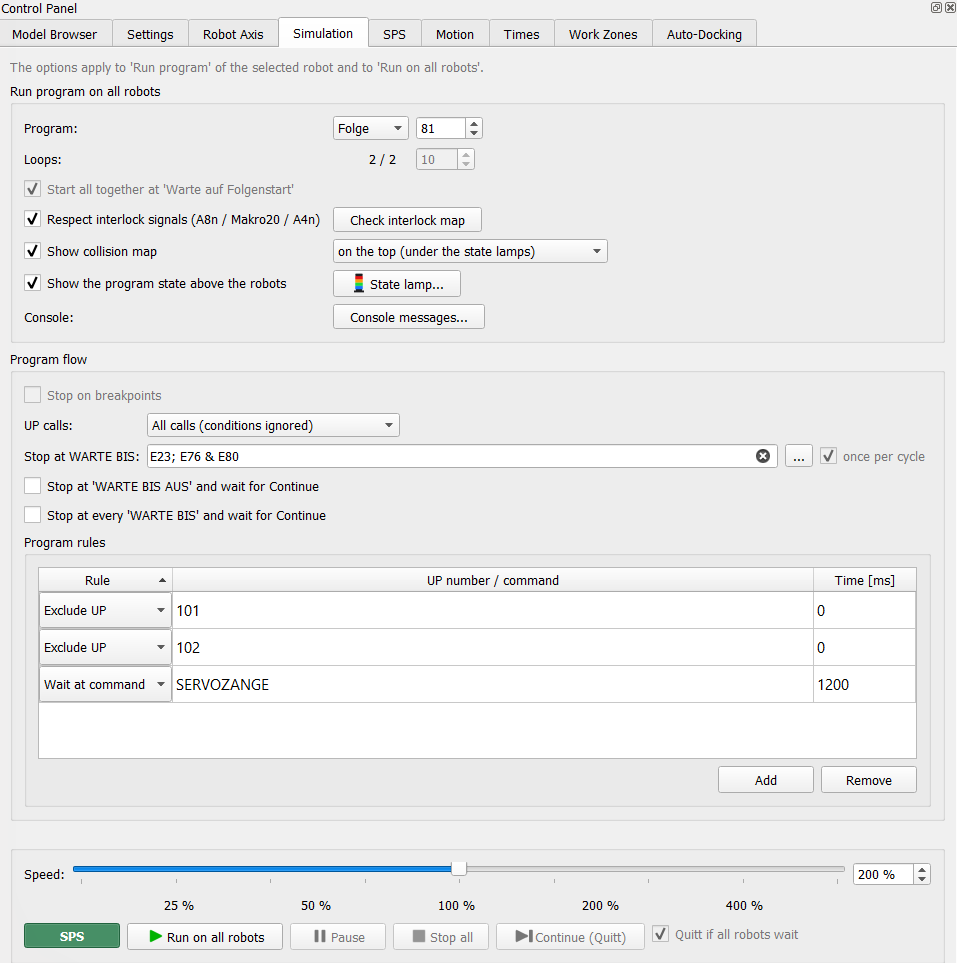 |
Switch on the green SPS button of the Simulation tab and press Run on all robots. The robots of a station run the Folge of the station. To watch the blocks during the run, open Edit SPS program... – during the simulation only to look at it (SPS program editor). With the SPS the following options are switched off and ignored, because the SPS program decides: Loops (the field shows the cycles of the Start block and is locked), Start all together at 'Warte auf Folgenstart', once per cycle, Quitt if all robots wait and Stop on breakpoints (a robot would end its run and the station would wait for it in HOME). While the simulation runs, all options are locked except Console messages..., the collision map and the program state above the robots – these can be switched at any time. WARTE BIS waits for the inputs managed by the SPS (Folgenstart, releases of the station, interlocks) and for the conditions of the field Stop at WARTE BIS (e.g. E23), evaluated on the signals of the SPS and of the signals file; other inputs are treated as fulfilled. Robot in HOME: at Warte auf Folgenstart the robot is in HOME, in no interlock zone and outside the station – the robot controller sets A41–A56 (zones free) and the Freigabe of the station (A76, A80) to EIN and the requests A81–A96 to AUS. Which signals, is set in the signals file. Fast Run (buttons under the SPS button) runs the program on all robots without the SPS until the end of the run; the SPS button is not changed. Robustness test: the Robustness test needs the SPS on. The cycles of a test step replace the cycles of the Start block during the step (afterwards they are set back). N cycles of a step = N+1 SPS runs (an SPS run goes from Folgenstart to the next Warte auf Folgenstart). |
SmartPad
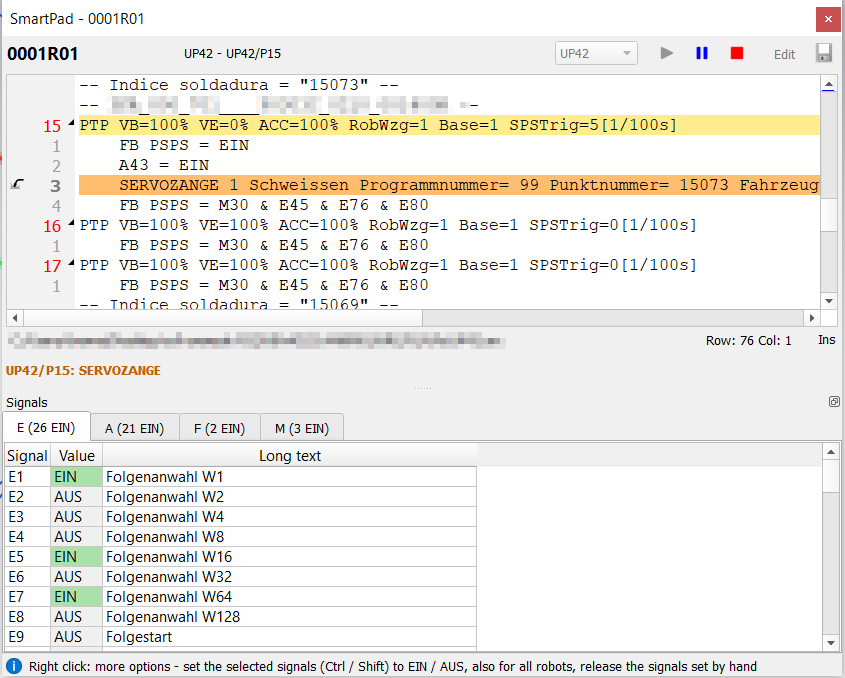 SmartPad of 0001R01: the current point in UP42 and the inputs E |
The SmartPad of a robot (buttons in the SPS tab) shows the program the robot is running in the DReS viewer: the line of the current point is highlighted in the Folge and in every called UP; while the robot waits for Folgenstart the line Warte auf Folgenstart is highlighted. The header shows the robot and its position (e.g. UP42 – UP42/P83), the bottom line the program file. Point numbers are the numbers in the margin of the viewer (the first point of a program is P1), in the SmartPad, on the console and in all tables of Robot Cell Simulator – not the index of the point data in the .dat file (Folge from 0, UP from 1). Under the program a status line shows what the robot does, with the same text as the console: waits (red, e.g. WARTE BIS or FB PSPS with the missing signals), a command in progress (orange, e.g. SERVOZANGE, MAKRO20 – its line is highlighted orange), Moving (green), Paused (blue). A command of a Folge point that applies to the motion in a UP (e.g. FB PSPS before UP48/P1) is shown in the Folge. Buttons (top right):
Override (1–100 %) – the speed of this robot in the simulation. Only the motions of this robot are slower; the process times and the station clock do not change. The cycle times are then not comparable – the report warns about it. Use 100 % for measuring. When the Robustness test slows the robot down in the areas shared with other robots, a red label next to the field shows the actual override, e.g. now 30 % (shared area) or now 30 % (red area); the field keeps your override. Change the program while the station runs (like on the line: robot in T1 / paused, correction, block selection, automatic again):
Without a click on a line, Run in the pause just continues. The window position and the layout of the signals panel are saved per robot. The SmartPad can stay open during the whole simulation; a changed program file is read again automatically. The SmartPads, the signals window and the SPS editor are closed automatically together with the scene (Close scene, New scene, opening another cell or simulation) and with the window of Robot Cell Simulator. |
Signals
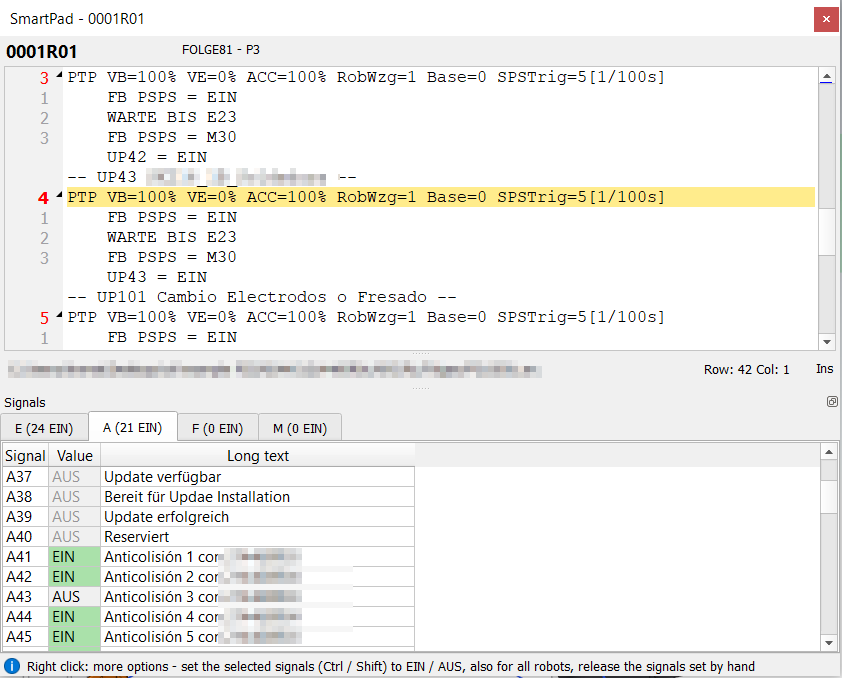 Outputs A: interlocks A41–A45 of 0001R01 with the long texts of the archive |
The Signals panel (dockable: right, bottom or as its own window) has four tables: inputs E and outputs A 1–256, flags F and markers M up to the limits of VKRC. The tab shows how many signals are EIN; the last column is the description of the signal. First the standard texts are read, then the texts of the robot:
The Langtexte directory (default template/RCS/Langtexte of DReS) and the files of every technology are set in the plugin settings: Tools > Settings... in Robot Cell Simulator, or the settings button of the plugin in Settings > Plugins of DReS – page Signal descriptions. Technologies of robots in the cell are bold; for technologies with variants (e.g. KW1 Braeuer / Lutz, clinching pneumatic / servo, Kappenfräsen with / without swivel) the basic variant is preset – choose the right file with Choose files.... Open SmartPads get the new descriptions at once.
|
Signals E / A of the robots
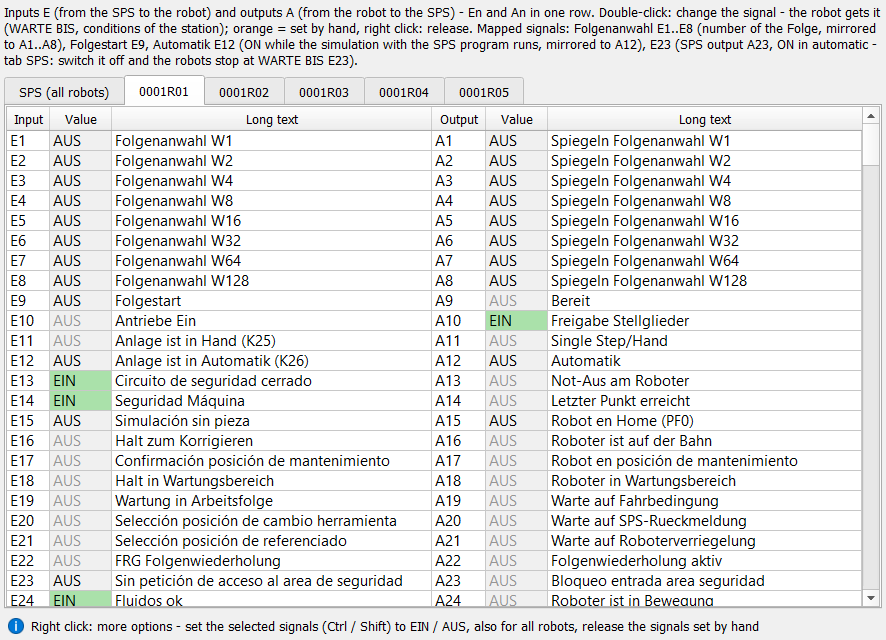 One tab per robot: input and output with the same number in one row; tab SPS (all robots) |
Button Signals E / A of the robots... on the SPS tab: one tab per robot with six columns – input E, value, long text, output A, value, long text – so that the signals the SPS gives (E) and the signals the robot reports (A) with the same number are side by side. Only the visible tab is updated.
|
Signals file (start, HOME)
Group Signals of the robots on the SPS tab: an XML file read at every start of Run on all robots (installation file template\RCS\signals.xml; the folder button selects your own copy, Edit opens it in the DReS editor, Installation file goes back to the delivered file). Every line has the signal (one signal or a range like A41-A56), the value EIN / AUS and a description; enabled="false" switches a line off.
| Section | Meaning | Example |
| Start | signals of every robot at the start of the simulation (like the IO set of the SmartPad: inputs E, outputs A, flags F, markers M); a signal with a value is known in the simulation – assignments and WARTE BIS of the field Stop at WARTE BIS use it | E13 Schutzkreis EIN, E15 AUS, E24 Medien EIN, A10 EIN |
| Robot name="..." | start signals of one robot (full name or the end of the name) | E537 Dockingsystem angedockt |
| Home / RobotOutputs | outputs set by the robot controller in HOME at Warte auf Folgenstart (always); station = the Folgenstart inputs of the station of the robot as outputs | A41-A56 EIN, A81-A96 AUS, station EIN (A76, A80) |
| Home / SpsInputs | inputs from the SPS in automatic while the robot is in HOME (only with the SPS program) | station EIN (E76, E80 already before Folgenstart) |
The interlock signals E41–E56, A41–A56 and A81–A96 come from the interlock zones of the simulation when Respect interlock signals is on – the lines of the file are used without it. Without the file the HOME outputs above are used and no start signals; the console says which file was used.
Markers M and flags F in Start or Robot have a fixed value in the simulation – before the definition in the program (e.g. Makro50) and before the assignments in the program. The installation file sets M95 (Sicherheiten EZ1/SP1 – the simulation has no air / water / current sensors of the gun) and M96 (Grundstellung KS1) EIN and has the markers of the VW standard (M30, M31–M37, M81) as switched-off lines with their descriptions. Force always EIN / AUS in the SmartPad adds such lines for one robot.
More: Import IO set of the SmartPad (.ini) – the sections [E] [A] [F] [M] of an IO set become the start signals of a new signals file; Save the current signals of the robots – the signals of every robot after a simulation as start signals of the robots in a new file (to start the next simulation from this state).
Save and load
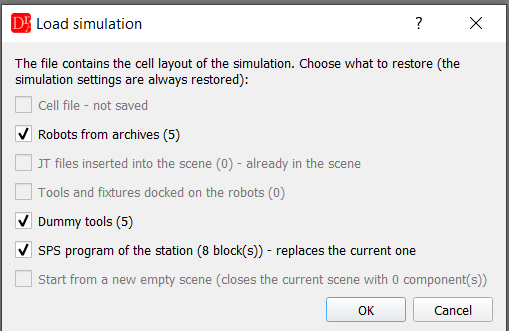 |
Simulation → Save simulation... stores the SPS program together with the layout, tools, camera and settings. In Simulation → Load simulation... the option SPS program of the station replaces the current program; switch it off to keep your program. Save in the editor writes only the SPS program to its own XML file. Save simulation... suggests the simulation file loaded or saved last. The plan of the Robustness test can also hold the SPS program: Save plan and Load plan ask which parts are saved or loaded (SPS program of the station); a loaded SPS program replaces the current one. |
File format
The SPS program is XML. Save in the editor writes the root element <Sps>. In the simulation file the program is the element <Sps enabled="0|1"> in <RcsSimulation>; enabled="1" switches the SPS on after loading. Save in the editor writes no enabled. Load in the editor reads both files and lists the robots that are not in the cell (double-click their blocks to choose a robot).
| Element / attribute | Meaning |
| Block id, type, x, y, name | id > 0; type = start, station, wait or robot; x, y = place in the diagram; name = robot of the cell (robot) or title (station) |
| start: cycles | number of cycles (1 or more) |
| station: delay, folge, inputs, auto | station time [s]; Folge (missing or 0 = Folge of the Simulation tab); inputs E with Folgenstart (comma separated); inputs E in automatic (comma separated; missing = 23, empty = none) |
| wait: ms, from, robot, station | time [ms]; timer start: home, cycle, robot or station; robot = robot (with from="robot"); station = id of the station (with from="station") |
| priority: zone, first, second, raceMode, raceWindow | Interlock priority: zone (1..16); robot that gets the zone first; robot that waits (missing or empty = every partner); 0 = priority within a time window, 1 = order in every cycle; window [s] (0.1..30); comment (optional) |
| Link from, to | connection from block id to block id |
Example: station Folge 81; 0001R04 starts 3 s after the station; the station waits 2 s from the start of the cycle.
<?xml version="1.0" encoding="UTF-8"?>
<Sps>
 <Block id="1" type="start" x="0.0" y="0.0" cycles="10"/>
 <Block id="2" type="station" x="260.0" y="0.0" name="Station A" delay="2" folge="81" inputs="76,80" auto="23"/>
 <Block id="3" type="robot" x="0.0" y="110.0" name="0001R05"/>
 <Block id="4" type="robot" x="0.0" y="200.0" name="0001R04"/>
 <Block id="5" type="wait" ms="3000" from="robot" robot="0001R04" x="130.0" y="200.0"/>
 <Block id="6" type="wait" ms="2000" from="cycle" x="260.0" y="140.0"/>
 <Link from="1" to="2"/>
 <Link from="3" to="2"/>
 <Link from="4" to="5"/>
 <Link from="5" to="2"/>
 <Link from="6" to="2"/>
</Sps>
Command API
The SPS can also be used with the command API:
- run and set with "sps": true | false – run with or without the SPS, switch the SPS on or off,
- robot with robot, pause, override – pause or override of one robot, like the SmartPad,
- robust_test load / save with "sps": true | false – load or save the SPS program with the plan of the Robustness test,
- sps_program – set, read or save the SPS program; with "open": true the editor window opens like Edit SPS program... (while a simulation runs only to look at it); the answer then has opened and readOnly,
- race_rules – the time window of the request races, the window at the end of the simulation, rules of the interlock priority without the SPS program, the request races of the last run and the use of the rules,
- the file dialogs of the SPS program and of the signals file are answered with ui_file.
Example: station with five robots, 10 cycles
- Load the cell and the simulation, open the SPS tab, click New from the robots of the cell.
- Edit SPS program...: double-click Start → 10 cycles; double-click the station → Folge 81, station time 2 s, inputs 76, 80.
- Drag a Wait block from the list, connect it below the station, set 2000 ms from the start of the station cycle (minimum cycle time). Apply.
- Simulation tab: switch on SPS, press Run on all robots, open the SmartPads of the robots you want to watch.
- After 10 cycles: Times tab → Report... (see Cycle time report).