
 DReS Robot Program Editor with AI Agent - Check and Change KUKA VKRC Programs in Plain Words (YouTube, English)
AI Agent window API / CLI
The editor has its own chat with an AI agent. You write in plain words what the agent should do – e.g. "Check the first and last points of all Folgen" or "Show me all spot welds with Offset 0" – and a language model plans the steps and uses the commands of the editor like the menus, buttons and dialogs. It reads the programs, the point tables and the robot data of all robot projects of the project tree, compares them and answers with tables and conclusions. You do not have to know the commands: the agent proposes the next steps itself.
The chat shows your messages, the answers of the agent and every command with its result. The window is the same as the AI Agent window of the Robot Cell Simulator (state line, New chat, settings button, Send, Stop, font size, live answer, tables, queue of messages) – only the commands are those of the editor. The agent answers in the language of your message.
Opening
- menu Tools > Show / hide AI Agent chat (Alt+4), or
- the AI button (sparkle icon) in the toolbar, next to the microphone button of VeRa.
The window is docked at the bottom of the main window. It can be closed and opened again; the conversation stays until New chat. Every time the window is opened and after New chat the chat shows a short welcome line with a link to this page and the hint type /help.
Console next to the chat: in the context menu of the console (right click) Dock next to the AI Agent window puts the console as a tab next to the AI Agent window – by default the two share the width half / half, the tabs are at the top (see Console as a tab). Font size: Larger font (Ctrl + wheel) / Smaller font in the context menu, or Ctrl + mouse wheel – in the console and in the chat; the size is remembered.
By voice: a spoken command that VeRa does not know ("Vera, how many robot projects are open?") is sent as a message to this window – the window opens, VeRa says "I passed it to the AI agent" and the agent answers in the chat. Setting: Settings > Configure > AI Agent > VeRa voice control, on by default; it needs the license API / CLI like the window itself.
Examples: one prompt – a complete check
The two examples below were made on an anonymized example station with five robot projects (0001R01 to
0001R05). Each shows the prompt as it was typed, the editor with the answer and the full text of the answer.
The answer text contains the markers {red}…{/red} and {green}…{/green}:
the chat shows these parts in color (see Colors); in the text below they are left as they are.
Example 1 – points of the Folgen and of the UP calls
Check whether points 1, 2 and the last one in every Folge have the same coordinates, and whether the first point of every UP has the same coordinates as the point where the UP is called. The difference may be max. 2 mm. Show me the programs where this condition is not met.
The agent says that this takes a moment and runs one points call over the Folgen of
all robot projects (fileMask ["folge*"]) with the checks samePoints
([["1","2"],["1","last"]]) and callStart, tolerance 2 mm. DReS computes the distances itself; points
with different bases and the same tool are compared in world coordinates (bases from $config.dat), points with
different tools are reported as not comparable. It takes about 1.5 minutes (about 2 s per program).
Result: 38 Folgen of 5 robots – 76 point checks, 0 failed; 118 UP calls, 2 failed: in 0001R05 FOLGE81 and Folge83 call UP42 at P2, and the first point of UP42 differs by 5.0 mm (compared in world coordinates, Base 0 against Base 1). Because both Folgen show the same difference, the agent concludes that UP42 itself (its P1 or the definition of Base 1) is the likely cause. Nothing was changed. (In this example station one point was moved by 5 mm on purpose to show how a difference is found.)
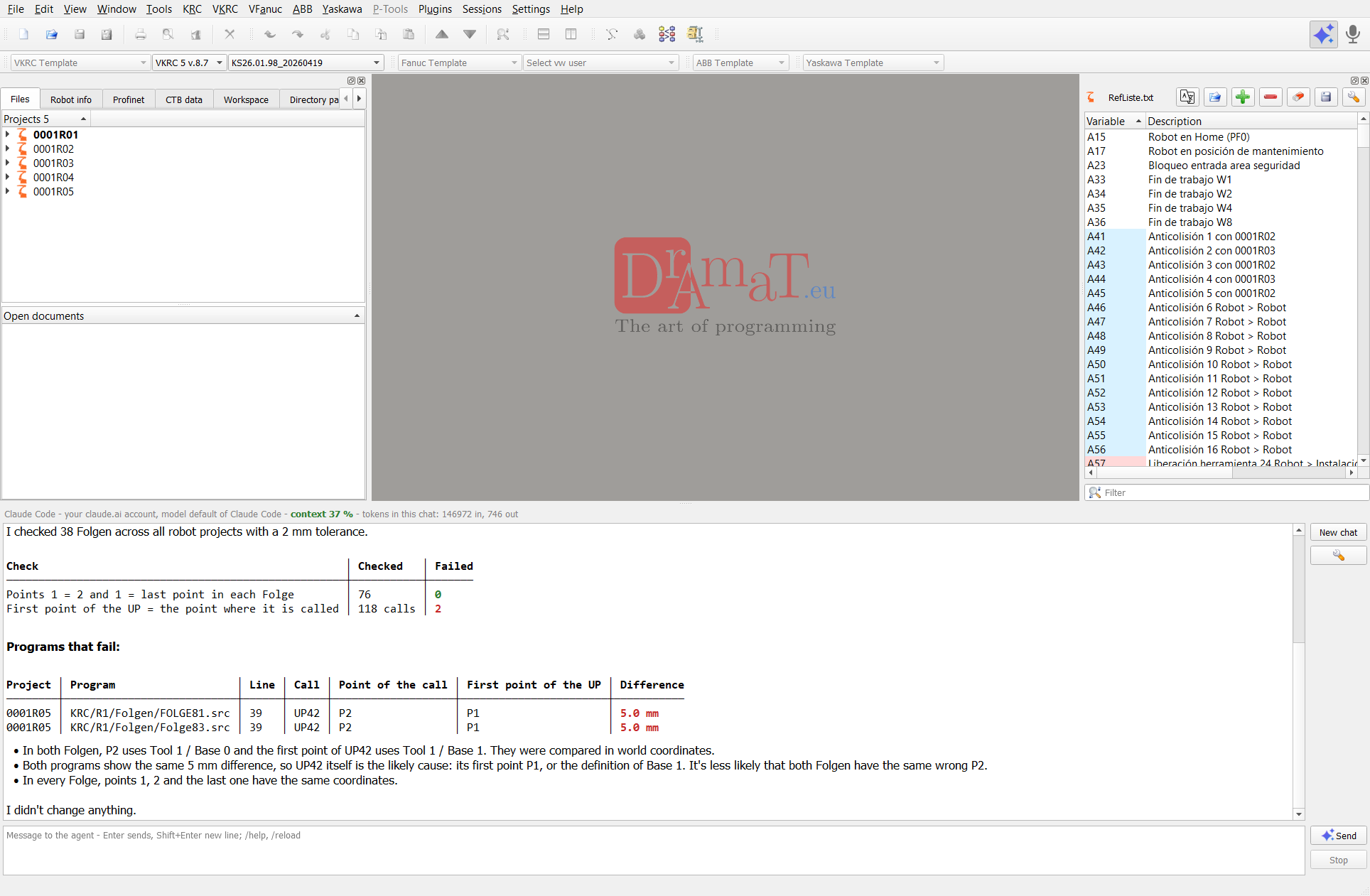
Full answer (as in the chat):
Example 2 – spot welds (SERVOZANGE)
Find the SERVOZANGE commands and show me all used Programmnummer, Punktnummer and FahrzeugTyp. Check if Offset is greater than 0, only in UP programs. Mark the values 0 in red.
The agent runs tech list with scope projects, fields (Programmnummer,
Punktnummer, FahrzeugTyp, Offset) and fileMask ["up*"]. It reads the files from the disk –
nothing is opened, nothing is changed – and gets a summary of the used values with their counts, so even hundreds
of spot welds fit into a short answer.
Result: 143 SERVOZANGE commands in the UP programs of 0001R01, 0001R04 and 0001R05, of them 98 Schweissen: Programmnummer 99 everywhere, FahrzeugTyp 6 or 7; Offset 30 only in 0001R01 (48 welds), Offset 0 (red) in 0001R04 and 0001R05 (50 welds). The service commands Setzhub, Fraesen and Service have FahrzeugTyp 0. The agent also noticed by itself that some Punktnummer are used in two robots and asks to check them. At the end it offers a CSV export or a change of the Offset values (with a preview first).
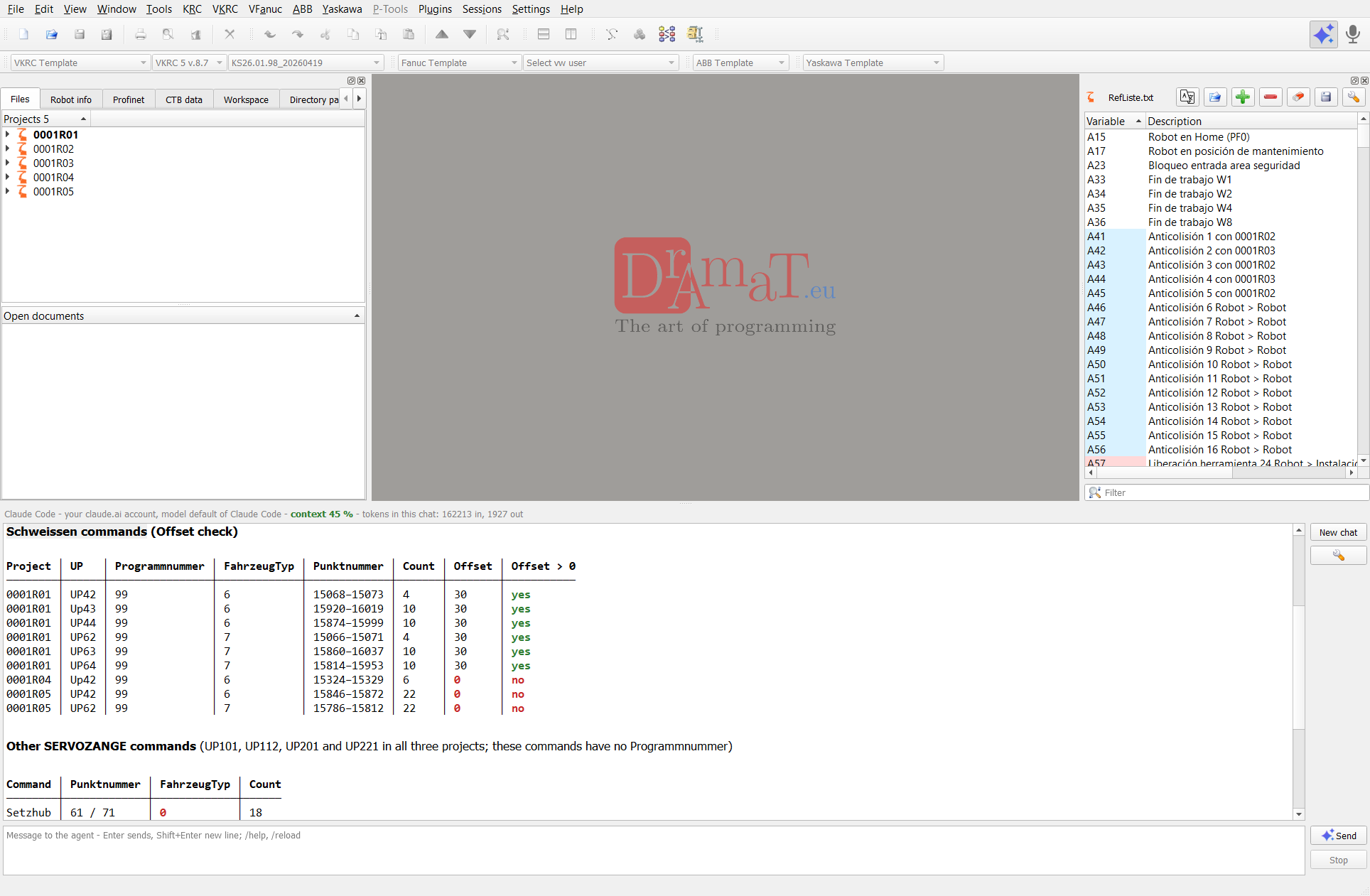
Full answer (as in the chat):
Further examples of messages:
- Show the robot projects and set R03 as active
- Open folge81 of R03 at line 40 and check its syntax
- Show the VW user, software version and IP of all robots
- Which tools and bases are used in the Folgen and are they all defined in the robot data?
- Set FahrzeugTyp to 2 in all spot welds of all robot projects – first show me what would change
- Save all modified files and start the Robot Cell Simulator
What the agent does
The agent works in the editor with the editor command API (tool editor_command), run inside the program – no pipe, no windows. It can:
- open, activate, save, close and reload files; list the open documents;
- list the robot projects of the project tree, open a robot project from its configuration file (open_project) and set the active one (set_active_project);
- check the syntax (check_syntax), move the cursor (goto: line, fold, point, tech, UP call), undo / redo;
- list and change the parameters of technology commands (tech, see below);
- find and check robot data – robot configuration, program files, point tables and TCP paths of all robot projects (search, robot_data, points, see RobotDataSpy);
- list and start plugins (plugins, run_plugin), e.g. start the Robot Cell Simulator;
- run every menu action (ui_actions, ui_click) and handle dialogs (ui_windows and the other UI commands).
With the tool read_doc the agent reads pages of this documentation (editor_ai_agent, vera – the editor API, vera_menu_reference – every menu action, rcs_api – the UI commands) before it uses a command it does not know.
Commands the agent uses
The most important commands of the editor API for the agent (details, parameters and answers: VeRa > Editor API):
| Command | What it gives the agent |
| tech | parameters of the technology commands: VKRC TECH folds, SERVOZANGE folds, Fanuc CALL VW_USER(...) – list from the disk over all robot projects (with a summary of the values and conditions like Offset > 0), change with dryRun first, export to CSV |
| search | regular expression over the files of the robot projects on the disk; named groups are the values, with their counts per project and file |
| robot_data | data of the robots from their configuration – what the tabs Robot info, Profinet and CTB data show (tools, bases, loads, IP, VW user, calibration …), also for inactive projects |
| points | point table of a program, length of the TCP path, motion time, process (e.g. glue) length; for many programs the checks samePoints and callStart, compared in world coordinates |
| open_project | opens a robot project from its configuration file ($config.dat, system.va, system.xml, SYSTEM.SYS) like File > Open robot project |
| ai_chat | the AI Agent window itself, for scripts and VeRa (see API); not used inside the chat |
| ui_set scroll | scrolls a text field or a list: "top", "bottom", 0..1
or "find:text" – e.g. the conversation of this window for a screenshot |
Knowledge files – your own user plugins
What the agent knows and how it works is written in knowledge files: Markdown files (.md) in plain
English. All .md files of the folder <installation>\AIAgent\knowledge are loaded
automatically when the AI Agent window starts (Robot Cell Simulator: <installation>\template\RCS\AIAgent\knowledge).
They are sent to the model as its instructions.
A knowledge file works like a user plugin for the editor – an AI agent written in words, not in code. It
describes what to check, which commands of the editor to use and how to answer; the agent then uses the functions of the
editor (the API commands above): it reads and checks the programs of all robot projects, changes them (always with a
dryRun first) and saves them on request. You can edit the installed files or add your own .md files to
the folder (or with Add… in the settings from any other folder).
Ideas for your own user plugins:
- company checks before the delivery of a robot (e.g. HOME at the start and end of every Folge, no point with tool 0, all used tools and bases defined, versions of the user files);
- naming rules of programs, points and comments;
- standard parameters of technology commands (e.g. the allowed FahrzeugTyp and Offset of the spot welds, glue parameters) – the agent lists the differences and offers the change;
- reports in a fixed form (table per robot, CSV for Excel) for the commissioning or the customer.
Version: each knowledge file has a version line at the top, e.g. Version: 1.6 (2026-10-18), and a
version history at the end. The version is shown in the list of the knowledge files in the settings, e.g.
editor_agent_instructions.md (version 1.6) [knowledge folder], and in the chat when the knowledge is loaded. Give your
own files a version line too – then you can see at once which state an installation uses.
After a change of a file: Refresh knowledge in the settings or /reload in the chat loads the files
again; the conversation stays.
| Built-in knowledge files (editor) | Content |
editor_agent_instructions.md | rules of the editor agent: how to use the commands, never save without a request, dryRun before a change, tables and colors in the answers, real project names |
robot_data_spy_agent.md | RobotDataSpy – finding and checking robot data without XML patterns or JavaScript rules; independent of the plugin Robot Data Spy |
company_checks.md) so that an update does not replace them.Commands in the chat
They work locally – no request to the model, no tokens:
/help– what the agent does, examples, the commands, the current connection and the path of the log of the agent;/reload– loads the knowledge files again (the conversation stays);/anonymous on|off(short:/anon on|off) – switches the anonymous mode on or off (a new chat starts);/mode– shows the mode and, when it is on, the key R1 = 0001R01, ….
Names in the answers: the agent writes the real, full names of the robot projects (e.g. 0001R05, not R05); they are shortened to R1, R2 … only in the anonymous mode.
Colors in the answers: the agent marks important values with
{red}…{/red}, {green}…{/green} and
{orange}…{/orange}; the chat shows them in red,
green and orange (also in tables). You
can ask for it in the prompt, e.g. "Mark the values 0 in red".
Direct commands of the editor (without the model)
Every other message that starts with / and a letter is a command of the
editor API, run at once in the program: without the model and without tokens, also while
the agent works. Syntax: /name key=value … or /name {json}. Examples:
/status– state of the editor;/documents– open documents (file, modified, active);/projects– robot projects of the project tree;/set_active_project name=R03– sets the active robot project;/open {"file":"D:/x/KRC/R03/Program/folge81.src","line":40}– opens a file at a line.
The JSON answer appears in the conversation (an error in red). Commands that change something need the license
API / CLI, like in the command API. /ai_chat is not available in the chat.
Changing parameters of technology commands
The agent reads and changes the parameters of technology commands with the API command tech: VKRC TECH folds (%VUSER) and SERVOZANGE folds (%VSERVOGUN) of Folge, UP and Makro programs and Fanuc CALL VW_USER(...) – in the open programs or in all programs of the robot projects (scope projects). A complete analysis: Example 2. Further messages:
- Show all SERVOZANGE commands of the open programs
- Set FahrzeugTyp to 2 in all spot welds of the open programs – first show me what would change
- Find all SERVOZANGE commands in all projects and export their parameters to CSV
All robot projects: the agent searches the Folge, UP and Makro files of the VKRC and Fanuc projects of the project tree on the disk (optionally only some projects, e.g. R04 and R05, or only some programs, e.g. only UP programs; at most 300 files by default). Reading does not open anything – the files are read from the disk, nothing is changed. Only for a change the files with matching commands are opened in the editor – they stay open, so you can check and save them. Conditions like Offset > 0 or FahrzeugTyp != 6 select the commands. CSV: the list of the commands can be written to a CSV file (one row per command, columns Project;File;Line;Command, one column per parameter and Text; separator ;, UTF-8 with BOM – opens in Excel).
First a dry run: before a change the agent runs tech with dryRun and shows you the list of the changes (line, old and new text, errors). Only after your confirmation it changes the programs.
- The parameter names are the names of the dialog of the command (from the VW user definitions, e.g. Fzg-Typ, Techaufruf); SERVOZANGE: Programmnummer, Punktnummer, FahrzeugTyp, Offset, TeachIn, Ausgleich, Kraft, Blechdicke, …, Bedingung. Strom, Doppelhub and Messen can be changed only in the dialog of the fold. Values of a list may be given as the number or as the text.
- VW user: the VKRC TECH definitions come from the VW user selected in the toolbar (Select vw user), set automatically when a robot project is activated. Files of the active project are changed. A file of another project: changed only when its VW user (read from KRC\R1\VW_User\vw_usr_s.src) is the same as in the toolbar, otherwise the agent first activates that project (set_active_project). A file outside all projects only with useSelectedVwUser. Fanuc: only files of the active project. SERVOZANGE folds need no VW user.
- The change stays in the editor – the documents are modified, not saved; the agent saves them only on your request. Undo does not work for these changes. On saving the KRL code is generated again (e.g. VW_SGB_SPOT_ADV/MAIN(...,FahrzeugTyp,...)); saving a VKRC program normalizes its format.
- Requires the license API / CLI.
RobotDataSpy – find and check robot data
The editor AI agent includes the knowledge RobotDataSpy (file AIAgent\knowledge\robot_data_spy_agent.md,
always loaded when the AI Agent window starts). It is independent from the plugin Robot Data Spy: no XML patterns
and no JavaScript are needed. You say in plain words what to find – which values, which errors, which robots –
and the agent builds the search itself with the editor commands search,
robot_data, points and tech. It
answers with a compact table and the conclusions and says in one line how it searched (e.g. searched up*.src of 5
robots, 21 files). It only reads – nothing is opened, nothing is changed. A complete check:
Example 1.
Data sources:
- robot configuration – what the tabs Robot info, Profinet and CTB data show: name, model, serial number, software, VW user, IP address, tools, bases, loads, Profinet devices, calibration (mastering), axis limits – for all robot projects of the project tree, also the inactive ones (VKRC, KRC, Fanuc, ABB, Yaskawa);
- program files on the disk – search with a regular expression over the files of the robot projects (Folge, UP, Makro, $config.dat, $machine.dat …), the found values with their counts;
- point tables – X, Y, Z, A, B, C, S, T, tool and base of every point (as the export of the point table), the length of the TCP path, the motion time and the process length (e.g. glue) between the lines that switch the process on and off.
Further examples of messages:
- Show the coordinates of the points of UP42 of 0001R05 in a table and the length of the TCP path
- How long is the glue path in UP12? (the agent first finds the lines that switch the glue on and off and tells you which lines it used)
- Which robots request the collision areas A81 to A96 and where?
A large result is summarized; the agent offers a CSV export (opens in Excel). If the agent cannot do something with its knowledge, it says so – new functions are added on request of the customers, and you can add your own knowledge files.
Usage in the state line
After the first answer the state line (title bar of the window) shows context NN % – the input tokens of the last request divided by the setting Context window [tokens] – and the tokens in this chat (the sum of all requests, in and out), optionally with (NN % of the limit) of the setting Token limit per chat. Colors: green below 60 %, orange below 85 %, red from 85 % – then start a New chat.
Console as a tab
Tools > Show / hide console (Alt+3) and Tools > Show / hide AI Agent chat (Alt+4) switch the windows on and off – like the file tree. In the context menu of the console (right click) Dock next to the AI Agent window puts the console as a tab next to the AI Agent window at the bottom of the main window – like the Message Window and the AI Agent in the Robot Cell Simulator. By default the console and the chat share the width half / half. So the messages of the editor (e.g. the result of check_syntax) and the chat are in one place.
The docked console has its tabs at the top and no Tools bar and no Clear button: Save, Print, Print to pdf, Export, Show debug output, Larger font (Ctrl + wheel), Smaller font and Dock next to the AI Agent window are in the context menu of the console.
Anonymous mode
In the anonymous mode the model does not see the names of the plant: DReS replaces them by identifiers before a text goes to the model and puts the real names back in what comes from the model (both ways).
| Data | What the model sees |
| names of the robot projects (e.g. 0001R01) | R1, R2 … |
| file paths | <file N> |
| identifiers of the plant | <name> |
Switch: /anonymous on | off (or /anon on | off) in the chat, the check
box Anonymous mode in the settings or ai_chat anonymous in the API.
A change starts a new chat. With Claude Code the agent may not read files in this mode (the files contain the real names).
Question before the first real data: when the check box Ask before the first sending of real data (YES / ANON / NO) is on (in the editor default off, in the simulator default on) and the anonymous mode is off, the first message that would go to the model is held and the chat asks: YES – send the real data, ANON – switch on the anonymous mode, NO – nothing is sent. Details: AI Agent window of the simulator.
Connection to the model
All ways need the additional license API / CLI.
Your own access to the AI model: the agent uses your account or API key (Anthropic, an OpenAI-compatible service such as VW LLMaaS / Azure OpenAI, your own claude.ai account) or a local model (e.g. Ollama). The usage of the model is paid directly to your AI provider under your own contract – DReS adds no AI fees and no usage limits of its own; the DReS license covers only the program.
| Way | How it works |
| A. Anthropic API – API key | DReS talks with the model directly (console.anthropic.com, you pay for the tokens); the fastest way |
| B. Claude Code – your claude.ai account | no API key; DReS starts Claude Code with the MCP server
VeRa (AIAgent\vera_mcp.py, Python 3); Claude Code controls the editor through the command API.
Requires the command API to be switched on: Settings > Configure > AI Agent > Command API. Only
for your own use |
| C. OpenAI-compatible API | VW LLMaaS, Azure OpenAI, OpenAI, a local Ollama or another provider: address, token and model |
The steps (account, key, login of Claude Code, Python) are the same as for the simulator: Configuration step by step.
Settings
Settings > Configure > AI Agent, tab AI Agent window (the page has four tabs; the others are described in VeRa). The settings button in the chat opens this tab directly.
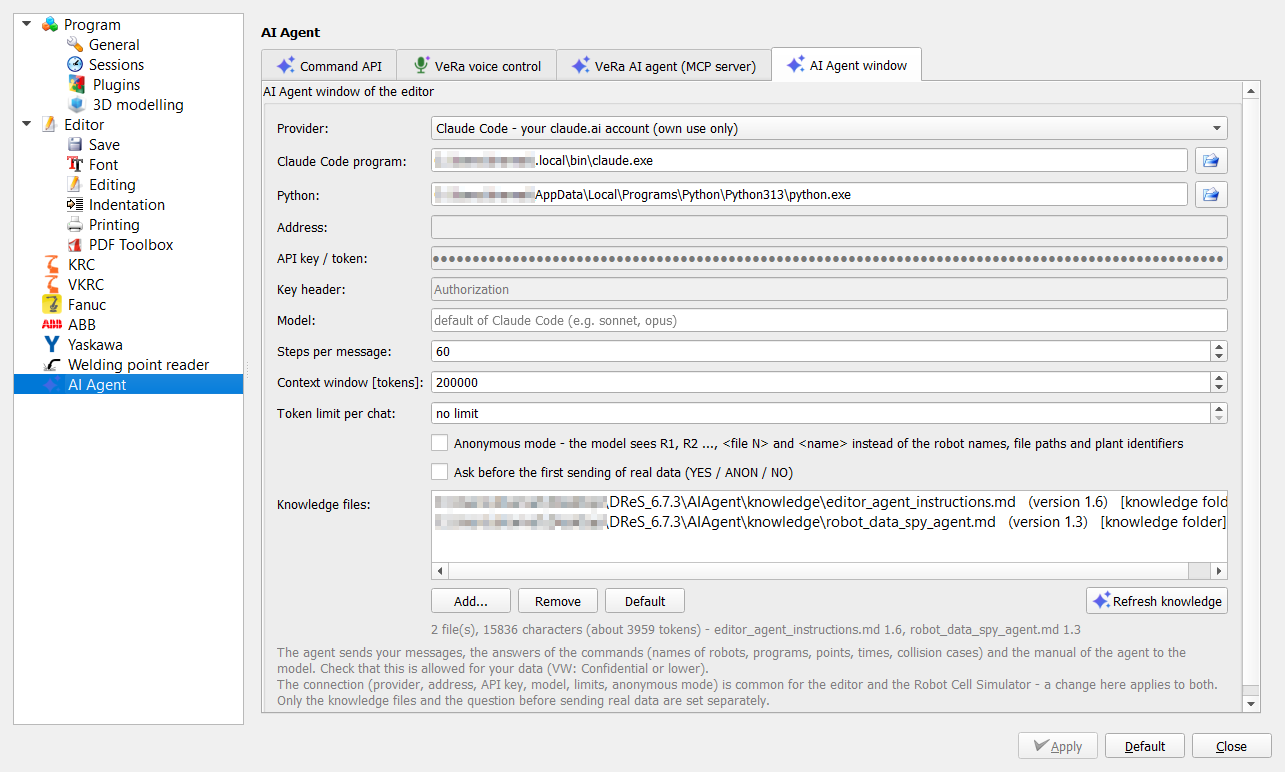
| Field | Meaning |
| Provider | Anthropic API (Claude) – with an API key; OpenAI-compatible API (VW LLMaaS, Azure OpenAI, OpenAI, local Ollama); Claude Code - your claude.ai account (own use only) (see Connection) |
| Claude Code program, Python | only for Claude Code: claude.exe (found automatically in PATH) and the
Python 3 that runs the MCP server AIAgent\vera_mcp.py |
| Address | address of the API, filled with the default of the provider; VW LLMaaS: the address from the LLMaaS portal (…/chat/completions) |
| API key / token | the key of the provider; stored in the settings of this Windows user (obfuscated) |
| Key header | only for the OpenAI-compatible API: Authorization (Bearer token, default) or e.g. api-key (Azure OpenAI) |
| Model | name of the model, e.g. claude-sonnet-5-5; empty = default of the provider |
| Steps per message | most commands of the agent for one message – protects against loops and costs |
| Context window [tokens] | size of the context of the model, for the percentage in the state line |
| Token limit per chat | limit of one chat (in + out) for the colored percentage; no limit possible |
| Anonymous mode | see Anonymous mode |
| Ask before the first sending of real data (YES / ANON / NO) | see Question before the first real data; editor default off, simulator default on |
| Knowledge files | the list of the knowledge files with their versions; the files of the knowledge folder are marked [knowledge folder] and always loaded; Add… / Remove for further files, Default – only the installed files, Refresh knowledge – save the list and load the files again |
| Separate per program | Editor | Robot Cell Simulator |
Knowledge folder (all .md files loaded) | <installation>\AIAgent\knowledge |
<installation>\template\RCS\AIAgent\knowledge |
| Check box Ask before the first sending of real data (YES / ANON / NO) | default off | default on |
License: the window needs the additional license API / CLI. Without it only the reading
direct commands work (and /help, /reload).
Log of the agent: %TEMP%\dres_rcs_agent\ai_agent_YYYYMMDD.log (one file per day, common with the
simulator); /help shows the path.
API
Editor command ai_chat (pipe DReS_API, see Editor API); needs the license API / CLI:
| Parameter | Meaning |
| show | true shows the window, false hides it |
| message | sends a message to the agent (also shows the window); answer to the question:
"yes" | "anon" | "no" |
| stop | true stops the agent |
| newChat | true starts a new chat |
| anonymous | true | false – anonymous mode |
| last | number of the last entries of the conversation in transcript (default 20) |
Answer: visible, busy, anonymous, consentPending (the question YES / ANON / NO waits),
transcript. Example: {"cmd":"ai_chat","message":"Show the robot projects","last":5}. The conversation can
be scrolled with ui_set scroll ("top", "bottom",
0..1, "find:text").
Problems
| Symptom | What to do |
| Claude Code reaches the editor through its command API - switch it on… | Settings > Configure > AI Agent > Command API: switch on the command API of the editor |
| messages are rejected, red text in the state line | the license API / CLI or the API key is missing |
| context NN % red | start a New chat |
| a changed knowledge file has no effect | Refresh knowledge or /reload; check the version in
the list of the knowledge files |
| login of Claude Code, Python, HTTP errors | see Problems of the AI Agent window of the simulator – the causes are the same |