
- What the export is for
- Starting the export
- Export options
- Structure of the archive
- Loading the jobs on the robot
▲ What the export is for
The export puts the jobs (*.JBI) open in the editor into one ZIP file. The controller does not read ZIP files - unpack the archive into one folder of a USB stick or a CF / SD card and load all jobs from this folder at once on the teach pendant.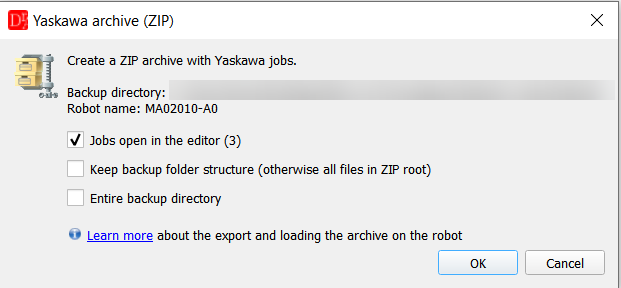
Export options of the Yaskawa archive.
▲ Starting the export
Yaskawa » More » Export to Yaskawa archive. The option is active when a job is the current window.The same export is started with the
 button in the Robot toolbar
(next to Compare files). It exports for the robot type of the current program; if no robot program is open,
for the active robot project in the project tree. Without an open program and without an active robot project the
editor asks to set a robot project as active (context menu Set active robot) or to open a program.
button in the Robot toolbar
(next to Compare files). It exports for the robot type of the current program; if no robot program is open,
for the active robot project in the project tree. Without an open program and without an active robot project the
editor asks to set a robot project as active (context menu Set active robot) or to open a program.
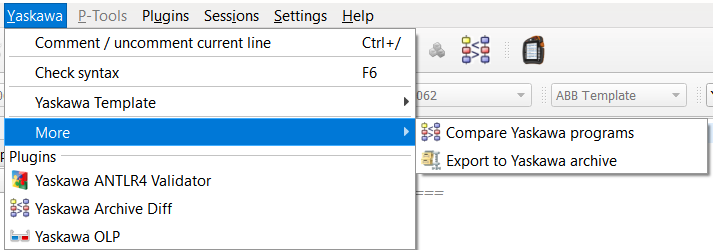
The export in the menu Yaskawa » More » Export to Yaskawa archive.
Before the export save all programs that are open in the editor - the export works on the files
on the disk. If a program has unsaved changes, the editor activates it and stops the export.
The backup folder is the folder containing SYSTEM.SYS. If jobs of more than one backup
are open, the editor asks which backup should be exported.
▲ Export options
| Option | What is put into the archive |
| Jobs open in the editor | every open *.JBI |
| Keep backup folder structure | the jobs keep their path relative to the backup folder. Off by default - all jobs are put into the root of the ZIP, because the pendant loads jobs from the current folder of the external memory |
| Entire backup directory | the complete backup folder; all other options are disabled |
Jobs called with CALL JOB: are not added automatically - open them in the editor if they
should be part of the archive.
After the export
The editor shows a summary with the number of files in the archive. Show Details... lists every file of the archive with its path, the files that were skipped and why (another robot, machine data, file not found) and the notes of the export.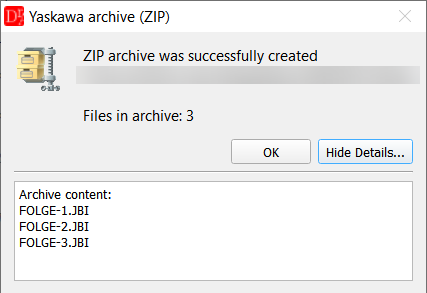
Summary after the export - Show Details... lists the content of the archive.
The archive is written to a temporary file first and replaces the target file only when it is complete - if something goes wrong (disk full, file open in another program), no half-written ZIP is left on the disk. Two different files that would end up under the same name in the archive stop the export with a list of the conflicting files. The same file selected twice (e.g. open in the editor and part of a selected folder) is simply added once.
The selected options are remembered for the next export.
▲ Structure of the archive
Example - three open jobs (flat):Robot_R01.zip └ MAIN.JBI └ F7R2.JBI └ F7R3.JBI
▲ Loading the jobs on the robot
- Unpack the ZIP into one folder of a USB stick (YRC1000, DX200) or a CF card (DX100).
- On the teach pendant select teach mode and set the security mode to Editing (or higher).
- EX. MEMORY » DEVICE - select the device; EX. MEMORY » FOLDER - select the folder with the jobs (DX200 / YRC1000).
- EX. MEMORY » LOAD » JOB - select the jobs (all jobs: menu EDIT » SELECT ALL), press ENTER and confirm with YES. Existing jobs with the same name are overwritten after a confirmation.
- Check the loaded jobs before starting the robot.
Save the jobs of the controller (EX. MEMORY » SAVE, or a CMOS backup) before loading the new jobs.
See also the export for the other controllers: VKRC, KRC, VFanuc, ABB