
▲ Yaskawa viewer (JBI editor)
A job is opened in the Yaskawa viewer (setting Add Yaskawa viewer automatically to *.jbi file). The viewer shows the instructions between NOP and END with syntax highlighting, indentation of IF / WHILE blocks, an icon at every motion line and the line markers of the syntax check. Keyword completion and templates of instructions are available as in the other editors of DReS.Job header
By default the header of the job (/JOB, //POS with all points, //INST, ///ATTR, ///GROUP ...) is hidden and only the program is shown - the header icon in the first line shows it as a tooltip. The points are edited in the point table and the point editor; the header is rebuilt from them when the job is saved. The header can be shown in the text with Show header text in viewer (context menu or settings).Tooltips: variables, I/O, macros
Moving the mouse over a word shows what the controller knows about it:- global variables (B, I, D, R, S, P, BP, EX) - the name from VARNAME.DAT and the value at the time of the backup from VAR.DAT,
- inputs and outputs (IN#, OT#, IG#, OG# ...) - the name from IONAME.DAT,
- macros - MACRO1 MJ#(5) shows the macro job from MACRO.DAT and the names of its arguments with the values of the call,
- called jobs - the comment of the job,
- labels - *START in a JUMP or on the label line shows the line of the label and the lines of all JUMPs to it (see Labels).
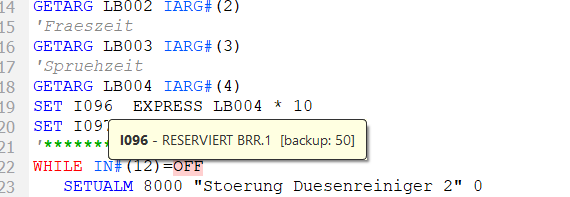
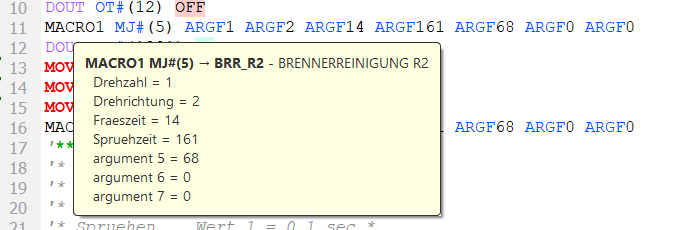
Global variable with its name and backup value; macro call with the macro job and its arguments.
The same names are shown in the long-text column on the right side of the viewer.
Go to (context menu, or Ctrl+click) opens the called job - for a macro the
macro job from MACRO.DAT. While Ctrl is held, a job name that exists in the backup
(CALL JOB:CELL, JUMP JOB:..., MACRO1 MJ#(5))
or a label of a JUMP is underlined under the mouse and the cursor becomes a hand, as with a link.
Labels: go to, references
- Ctrl+click on the label of JUMP *START (or JUMP *OK-1 IF ...) moves the cursor to the label line *START,
- the context menu of a JUMP line has Go to label *START (line n),
- the context menu of a JUMP line or of the label line has References of *START (n) - a submenu with the label line and every JUMP to the label; clicking an entry moves the cursor there.
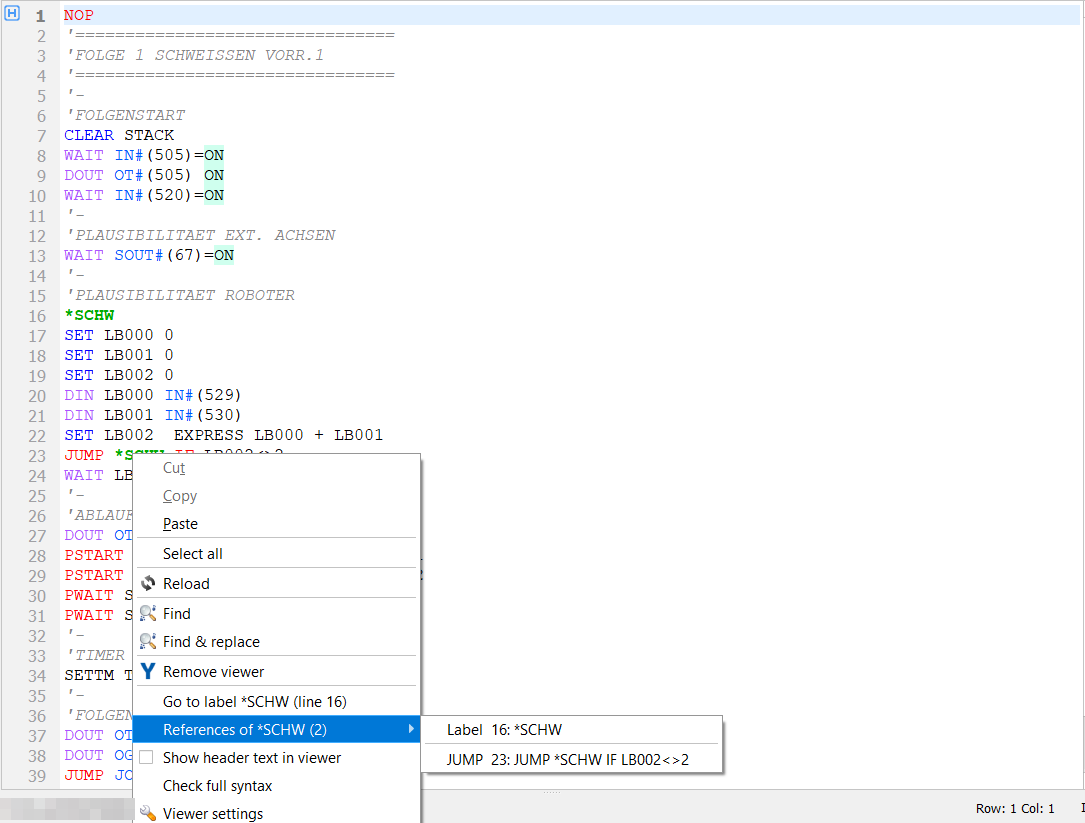
Context menu of JUMP *SCHW IF LB002<>2: go to the label, references of the label.
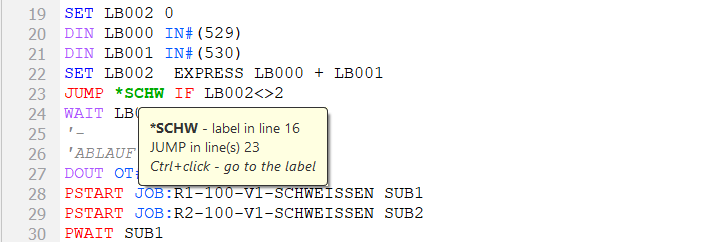
Tooltip of a label in a JUMP.
Labels are compared without case. JUMP JOB:... is a jump to a job
(Go to opens it); JUMP LABEL: S000 and JUMP B000 take the label
from a variable. The syntax check tests the labels as well.
Blocks: IFTHEN / ENDIF, WHILE / ENDWHILE ...
The instructions that open, divide and close a block belong together:| Block | Opening | Middle | Closing |
| IF | IFTHEN, IFTHENEXP | ELSEIF, ELSEIFEXP, ELSE | ENDIF |
| WHILE | WHILE, WHILEEXP | ENDWHILE | |
| SWITCH | SWITCH | CASE, DEFAULT | ENDSWITCH |
| FOR | FOR | NEXT |
- with the text cursor on such a keyword all parts of its block are highlighted (like matching brackets): the keywords of the opening, middle and closing lines get a bold text on an orange background, e.g. IFTHEN, ELSE and ENDIF of one block. Nested blocks of the same kind are matched level by level, so the inner ENDIF never pairs with the outer IFTHEN. The status bar shows the block (ENDIF - block of line 66 IFTHEN LB001<>2, 70: ELSE),
- Ctrl+click goes to the other end of the block (IFTHEN → ENDIF, ENDIF → IFTHEN), from a middle line (ELSE, CASE) to the next part,
- the tooltip of a keyword shows the other parts of the block with their line numbers; on ENDIF, ELSE, ENDWHILE ... the condition of the opening line (e.g. IFTHEN LB001<>2) comes first.
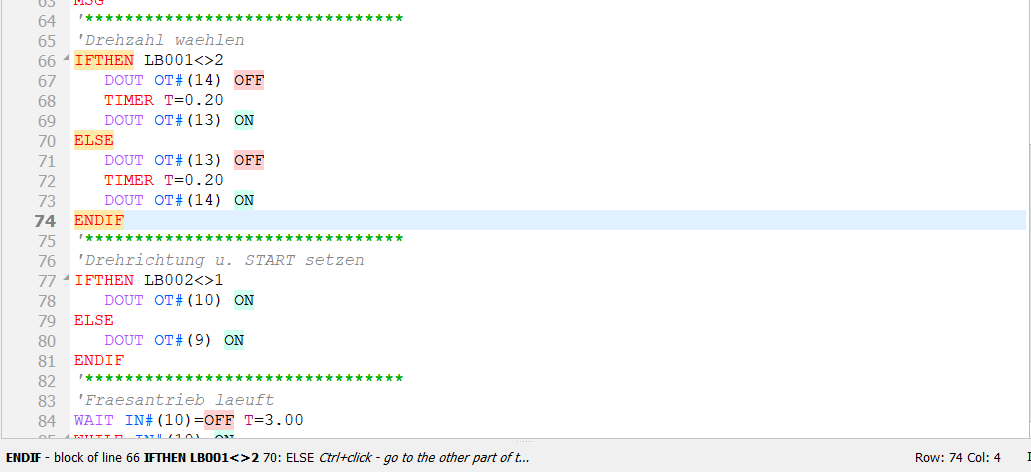
Cursor on ENDIF (line 74): IFTHEN, ELSE and ENDIF of the block are highlighted, the status bar names the block.
A block with a closing line can be collapsed: the opening line (IFTHEN, WHILE, SWITCH, FOR) has a triangle at
the right edge of the line number area. A click on it hides the lines of the block - the opening and the closing line
(ENDIF, ENDWHILE ...) stay visible - a second click shows them
again; Ctrl+click on a triangle collapses / expands all blocks. Nested blocks that were collapsed stay
collapsed when the outer block is expanded. Go to or Ctrl+click to a hidden line expands the blocks
above it, and a block whose closing line is removed or which gets a new line is expanded automatically. The line
numbers stay the numbers of the lines of the job.
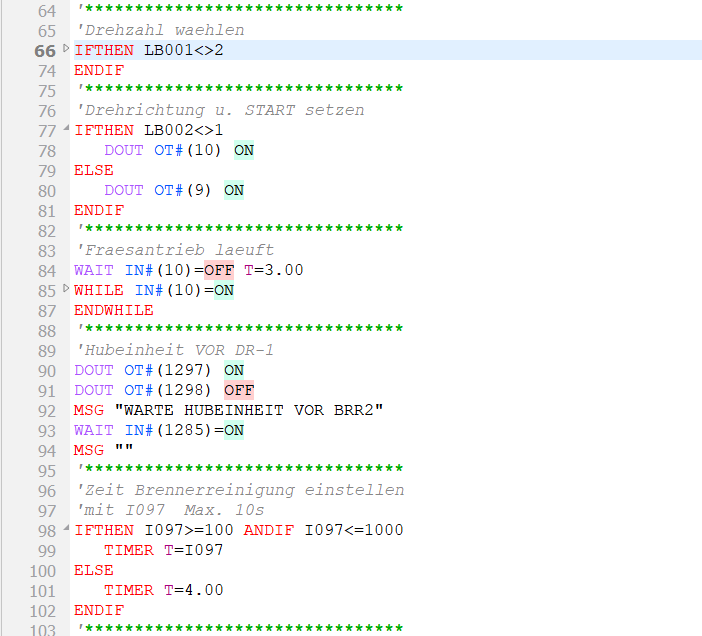
IFTHEN of line 66 and WHILE of line 85 collapsed (triangle pointing right) - ENDIF / ENDWHILE stay visible; the IFTHEN of line 77 is expanded.
Blocks that are not closed or have no opening line are reported by the syntax check.
Double-click and context menu
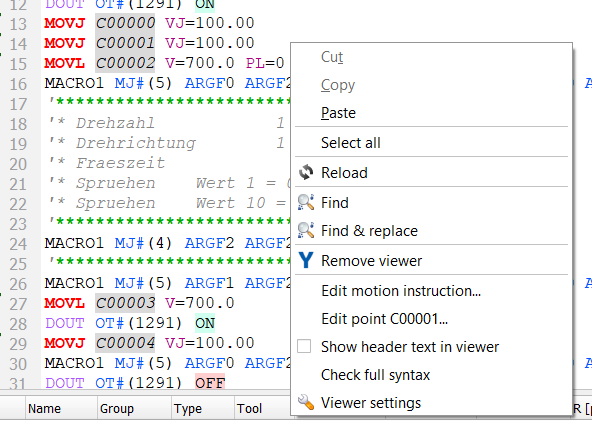
- double-click on the instruction of a motion line (MOVJ, MOVL ...) opens the motion instruction editor,
- double-click on a point name (C00012, P003 ...) opens the point editor of this point.
Yaskawa menu
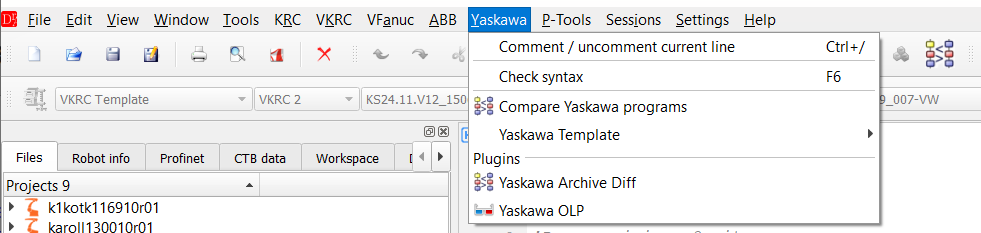
- Comment / uncomment selected text Ctrl+/,
- Check syntax F6 - full check of the job, see Syntax check,
- Commands - templates of INFORM instructions in submenus Motion (MOVJ, MOVL, MOVC, MOVS, SMOVL, SMOVC, with VJ / V / PL and the coordinated +MOVJ EC), I/O (DOUT, DIN, PULSE, AOUT, WAIT), Flow (JUMP, label, CALL with ARGF, RET, IFTHEN, IFTHENEXP, WHILE, FOR, SWITCH), Timer / Counter (TIMER, TSYNC, SETTM, PSTART, PWAIT), Variables (SET, ADD, SUB, MUL, DIV, INC, DEC, CLEAR, GETARG, EXPRESS), Paint (SPYON, SPYOF, PAINTSET, PAINTEND, MACRO1, SETREG, EDTLCK) and Comment. The template is inserted after the current line between NOP and END (with the indentation of that line) and the first field (for example the point name or the signal number) is selected, so it can be overwritten at once. A tooltip describes every entry; all templates are accepted by the syntax check. A point used by a motion template has to be declared in //POS (point editor),
- Yaskawa Template - inserts a template of an instruction (file yaskawa.template.xml).
▲ Point table
Under the viewer the point table lists all points of the //POS section of the job.
| Column | Meaning |
| Name | C (robot), BC (base axis), EC (station), P / BP / EX (position variables) |
| Group | control group of the point taken from the instruction that uses it (///GROUP1 ... with +MOVJ parts) |
| Type | PULSE or RECTAN (BASE / ROBOT / USER / TOOL) |
| Tool | tool of the point (///TOOL) |
| S, L, U, R, B, T ... | values as in the file - pulses, or X, Y, Z, Rx, Ry, Rz for RECTAN |
- robot points, base / station points and the global position variables used by the job (from VAR.DAT, read only) are shown in separate tables,
- points not used by any instruction are grey and italic with a warning icon,
- values outside the soft limits of the controller have a red background, the tooltip says which limit,
- a value can be edited in place (double-click on the value) - the change goes directly into the header of the job,
- the points of the line with the text cursor are selected in the table; a double-click on the name of a point jumps to the first instruction that uses it.
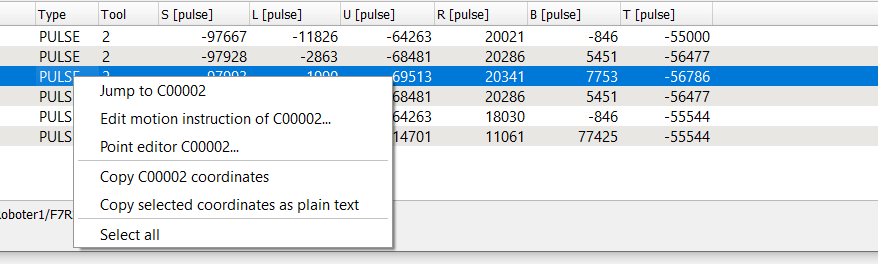
| Jump to C..... | first instruction that uses the point |
| Edit motion instruction of C..... | opens the motion instruction editor for that line |
| Point editor C..... | opens the point editor |
| Copy C..... coordinates | copies C00002=-97993,1990,... to the clipboard |
| Assign coordinates | assigns the coordinates copied before to the selected point |
| Copy selected coordinates as plain text | table of the selected points (e.g. for Excel) |
| Set equal <axis> value for selected points | one value of the column for all selected points |
| Axis difference [pulse] | differences of two selected points axis by axis |
| Cartesian distance | distance of two RECTAN points (same frame and tool) |
| Select all |
▲ Motion instruction editor
A double-click on the instruction of a motion line opens the editor of this line.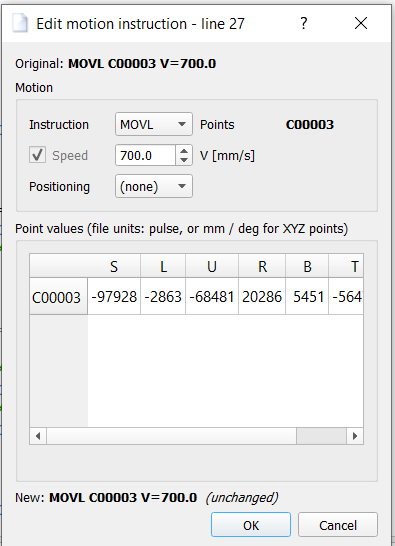
- Instruction - MOVJ, MOVL, MOVC, MOVS, SMOVC, SMOVL. When the motion changes between joint and linear, the speed changes between VJ [%] and V [mm/s] and the editor warns that the path of the robot changes,
- Speed - VJ, V, VR or VE, or no speed (the speed of the previous line),
- Positioning - PL 0..8 or none,
- Additional motion - the station part of the line (+MOVJ EC00012 VJ=...) with its own speed,
- Point values - values of all points of the line; values outside the soft limits are marked red,
- the line New: shows the result before OK. Everything else of the line (other tags, comment, white spaces) stays unchanged; the change can be undone with Ctrl+Z.
▲ Syntax check
Every line of the job is checked with the INFORM parser (ANTLR4) built according to the official documentation DX200 Options - Instructions for INFORM language (part number 165301-1CD), and the points are checked against the //POS section:- syntax errors of instructions and header lines,
- points used by an instruction but not declared in //POS,
- points declared in //POS but not used by any instruction,
- labels: JUMP *LABEL to a label that is not defined in the job and a label defined more than once (errors), a label not used by any JUMP (warning - not reported when the job contains JUMP LABEL: / JUMP B000, which can jump to any label),
- blocks (errors): IFTHEN without ENDIF, ENDIF / ELSE without IFTHEN, the same for WHILE / ENDWHILE, SWITCH / CASE / ENDSWITCH, FOR / NEXT, and blocks crossing each other (IFTHEN ... WHILE ... ENDIF),
- missing /JOB, NOP, END, lines after END,
- values of parameters outside their allowed range - the ranges are defined in the Yaskawa parser limits file (template/yaskawa.limits.ini) and can be adapted:
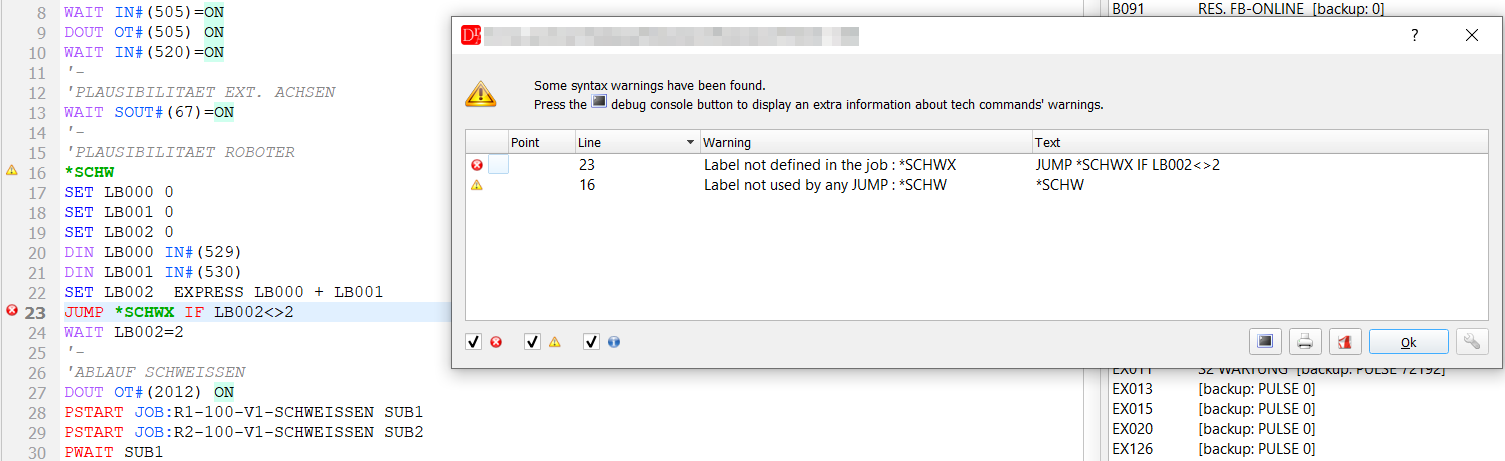
JUMP *SCHWX to a label that does not exist (error) - the label *SCHW is then not used (warning).
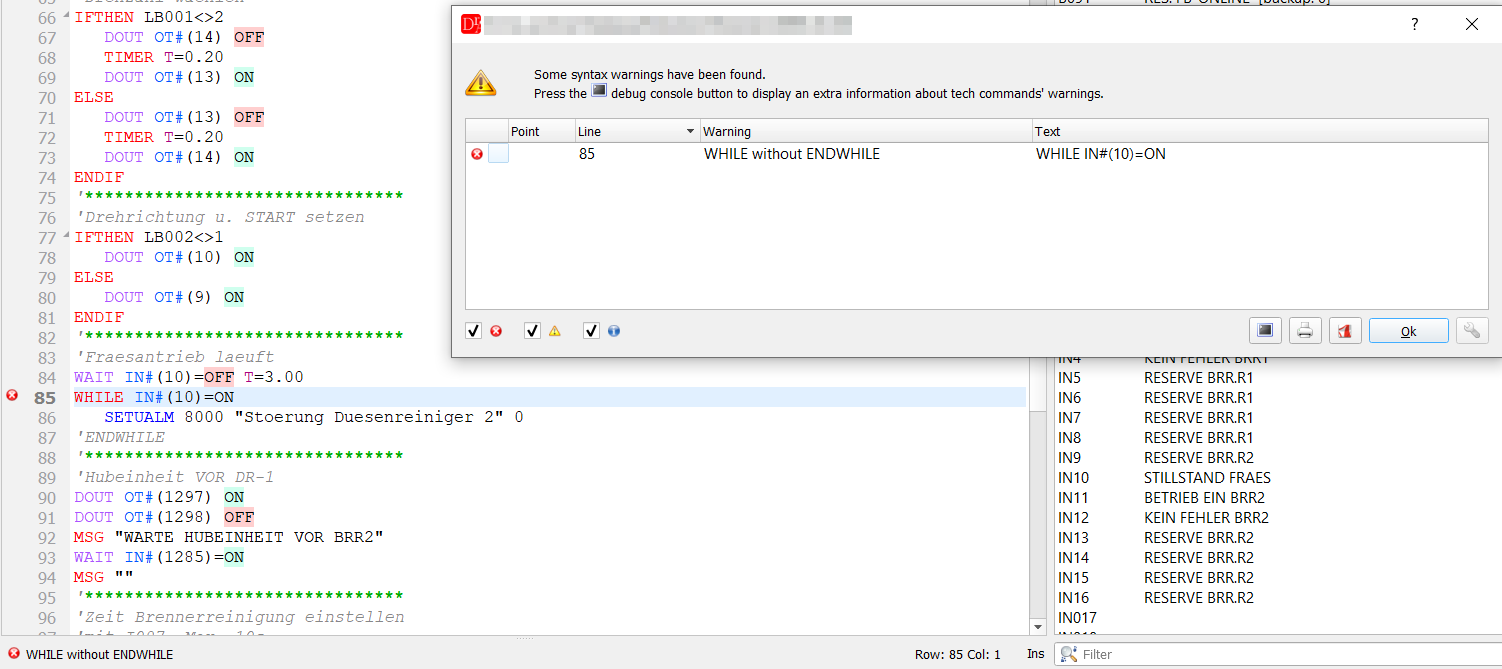
ENDWHILE commented out: the WHILE of line 85 is reported as "WHILE without ENDWHILE" and loses its fold triangle.
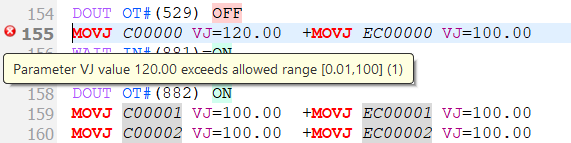
VJ=120.00 exceeds the allowed range 0.01 .. 100.
The result is shown by markers in the margin of the line numbers (tooltip with the message)
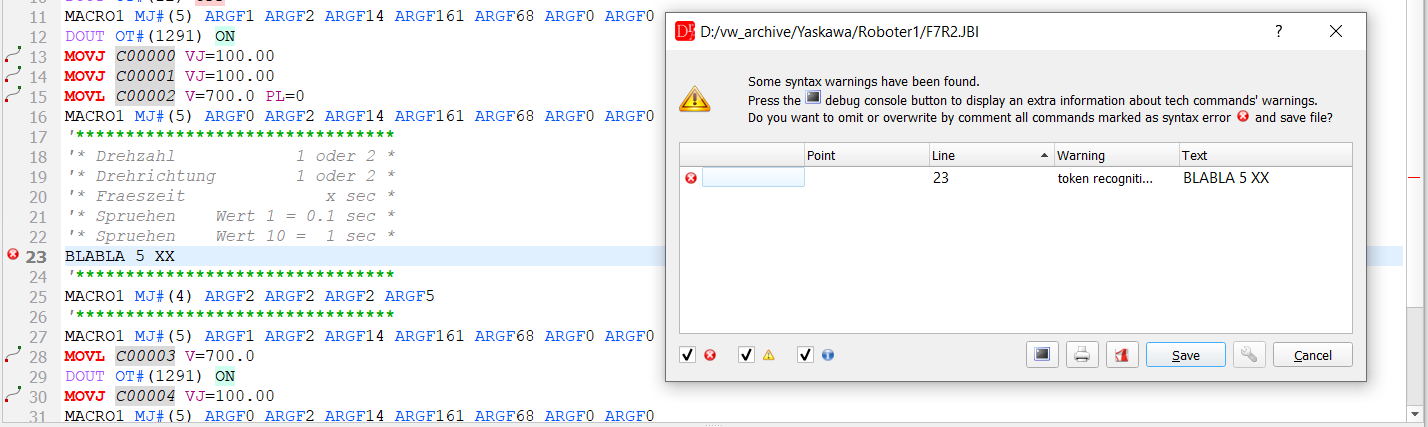
and, for a full check, in the list of messages:
| When | Setting | Default |
| on demand - Check syntax F6, context menu Check full syntax | - | |
| when a job is opened | Check programm syntax on load | off |
| before a job is saved | Check programm syntax on file save | on |
| while typing (after a short pause), markers only, no dialog | Check programm syntax on flow during editing | off |
▲ Saving a job
Ctrl+S writes the job in the format of the controller:- the header is rebuilt from the points (///NPOS, the counts of the local variables), ///DATE is set to the current date, ///COMM takes the comment of the document,
- indentation and empty lines inside the program are kept - an unchanged job is saved identical to the original except the date,
- with Check programm syntax on file save the job is checked first; if there are errors or warnings they are listed and the job can still be saved or the saving cancelled:
- a backup copy of the original file is made when enabled in the general settings of the editor,
- after saving, the PowerShell callback script can be run (settings).